

Group Management Improvements
PACKTRACK Team
08 November 2023
0
min read
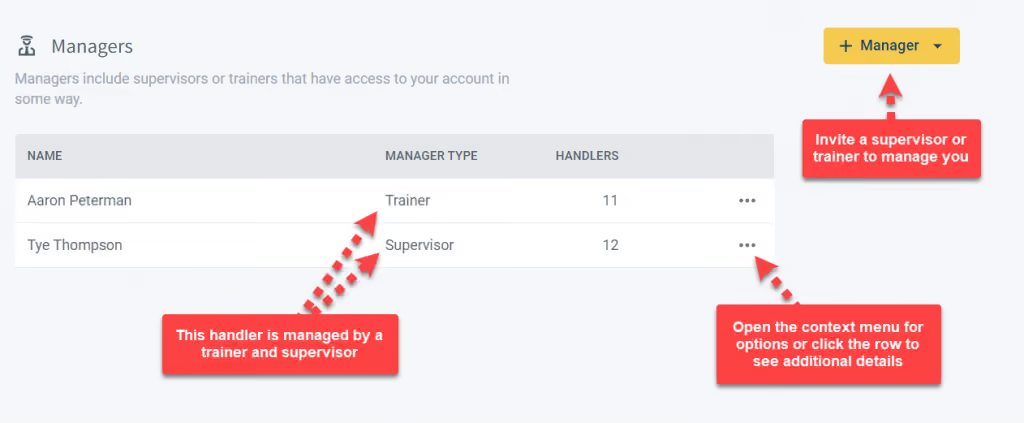
We've been incrementally upgrading PACKTRACK with a more modern look for a while now. One of the last few remaining areas is group management functionality. In this release we not only updated the design, we also took the opportunity to improve how training and management groups work.
The Groups Page
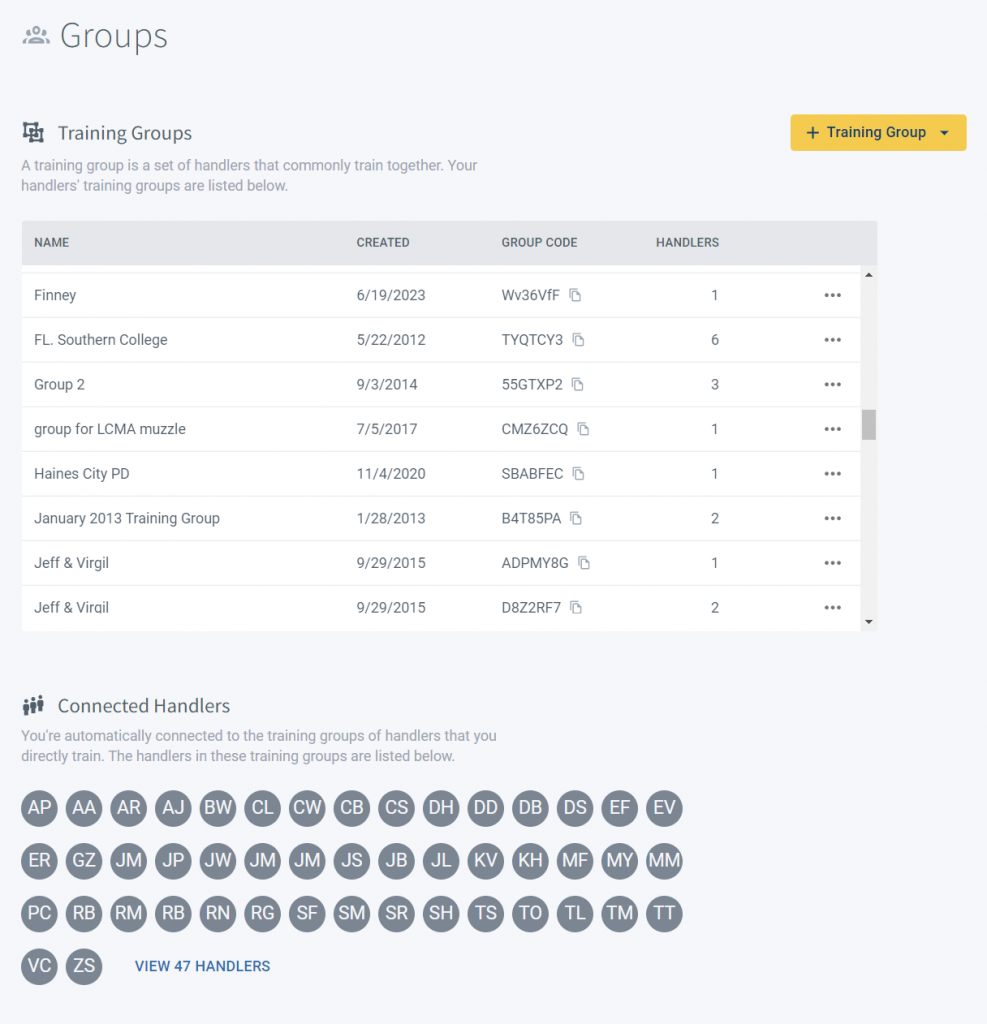
A K9 handler joins a management group so that trainers and supervisors can oversee their records. Handlers can also join training groups. A training group is a collection of handlers that commonly train together. The Groups page provides a convenient, unified place for configuring management and training groups. We've made an important change to make it easier to work with people you know. Once you're connected to another handler, either because you have the same manager or because you share a training group, you no longer need to send them invites when they're added to new training groups. When you add them they will automatically become members. This new design assumes there's a degree of trust between handlers that are already connected in some way. This is the new Groups page for managing your connections. Let's review each of the numbered sections.
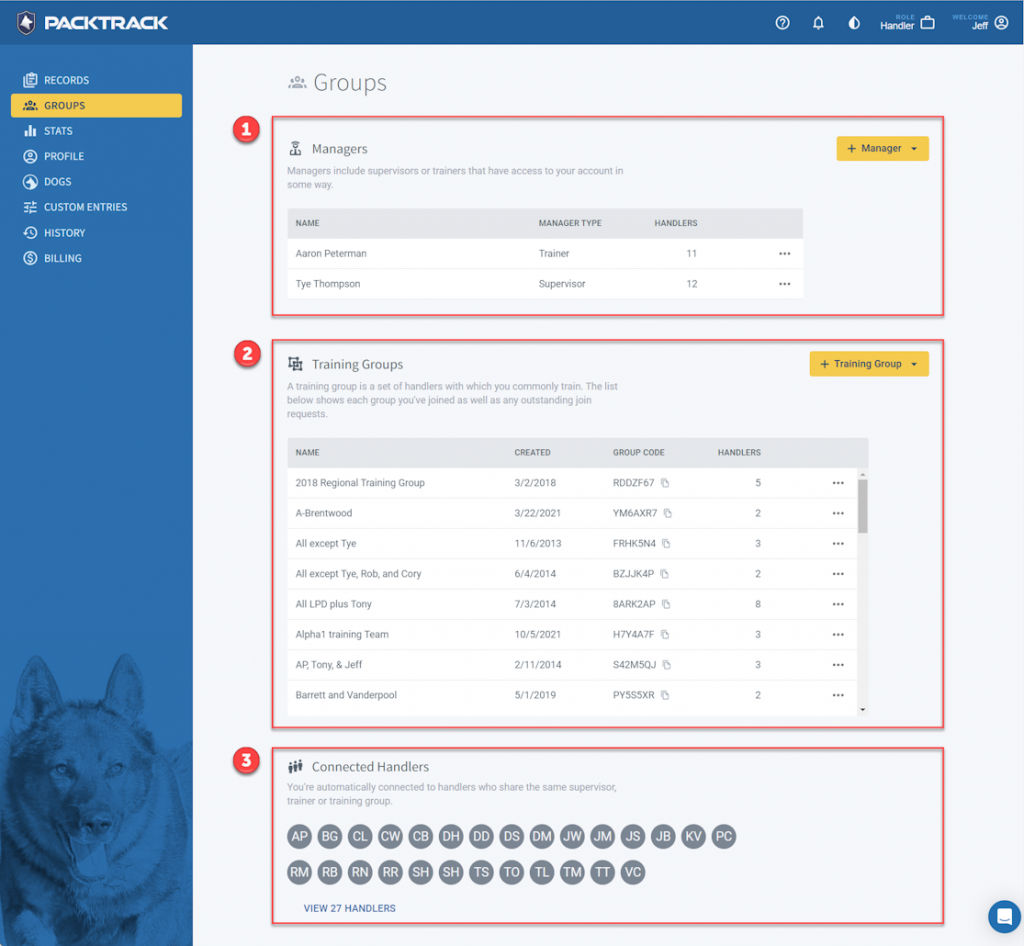
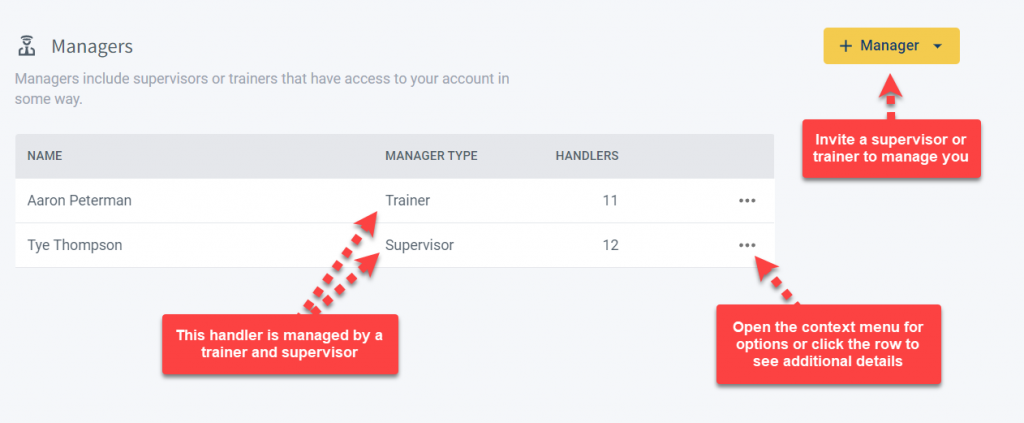
1. Managers
The top of the page starts with a Managers section. In PACKTRACK, managers include supervisors and trainers that give oversight to a group of handlers. Trainers can create events and exercises for handlers and add training notes to individual training records. Supervisors have the option to approve or reject exercise and deployment records and administer certain handler account options (such as billing). The Managers table shows each trainer and supervisor who has access to your account. Outstanding invites are also shown. Click a row to see additional details about the managed group. Use the + Manager button to invite new trainers and supervisors to oversee your records.
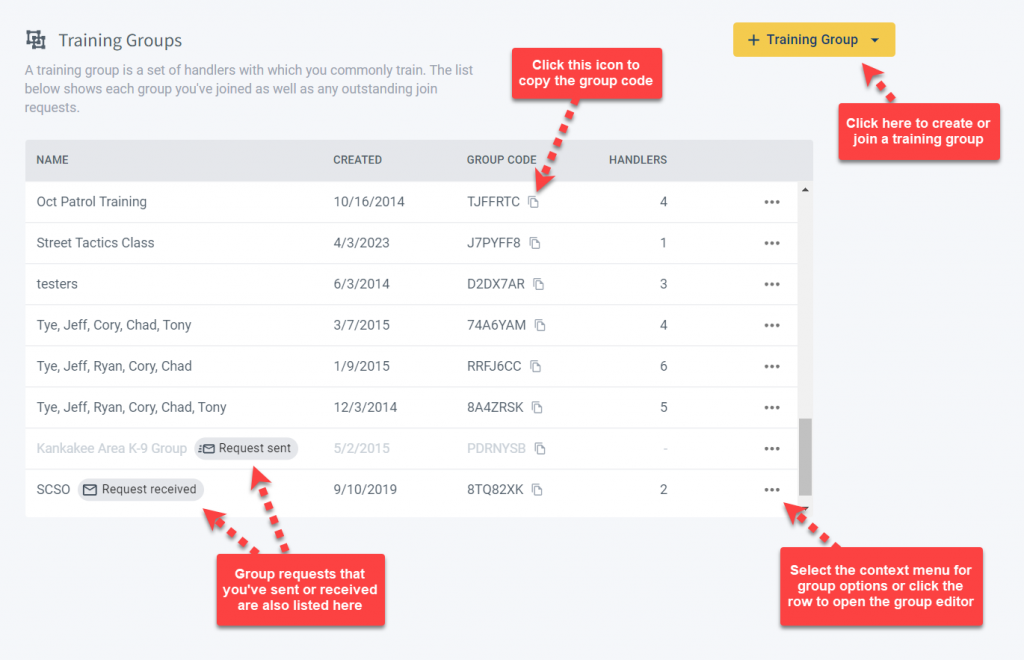
2. Training Groups
PACKTRACK uses named Training Groups to identify sets of handlers who often train together. A table on the Groups page lists the training groups that you've joined as well as any outstanding invitations. Click a row to see additional training group details or to update the group settings. Use the + Training Group button to create a new group or, if you know the code, to request access to a group.
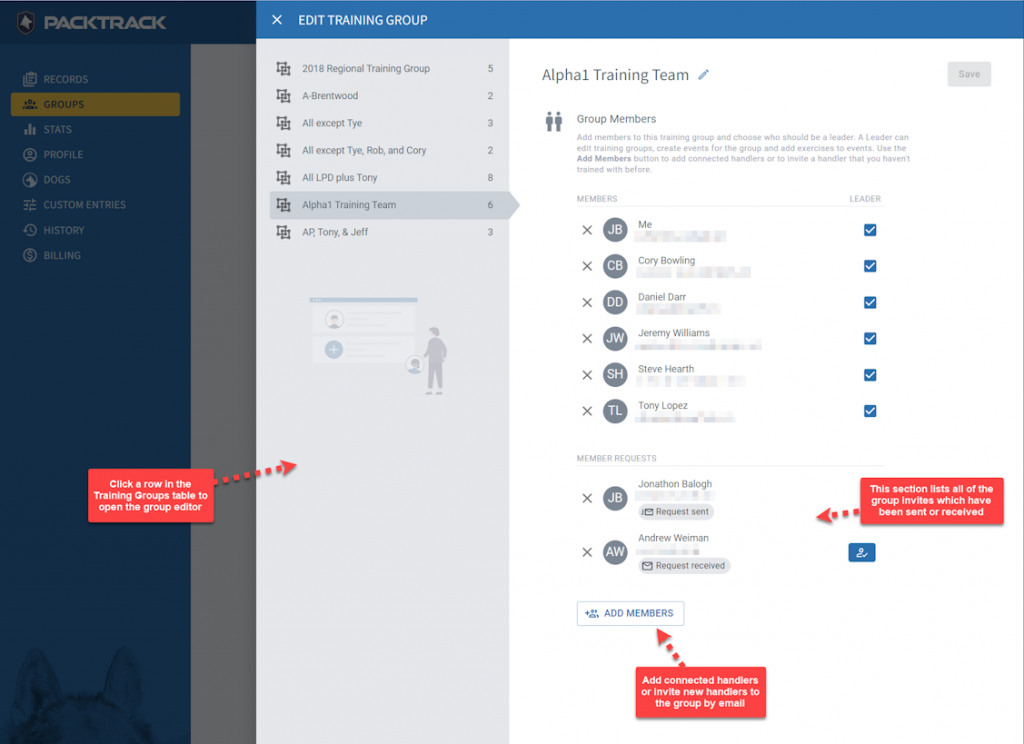
Creating and editing training groups is easy. Click on a training group to open the editor. Use the Add Members dropdown to select any of your existing connected handlers or use the "INVITE A NEW GROUP MEMBER" option to invite a handler using their email address. When they accept the invite they'll join your group and appear in your list of connected handlers. Note that you can only edit a training group if you're configured as a group leader.
3. Connected Handlers
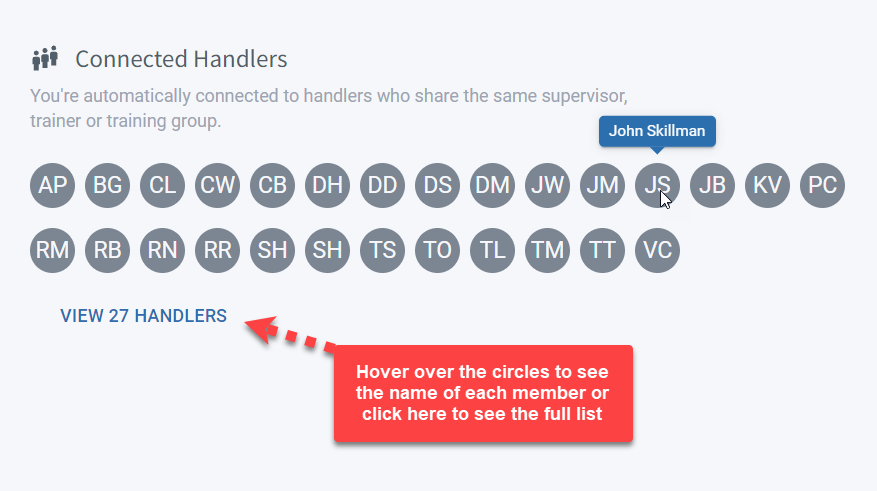
At the bottom of the Groups page you'll see a list of the handlers with which you're connected. This is similar to a "friends" list. The names are selected based on the groups you've joined in the Managers and Training Groups tables. You're automatically connected to handlers who share the same supervisor, trainer or training group. Click the VIEW link to see the full list of your handler connections.
Trainers
Trainers invite handlers to be managed using the Manage page. When a trainer manages a handler they're able to see all of the handler's training groups. Trainers can also create named training groups for handlers. The trainer's list of connected handlers includes the members of each training group for which the trainer has access.
Mobile
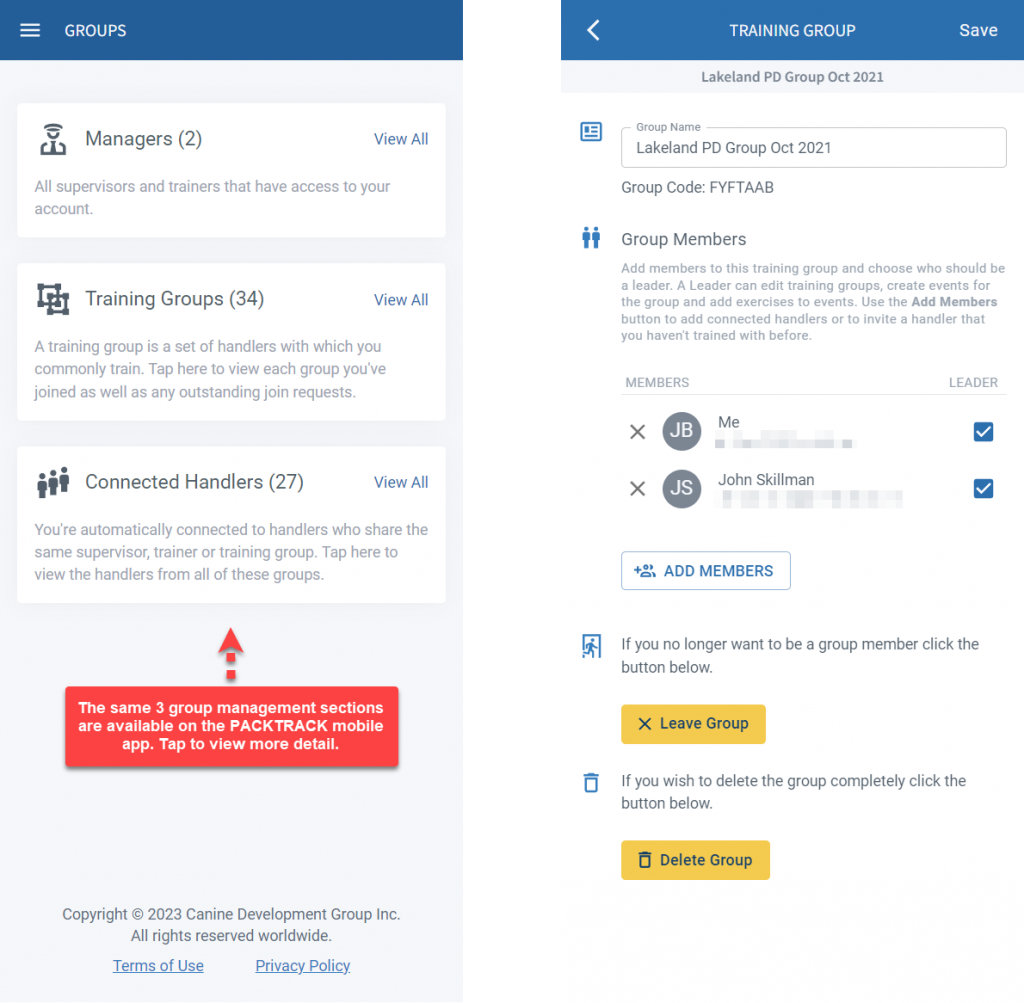
The Groups page works similarly in the PACKTRACK mobile app. The interface is a little different but all of the same functionality is available.
This was a big update! We hope it makes group management in PACKTRACK just a little bit easier. Have comments or suggestions about this or any other feature in PACKTRACK? We'd love to hear your thoughts.
PACKTRACK Team
08 November 2023
0
min read
Stay up to date
Get new PACKTRACK articles and occasional product updates.
You can unsubscribe anytime.

More articles from the PACKTRACK blog
System Update
0
min read
Updates to Streamline Your Records
We’re always working to make PACKTRACK faster and more user-friendly for handlers, trainers, and supervisors. Today, we’re excited to highlight several new improvements designed to save you time and improve communication across your team.
We’re always working to make PACKTRACK faster and more user-friendly for handlers, trainers, and supervisors. Today, we’re excited to highlight several new improvements designed to save you time and improve communication across your team.
Attach Documents to Events and Exercises
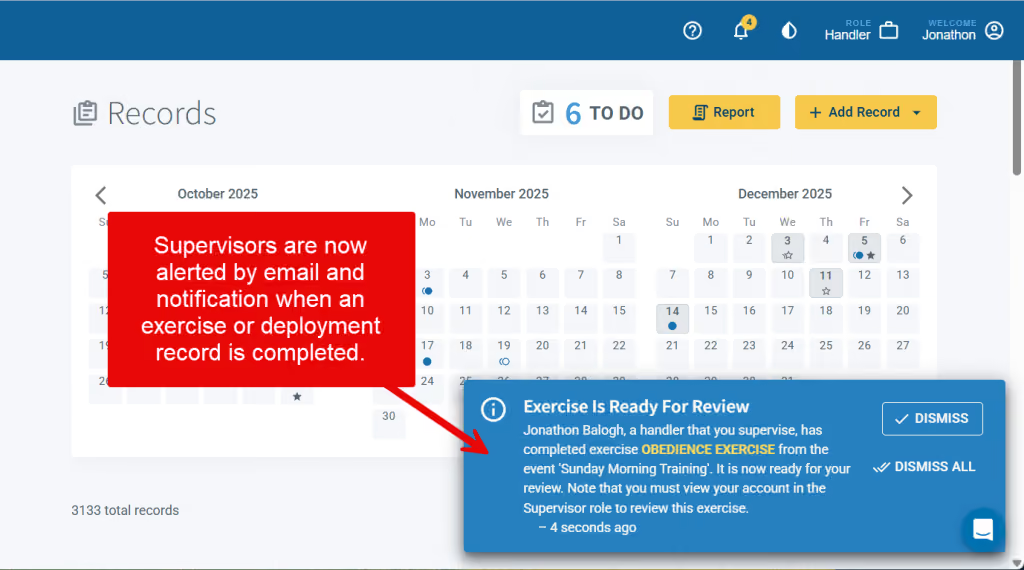
You’ve always been able to upload documents to individual exercise completions — but now you can include them directly in Events and Exercise definitions as well. This update gives handlers and trainers more flexibility to provide supplemental materials such as training outlines, reference documents, maps, diagrams, etc. Adding documents at the event or exercise level ensures everyone starts with the same information and supports more consistent, well-documented training.
Faster Data Entry with Autocomplete Locations
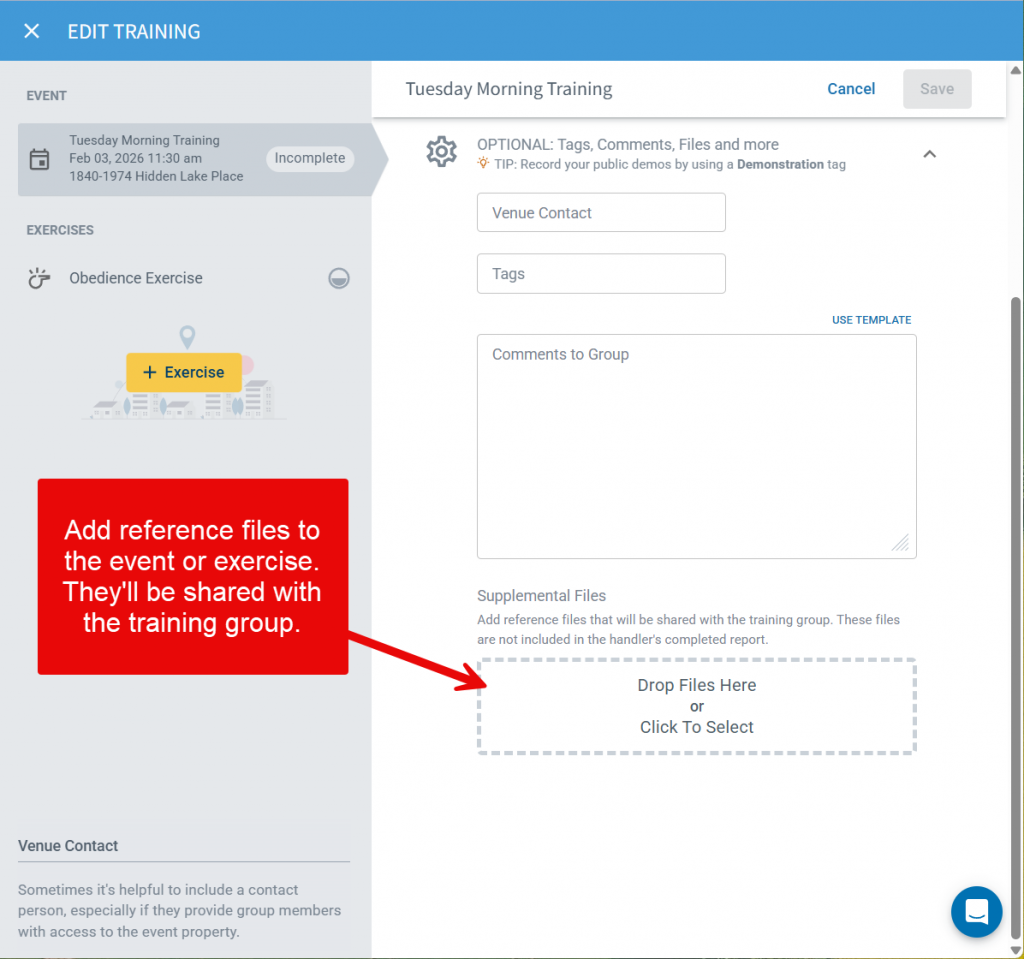
Recording where an event or deployment occurred is now even faster. PACKTRACK’s training and deployment forms now include Google-powered location autocomplete. Just start typing a name or address and nearby matching suggestions will appear. Select the correct option, and PACKTRACK will automatically fill in the relevant location fields for you. This means less typing, fewer mistakes and more accurate location data.
Supervisor Notifications for Completed Records
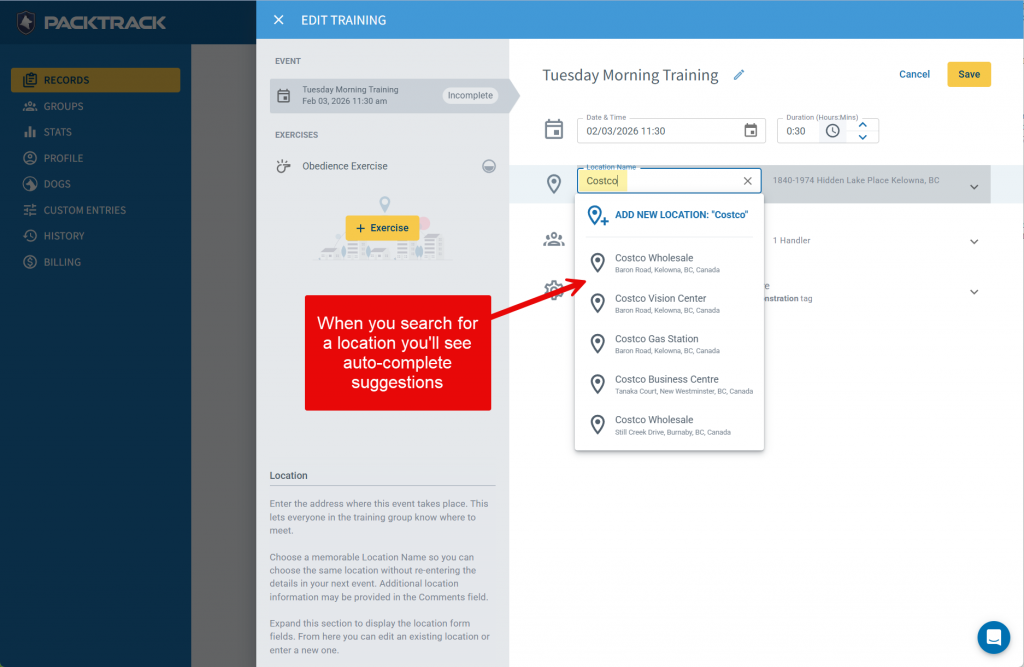
Supervisors can now choose to receive notifications whenever a handler they oversee completes a training or deployment record. This gives them a heads-up to review the new records. Notifications are sent by email as well as within PACKTRACK, keeping supervisors informed without requiring constant manual review. Supervisors can configure their preferences in the Notifications section of their Profile page, choosing whether to receive training record completion alerts, deployment record completion alerts or both. Note that these alerts are off by default. This feature enhances accountability and ensures important activity never gets overlooked.
Cleaner, More Modern Email Styling
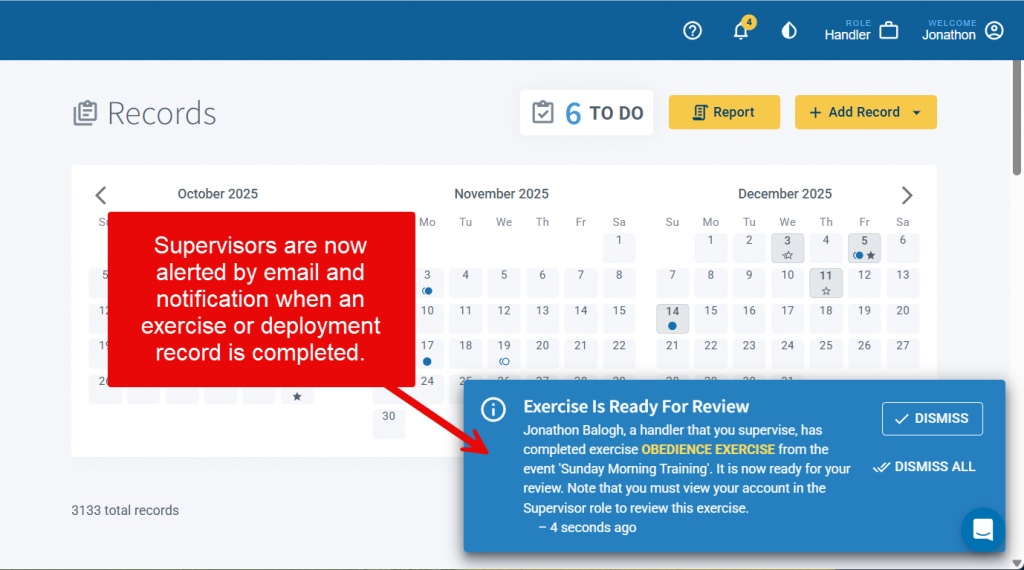
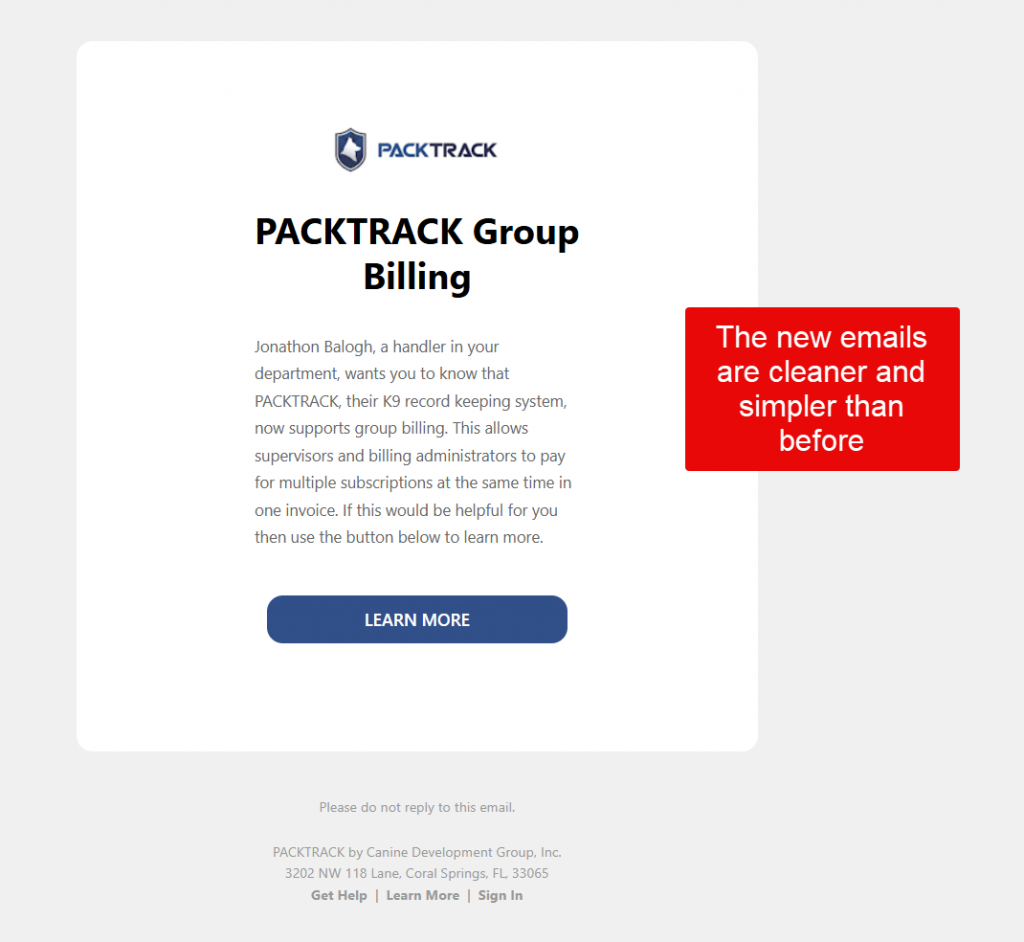
PACKTRACK emails just got a major upgrade. All system emails are now sent using clean, modern looking HTML formatting — with improved colors, visual hierarchy, and clear action buttons. These updates make PACKTRACK emails easier to read and quicker to act on, whether you're on your phone or desktop.
Share the News About Group Billing
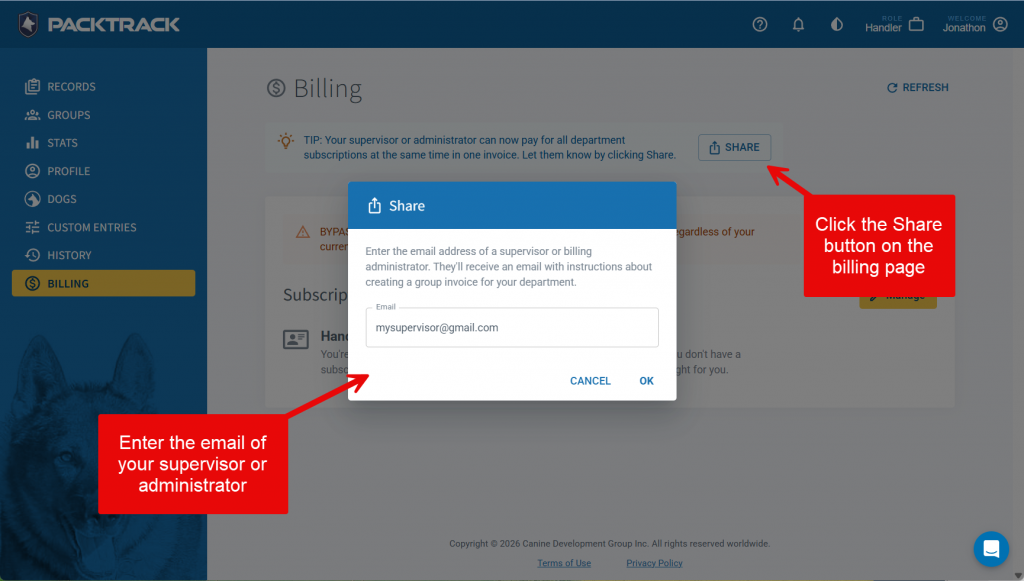
As of a couple months ago, your supervisor or administrator can use the new Group Billing feature to pay for all department subscriptions at the same time in one invoice. We now make it easy to share this feature with others. Visit your Billing page, click the Share button and then enter the email address of anyone in your department that should know about this. They'll get an email with a link to our Group Billing help article.
These features are part of our ongoing effort to make PACKTRACK the most intuitive K9 record-keeping platform available. As always, we welcome your feedback and look forward to sharing even more updates soon. If you haven’t explored these new features yet, log in and give them a try!
System Update
0
min read
Group Subscriptions
Managing multiple K9 handler subscriptions just got a whole lot easier. We’re excited to announce our newest feature - Group Subscriptions - designed to give department billing managers complete control over their team’s subscriptions, all under a single account.
Managing multiple K9 handler subscriptions just got a whole lot easier. We’re excited to announce our newest feature - Group Subscriptions - designed to give department billing managers complete control over their team’s subscriptions, all under a single account.
One Invoice, One Account, Total Control
With Group subscriptions, billing managers can now pay for and manage the subscriptions of multiple K9 handlers together. No more juggling individual invoices or tracking down renewals across separate accounts. Everything is streamlined into one centralized billing dashboard. Managing your team’s subscriptions is simple and flexible. First, invite the handlers in your department to join your group subscription. Next, purchase a license with the desired number of seats. That's it! If handlers join or leave the department, you can easily add, remove, or reassign seats at any time.
Why It Matters
For agencies with multiple K9 handlers, managing subscriptions individually can be time-consuming and confusing. Group subscriptions eliminates that friction, offering:
- Simplified billing – One invoice covers your entire team.
- Flexible management – Add or remove handlers as your team changes.
- Better oversight – Track your active users and seat usage in one place.
Step by Step Guide
Step 1: Get the Billing Manager role
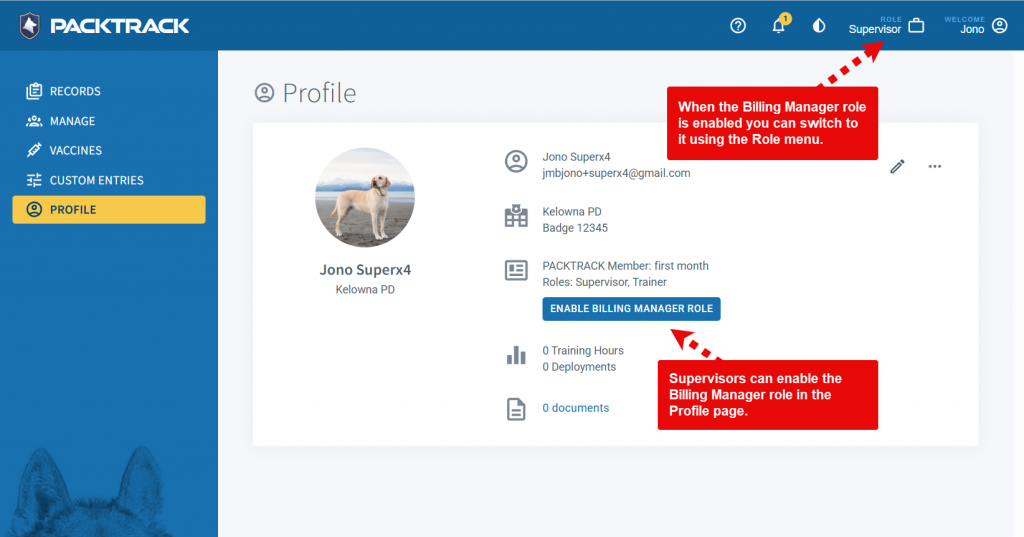
To access the group subscription feature you need to use the new Billing Manager role. A billing manager can be a handler, supervisor or administrator that's responsible for ensuring that everyone in the department has an up to date subscription. Only one person needs to do this for the department. You may select this role at
registration or, if you're currently a supervisor, then you can add the Billing Manager role from your Profile page. You may also ask for the role to be added to your account using our support chat.
Step 2: Choose handlers to be managed
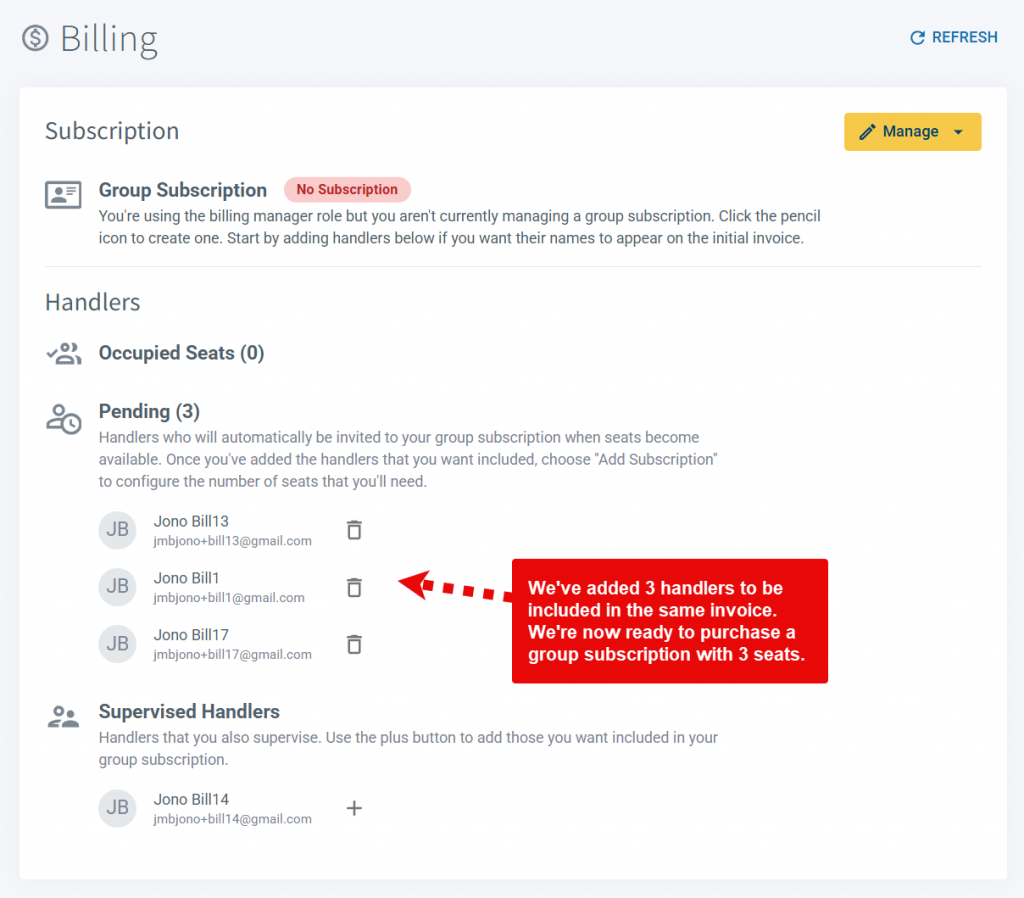
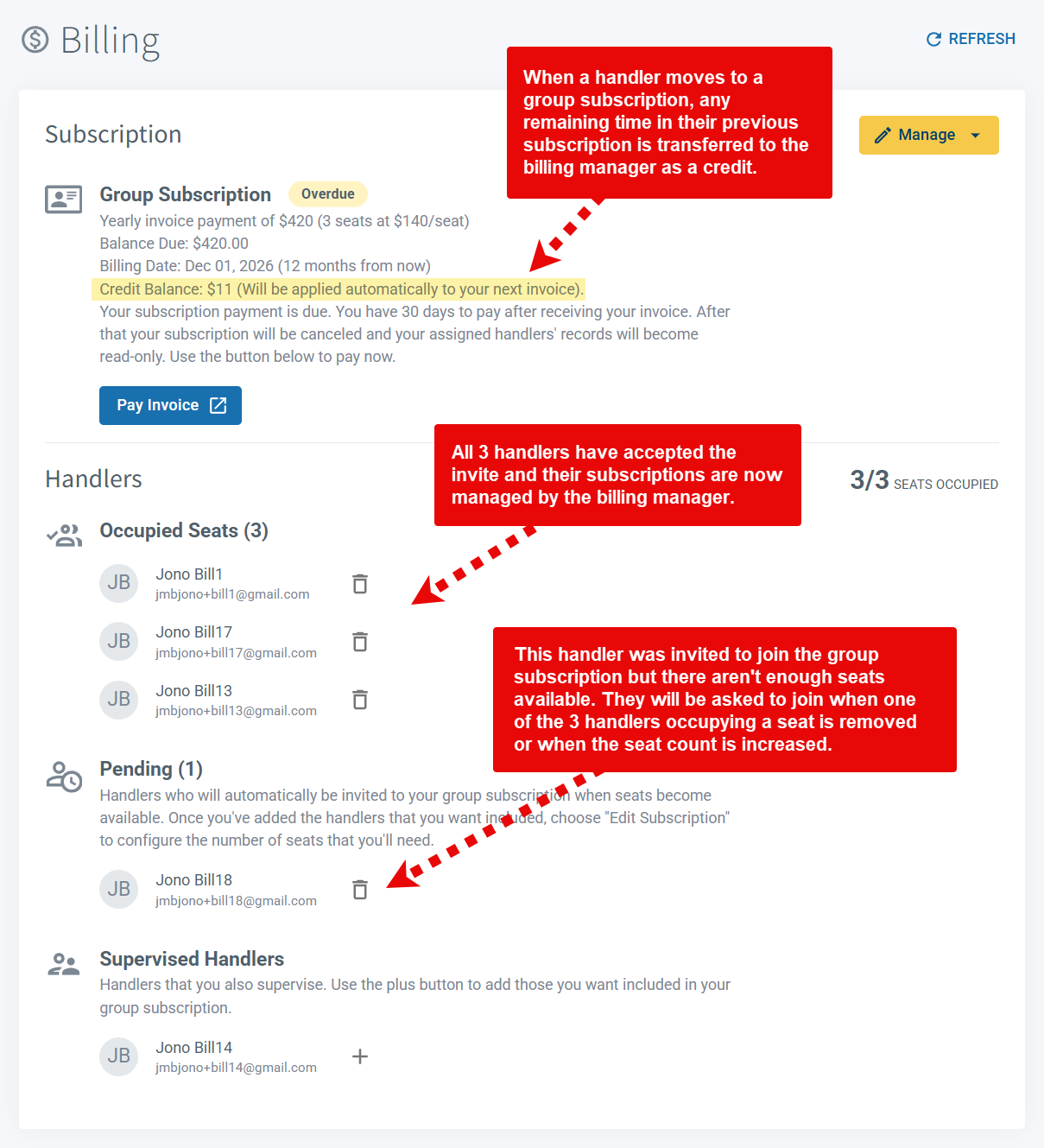
Switch to the Billing Manager role and choose the Billing tab. Here, you'll add the handlers that you want to include in your group subscription. Note that your invitations are queued in the Pending list and will be sent later. The goal is simply to identify the handlers that you want to be covered.
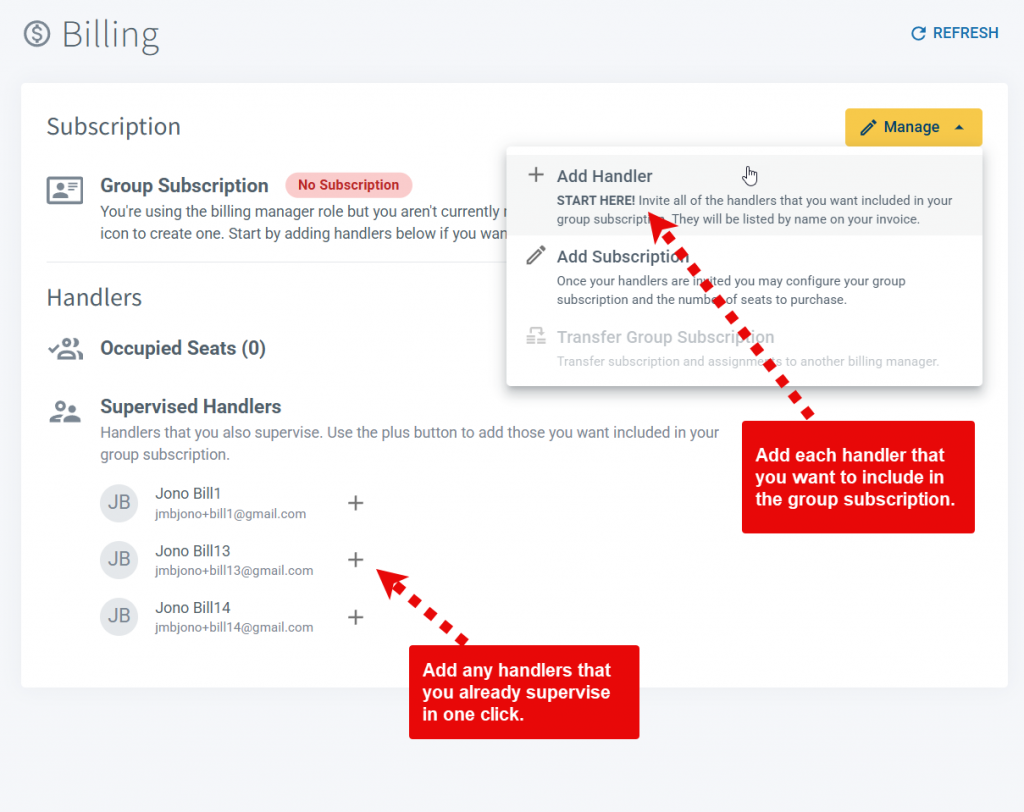
Use the Add Handler option in the Manage menu to provide the email address for each handler. If you already supervise handlers then they can be added by clicking the plus button next to their name in the Supervised Handlers list. If you add a handler that isn't a PACKTRACK member then they will receive an email asking them to sign up. This is a great way to onboard the handlers in your department with the PACKTRACK service. When they complete the registration they'll automatically be queued in the Pending list to be included in this group subscription.
Step 3: Purchase a group subscription
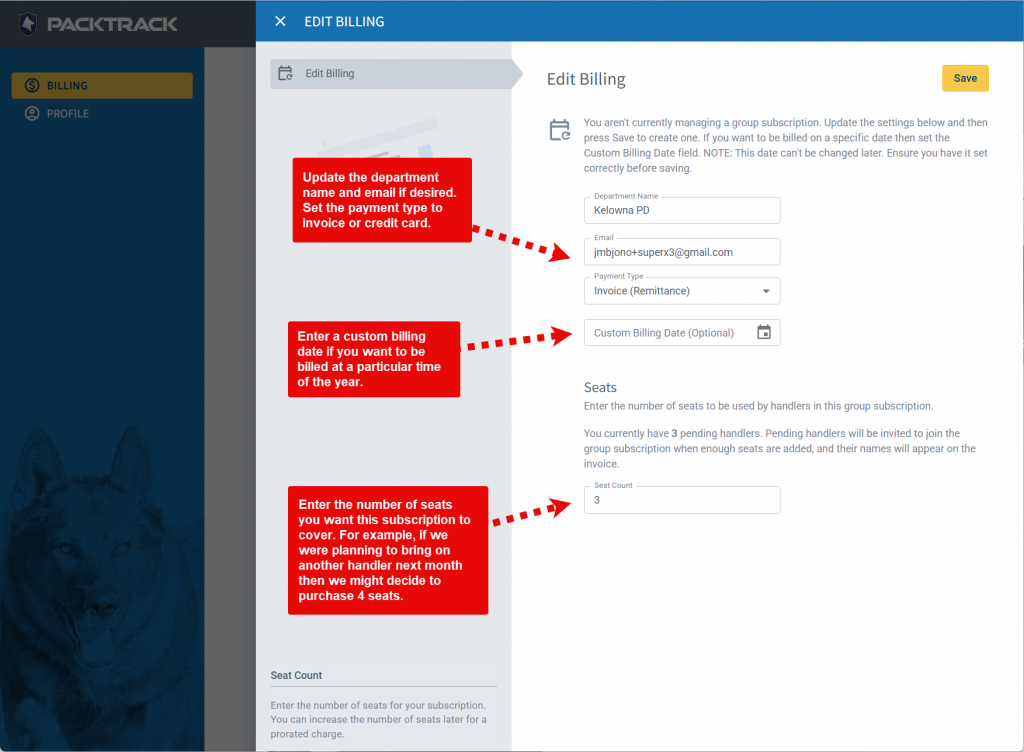
Now that you've identified the handlers that you want to include, you're ready to configure the group subscription. Click the Add Subscription option in the Manage drop down menu to open the billing editor. Adjust the department name and email address if desired, choose the desired payment type (invoice or credit card) and then enter the number of seats that you'd like to purchase. You also have the option of setting a specific billing date. If you want to be billed every year on January 1st then you'd enter that date here.
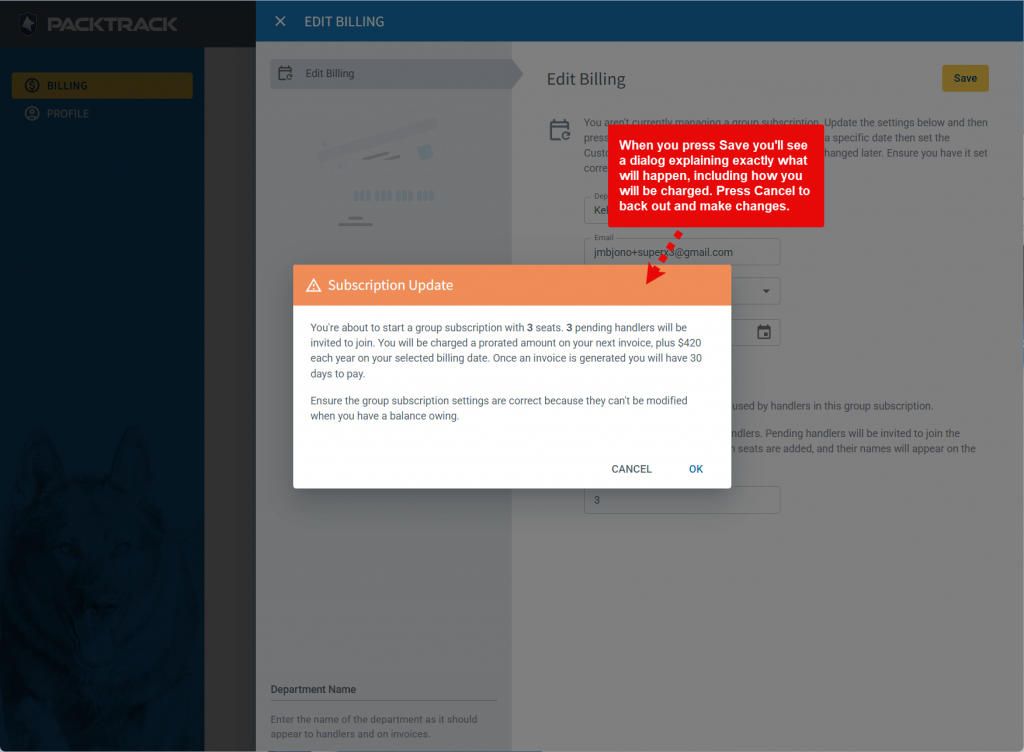
Once you purchase your subscription, the Billing page will update. Pending handlers will occupy the newly available seats and be invited to have their subscription paid for by the billing manager.
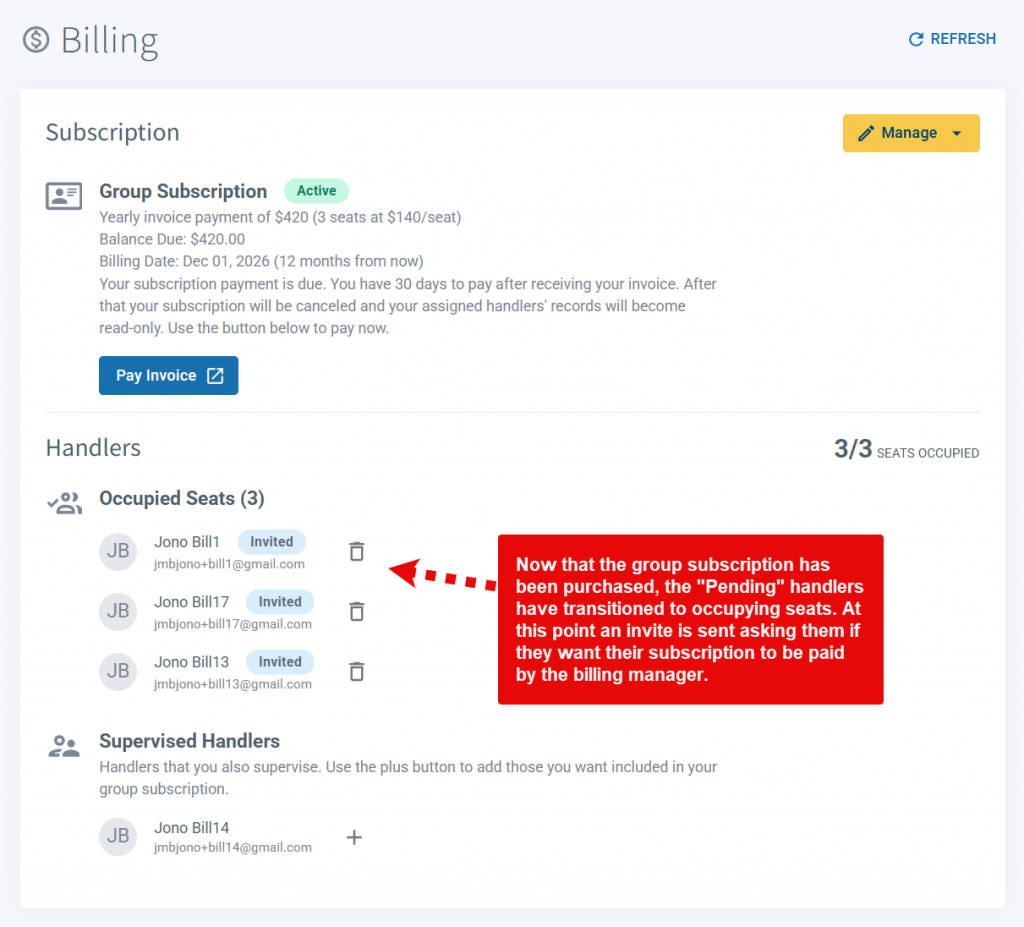
Handlers accept the invite and join the group subscription. Their previous subscription is cancelled. If there is paid time left on the handler's previous subscription then the unused portion will be credited to the billing manager's group subscription.
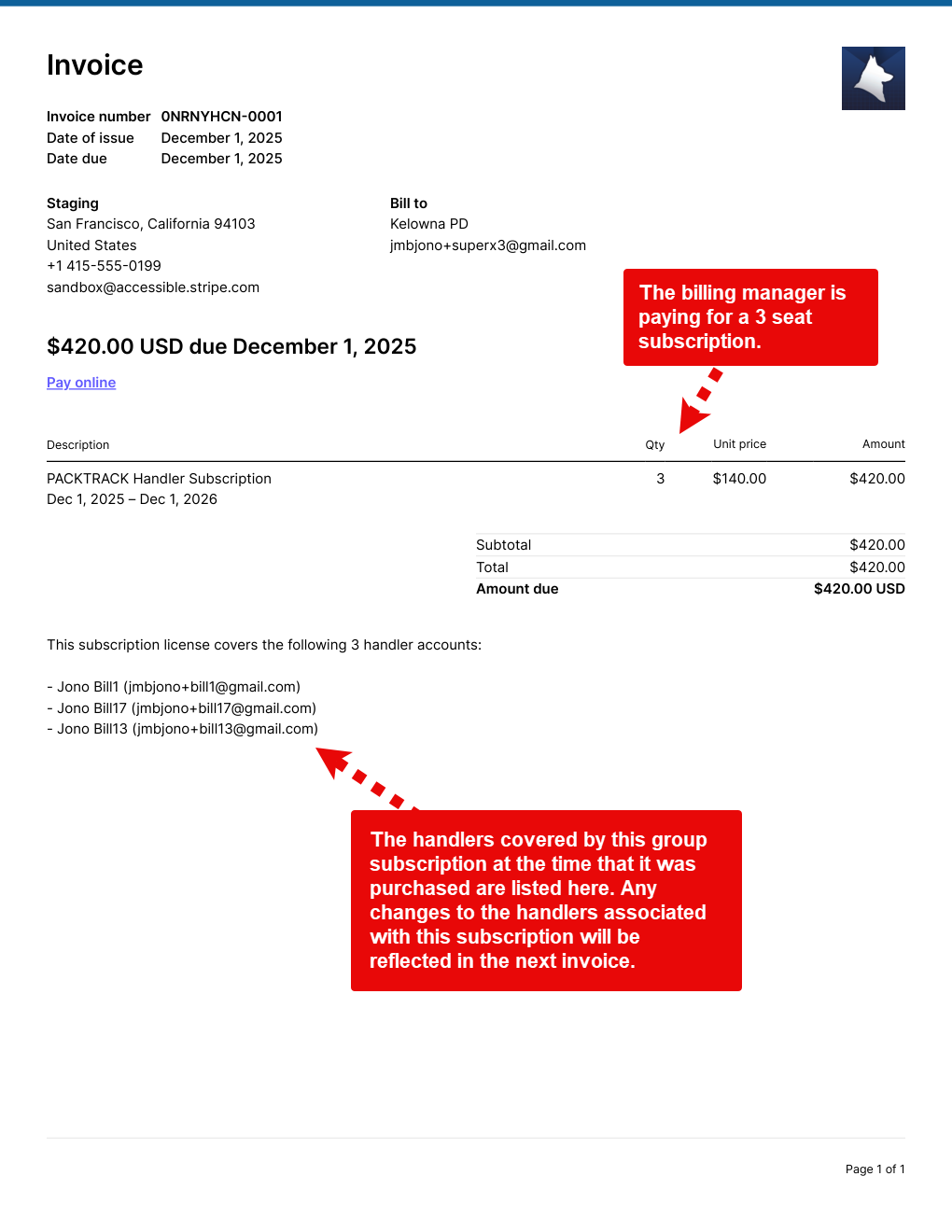
The billing manager receives an invoice based on the number of purchased seats. All handlers who occupy seats are listed on the invoice. This reflects the handlers assigned to this group subscription at the time that it was created. Future changes to the list of handlers will be shown on the invoice which is due at your next billing date.
Step 4: Make changes later
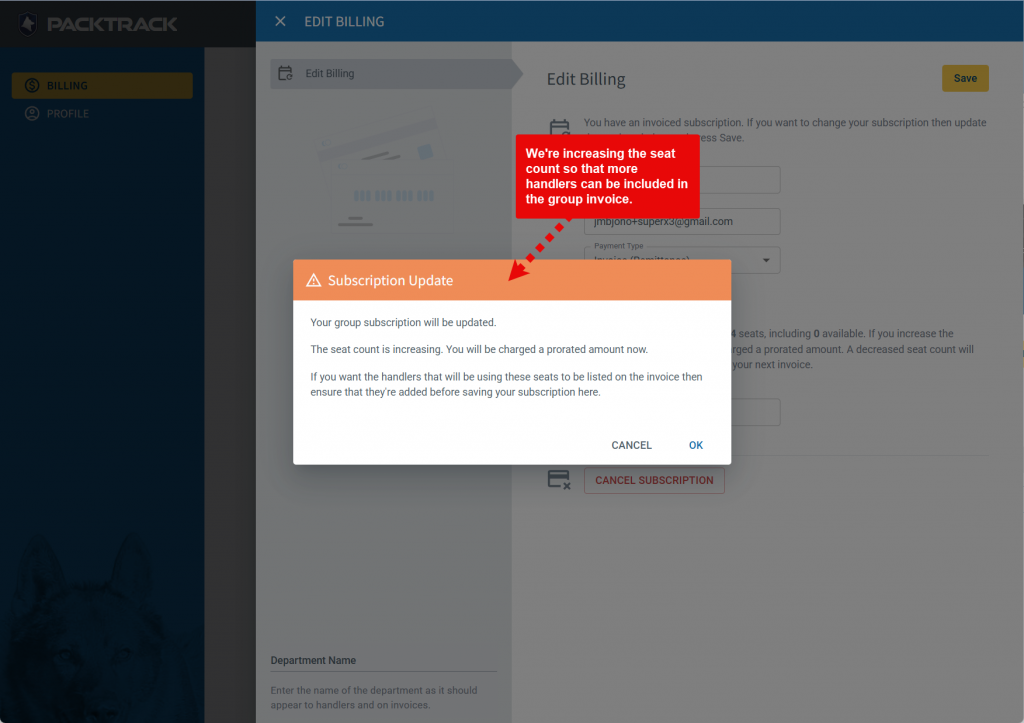
What happens if things change? Perhaps you need to swap out one handler for another or add/remove seats before the next billing date. You can remove assigned handlers using the trash can icon next to their names. Add new ones using the Add Handler option in the Manage drop down menu or select them from the Supervised Handlers list. If you need to adjust the seat count then use the Edit Subscription option in the Manage drop down menu and adjust the Seat Count field up or down. Increasing the count will result in a prorated charge based on the amount of time remaining in your subscription. Decreasing the count will lower the subscription cost shown on your next yearly invoice.
Group subscriptions are all about making life easier for K9 teams and their departments — freeing up more time for what really matters: supporting the dogs and handlers who keep our communities safe. We encourage departments of all sizes to use the group subscription feature to simplify billing. Consider forwarding this page to your department administrator to let them know about this feature. We're constantly updating and improving the PACKTRACK experience and we'd love to hear your feedback.
System Update
0
min read
Single Sign-On Is Here!
The new Sign in with Microsoft feature provides a simple and secure way to sign into PACKTRACK using your Microsoft work account. Note that this feature won't work if you try to sign in using a personal Microsoft account. Instead, select this login option if your department uses single sign-on (SSO) through Microsoft Entra ID (formerly Active Directory). Once configured, you'll be able to login to PACKTRACK using your department email address. This makes logging in easier but it also increases security. This feature works in both the web browser and in the PACKTRACK app (v5.2.0 or above). You must have an active PACKTRACK account. Note that if your department uses SAML technology for single sign-on then that isn't yet supported. Reach out to your IT department to confirm this feature is right for you. They can help you get set up.
The new Sign in with Microsoft feature provides a simple and secure way to sign into PACKTRACK using your Microsoft work account. Note that this feature won't work if you try to sign in using a personal Microsoft account. Instead, select this login option if your department uses single sign-on (SSO) through Microsoft Entra ID (formerly Active Directory). Once configured, you'll be able to login to PACKTRACK using your department email address. This makes logging in easier but it also increases security. This feature works in both the web browser and in the PACKTRACK app (v5.2.0 or above). You must have an active PACKTRACK account. Note that if your department uses SAML technology for single sign-on then that isn't yet supported. Reach out to your IT department to confirm this feature is right for you. They can help you get set up.
Connect Your Microsoft Account
1. Click the Sign in with Microsoft button.
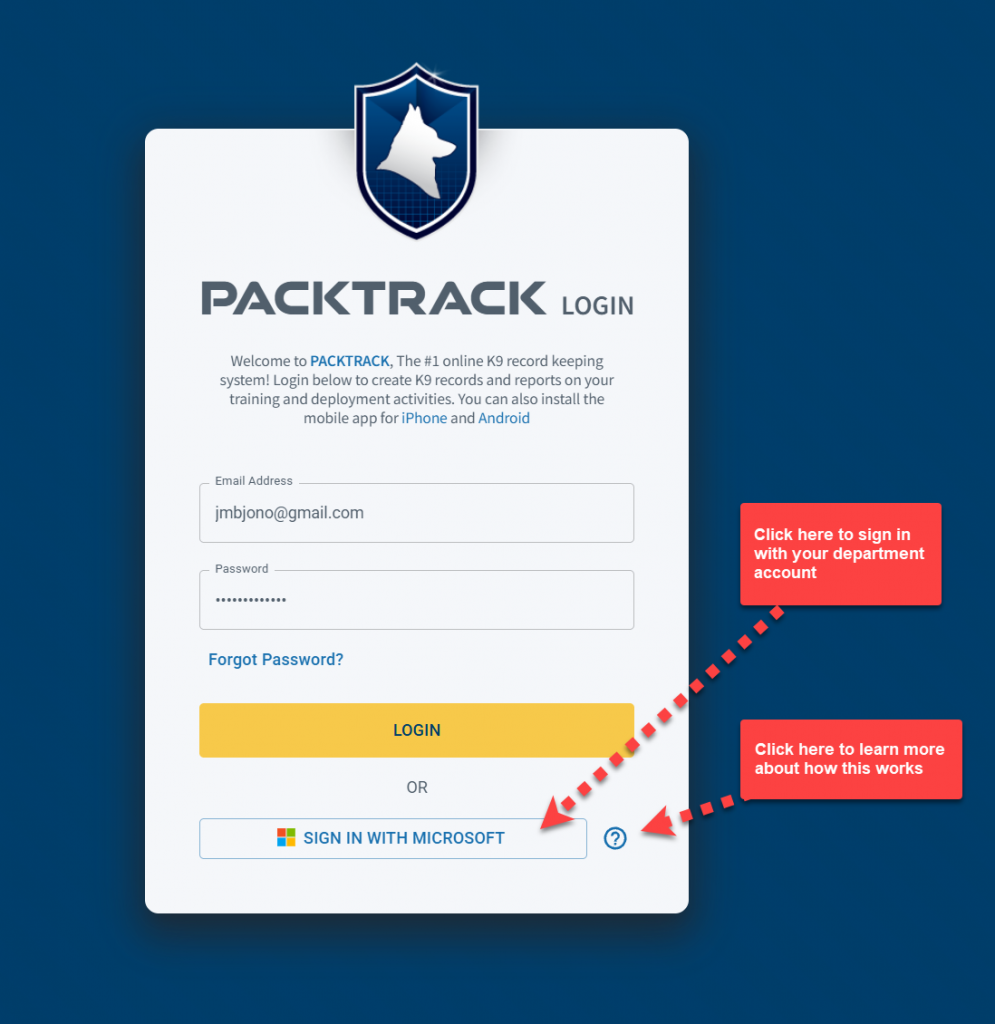
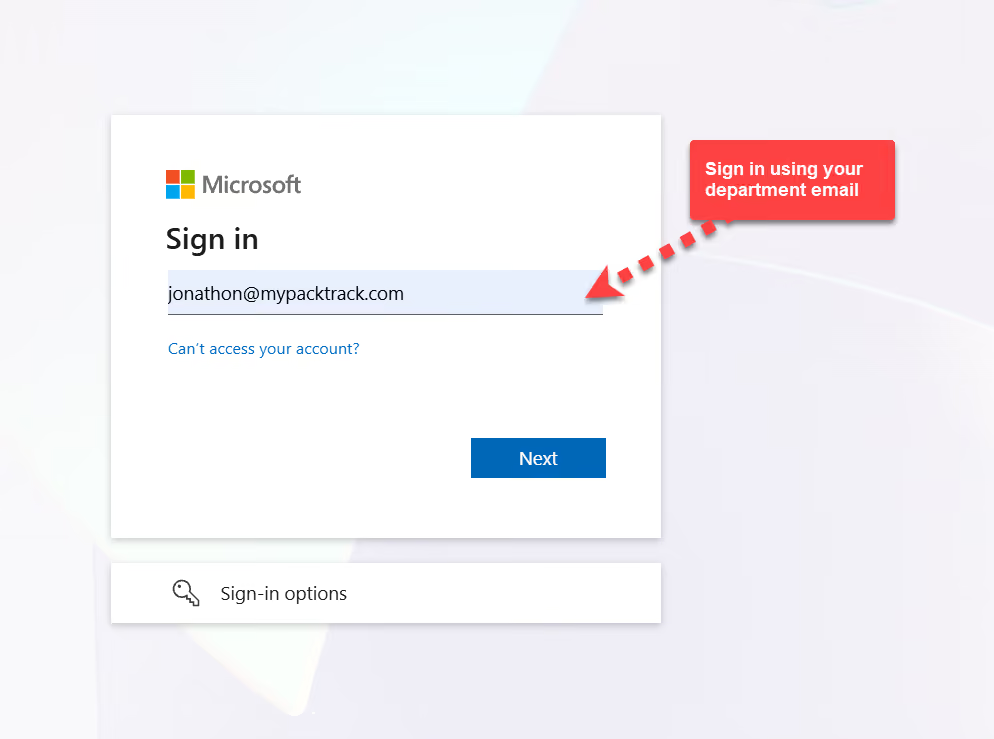
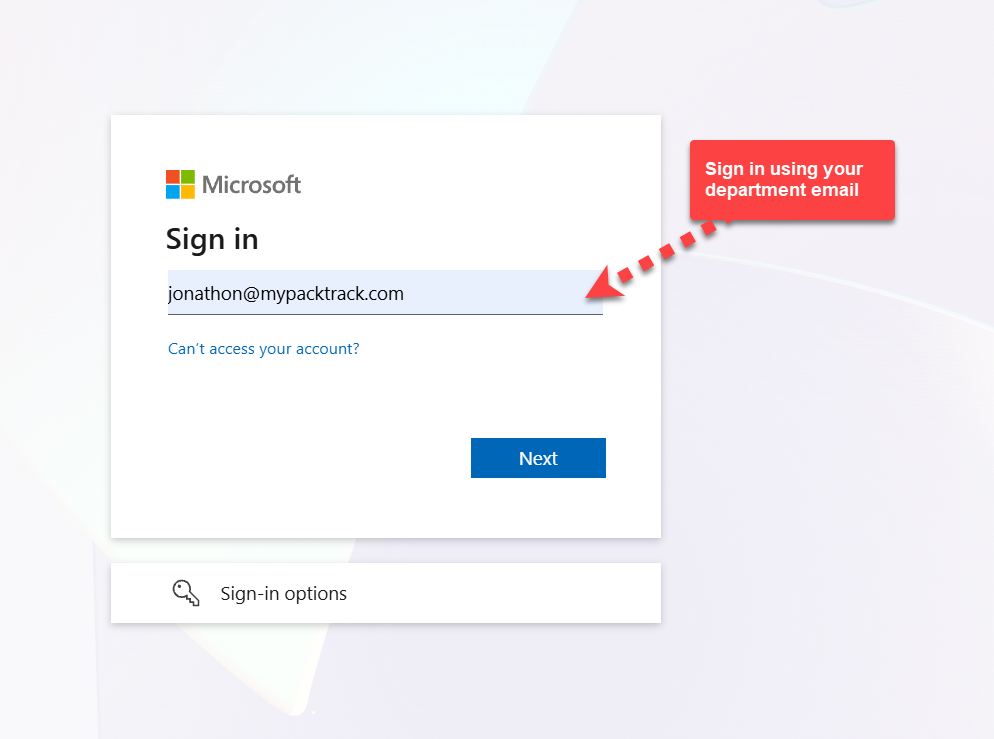
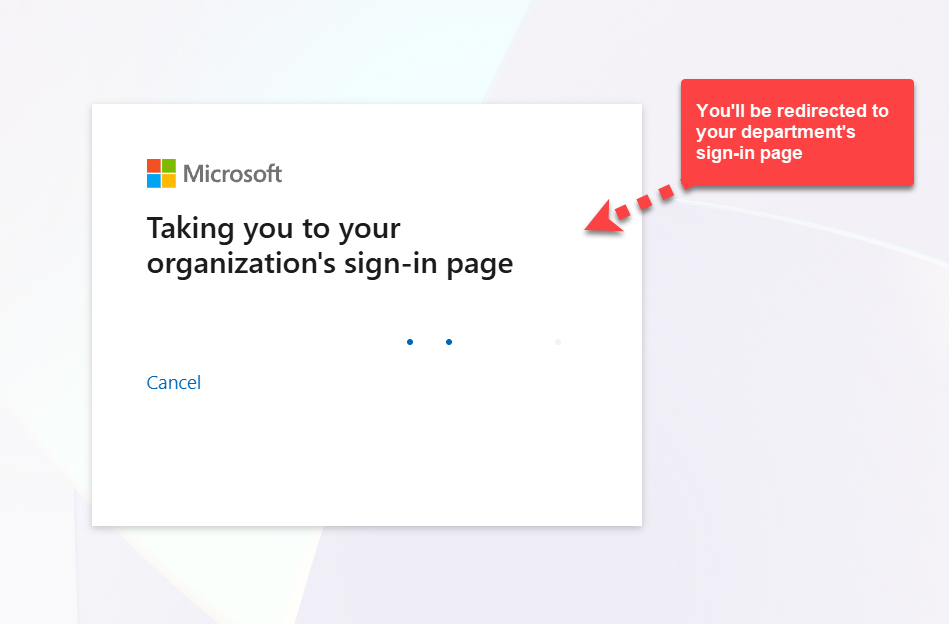
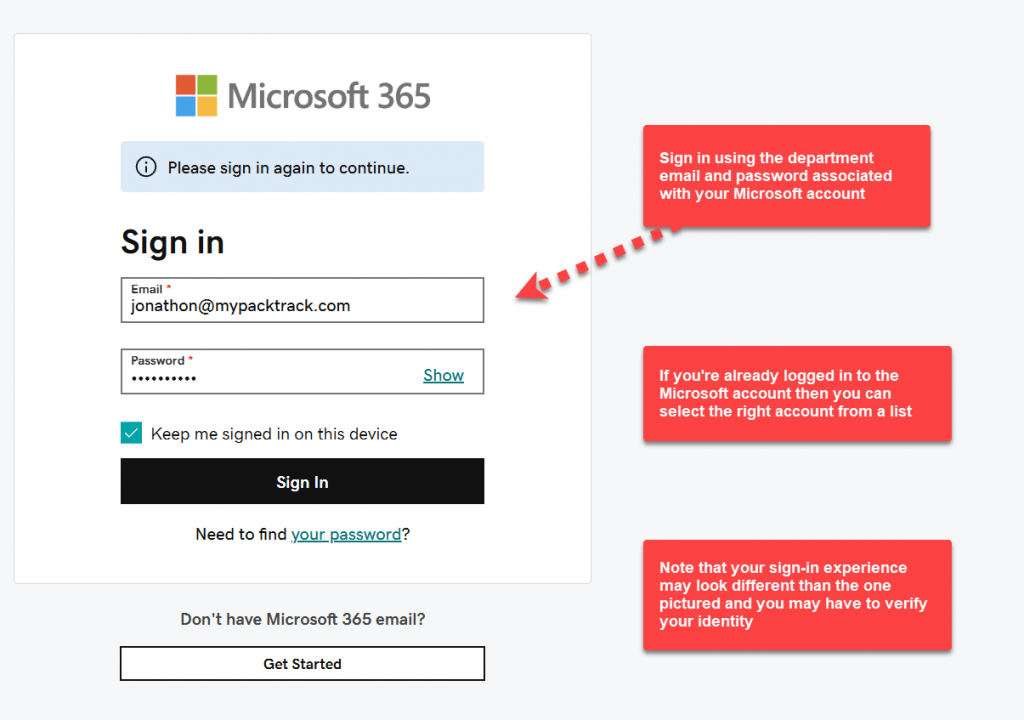
2. Enter your department email and then wait to get redirected to your department login. Once there, type in the department email address and password associated with your Microsoft account or select it from the list. You may also have to verify yourself using 2 factor authentication.
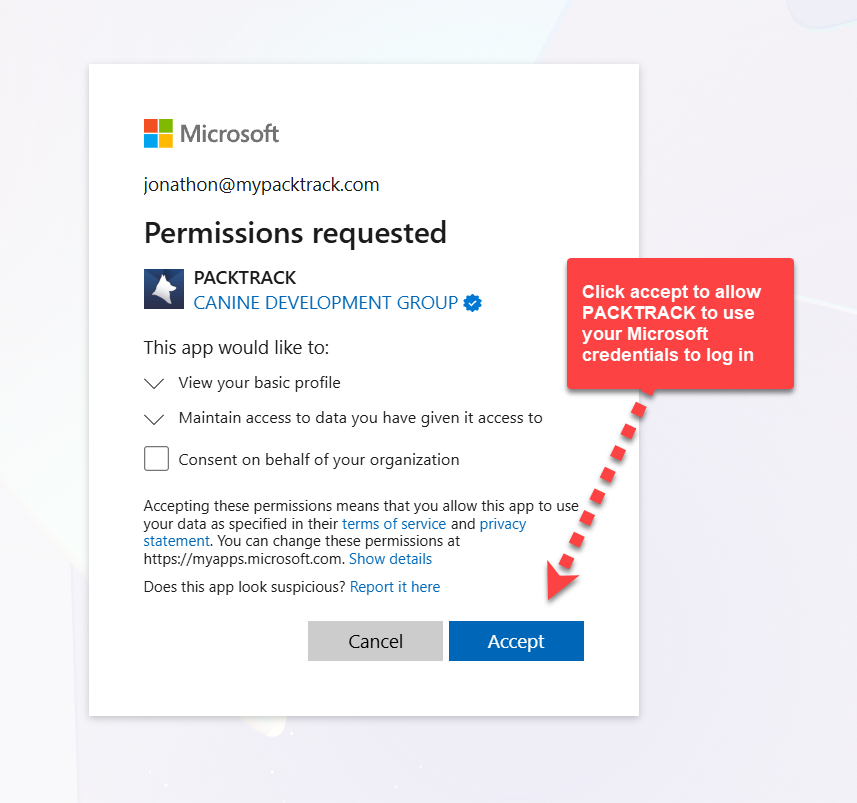
3. Click Accept on the permission screen to allow PACKTRACK to use your Microsoft account credentials to log in.
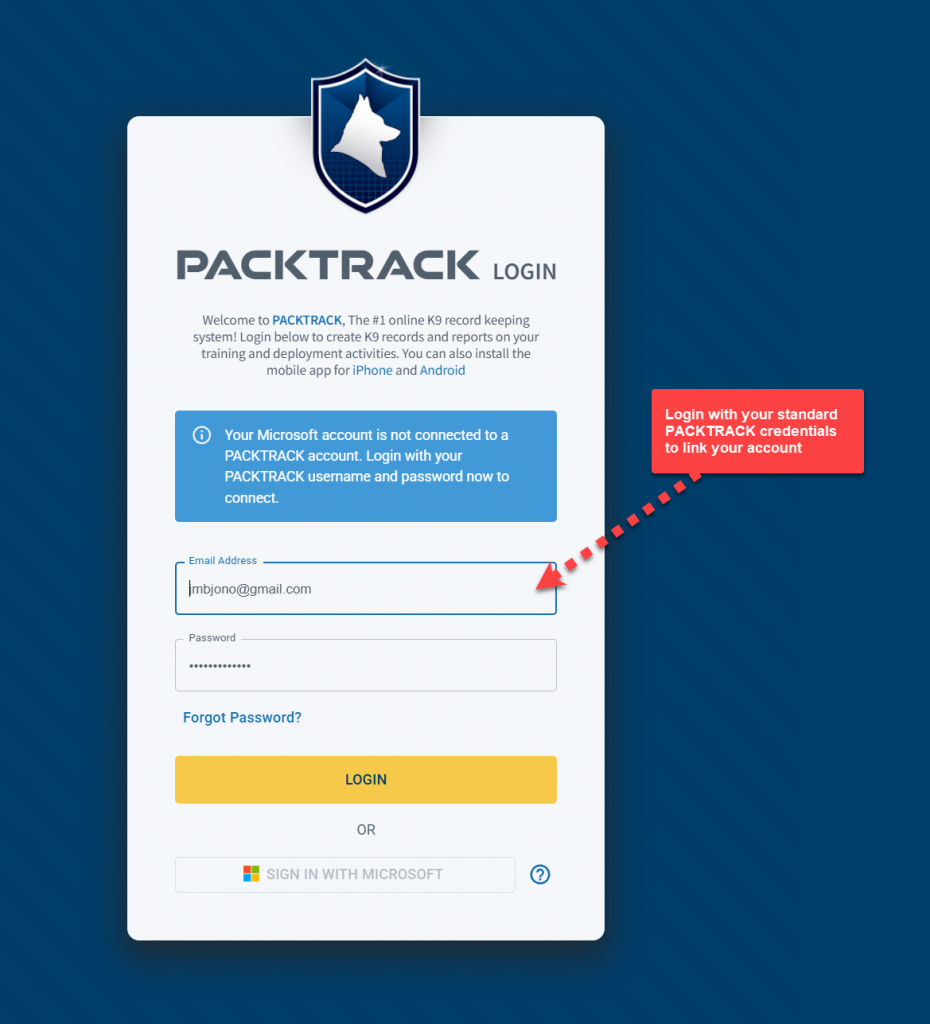
4. You should now be back at the login page and see a note asking you to link your PACKTRACK account. If you don't see this then try reloading the page. Type in your PACKTRACK email address and password.
5. You're all set. The next time you press the Sign in with Microsoft button you'll just need to enter your department credentials. As an alternative, you can also configure Single Sign-On after you're logged in. Simply visit the Microsoft Account option in your Profile page and click the Connect Microsoft Account button.
Disconnect Your Microsoft Account
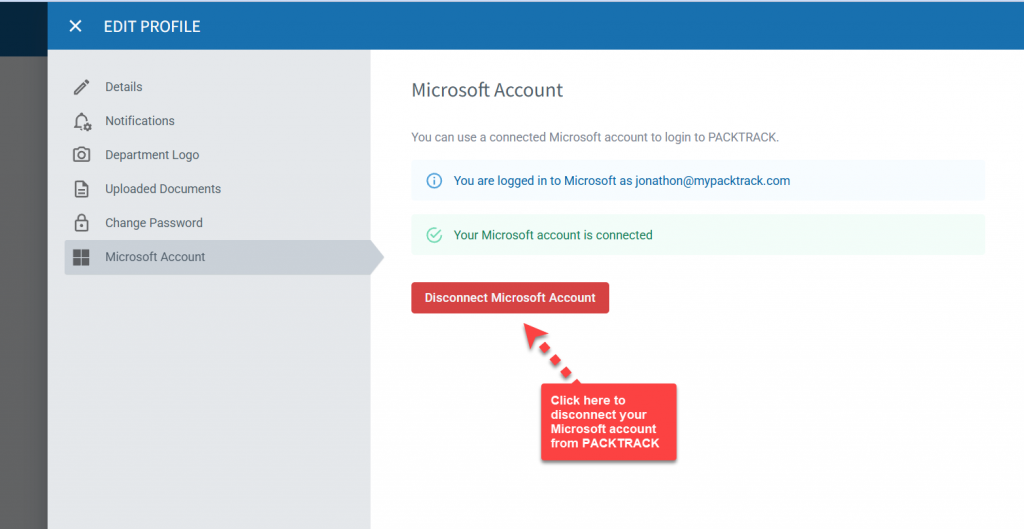
If you connected the wrong account or just want to remove your Microsoft account from PACKTRACK then use the disconnect option. Click the Profile link in the main menu then select the Microsoft Account option. This will open the editor as shown below. Click the Disconnect Microsoft Account button.
Technical Note (For Entra ID administrators only)
In some situations it may be desirable to approve the PACKTRACK app for SSO across all users of your department. This can be especially helpful if there are restrictions on who can add service principals to your Entra ID configuration. Admins that are authorized to consent on behalf of the department can use
THIS LINK to grant tenant-wide admin consent to the PACKTRACK application. Learn More about how this works. When this is complete, the PACKTRACK service principal is added to your Enterprise Applications list in Entra ID. This allows all department users to access the application without explicitly providing consent. Note, however, that they must still link their department credentials to PACKTRACK the first time that they use SSO.