

PACKTRACK Has a New Look
PACKTRACK Team
31 January 2020
0
min read
We're continually updating PACKTRACK to fix bugs, add new features and refine how things work. Our goal is to make K9 record keeping as easy as possible while providing robust and helpful tools to give you the activity tracking you need. With this update we've begun a new initiative to rework PACKTRACK's online interface to be simpler, more modern and flexible enough to be used on any device. Over the next year we're planning to integrate several new technologies and add exciting new features to the system. We also intend to increase the functionality of our mobile K9 tracking apps so you can do more on the go.
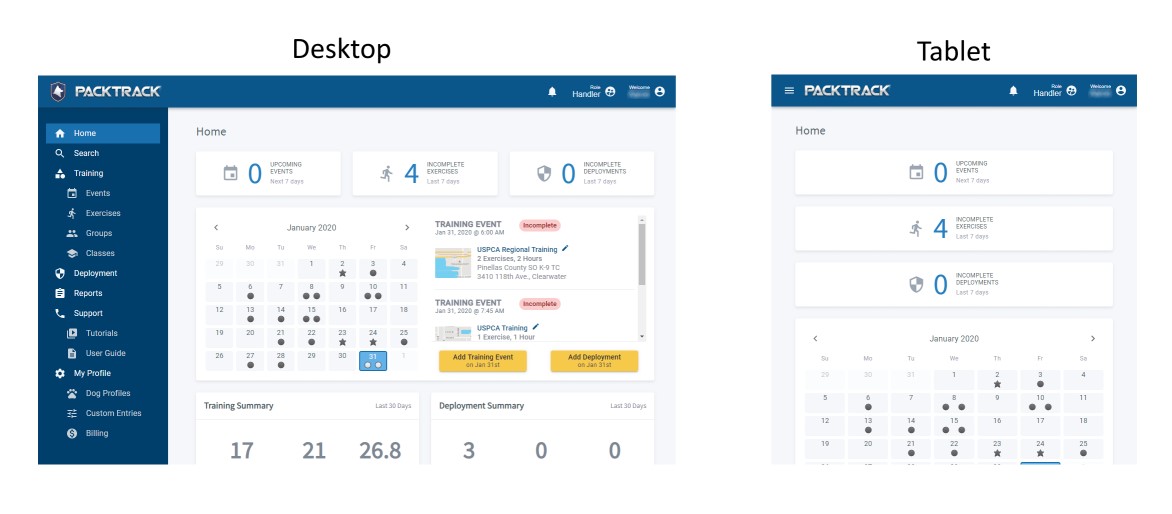
The first change you'll notice is that the menus look different. This updated layout offers a more contemporary design but also provides PACKTRACK with more flexibility to adapt to different device sizes. We expect handlers that login to the PACKTRACK site on their phones and tablets to have a significantly better experience with these changes. It's recommended to download the
iPhone and Android apps if you want to use PACKTRACK on your phone. However, if you need to access the full mypacktrack.com website in the field then it's nice to know that you can login from your phone's web browser.
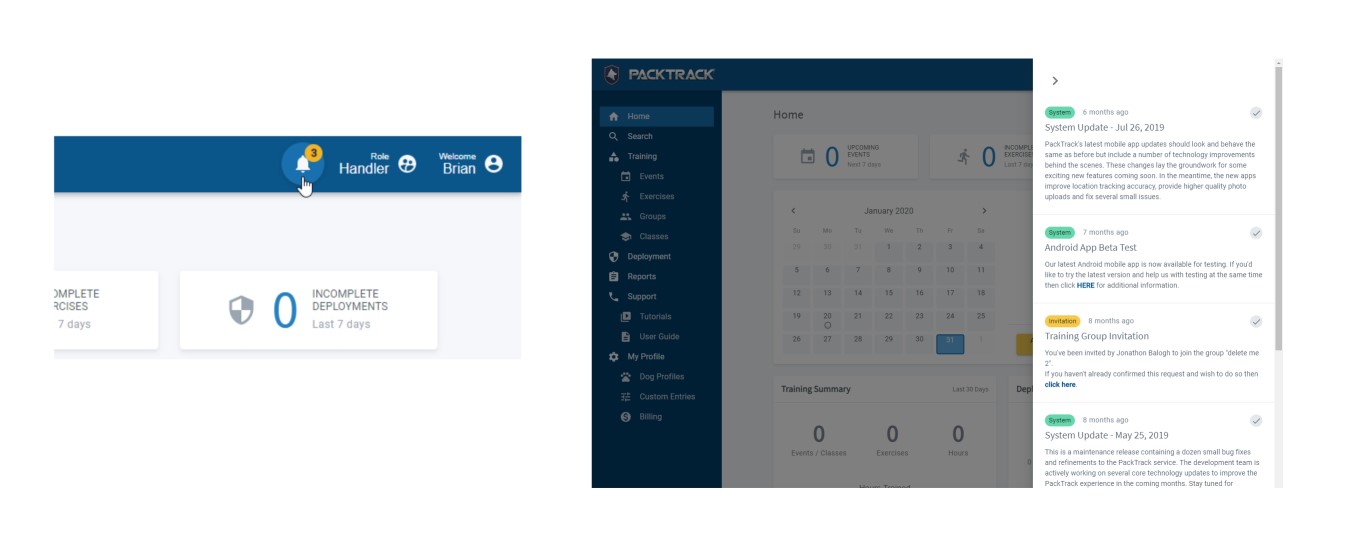
PACKTRACK has always had a notification system to alert you to important events including invites, system updates and billing warnings. We've moved system notifications to a dedicated bell icon in the title bar at the top of the page which tells you when there are unread messages. Click the bell icon to expand your notification list and click outside of the notification list to hide it. Once you've read a message and wish to dismiss it simply click the notification's check mark.
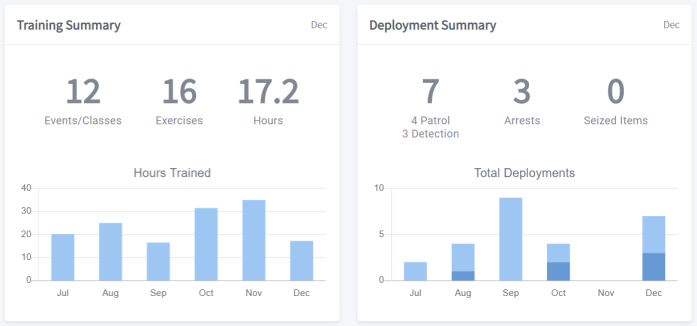
There's now a new home page for K9 handlers. The banner statistics at the top provide a convenient place for K9 officers to track incomplete exercise and deployment records as well as upcoming training events. Click any of these banners to see a list of associated canine records. At the bottom of the page are graphs and metrics which provide a nice overview of your monthly training and deployment activities. The graphs show monthly totals across the last 6 months for your training hours and deployment counts. The large numbers above the graphs summarize your statistics for the Last 30 Days. To view your metrics for any month just click on the bars in the graph. Reset the metrics back to the Last 30 Days by clicking the title bar above the numbers.
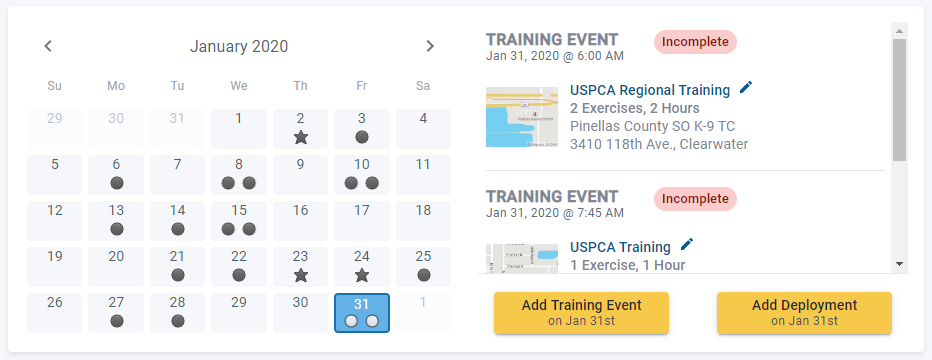
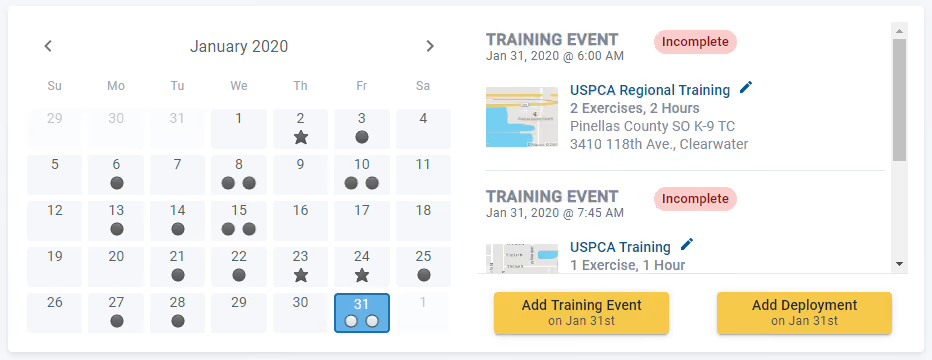
There's also a new calendar view displayed in the middle of the handler home page. This provides a new way to review, edit and add new records to PACKTRACK, but it's completely optional. Each calendar date displays a star for K9 deployments and a circle for your training events. If the star or circle is an outline only (not filled in) then the record is incomplete. This gives you a bird's eye view of your dog's activities each month. Clicking a calendar date will show a list to the right of the calendar with any deployments or training events that occurred on that date. Click the links in the list to view your K9 reports or edit your records. You can also add new records from the home page. Simply click the appropriate date in the calendar and then press the Add Training Event or Add Deployment button. This will take you right to the data entry form where you can add a new record for that date. We've been working on these changes for a while and we're really excited to share them with you. This is only the start. We plan to continue to refine the PACKTRACK interface to make it easier to use and more informative. Let us know what you think!
PACKTRACK Team
31 January 2020
0
min read
Stay up to date
Get new PACKTRACK articles and occasional product updates.
You can unsubscribe anytime.

More articles from the PACKTRACK blog
System Update
0
min read
See where your K9 teams are being deployed
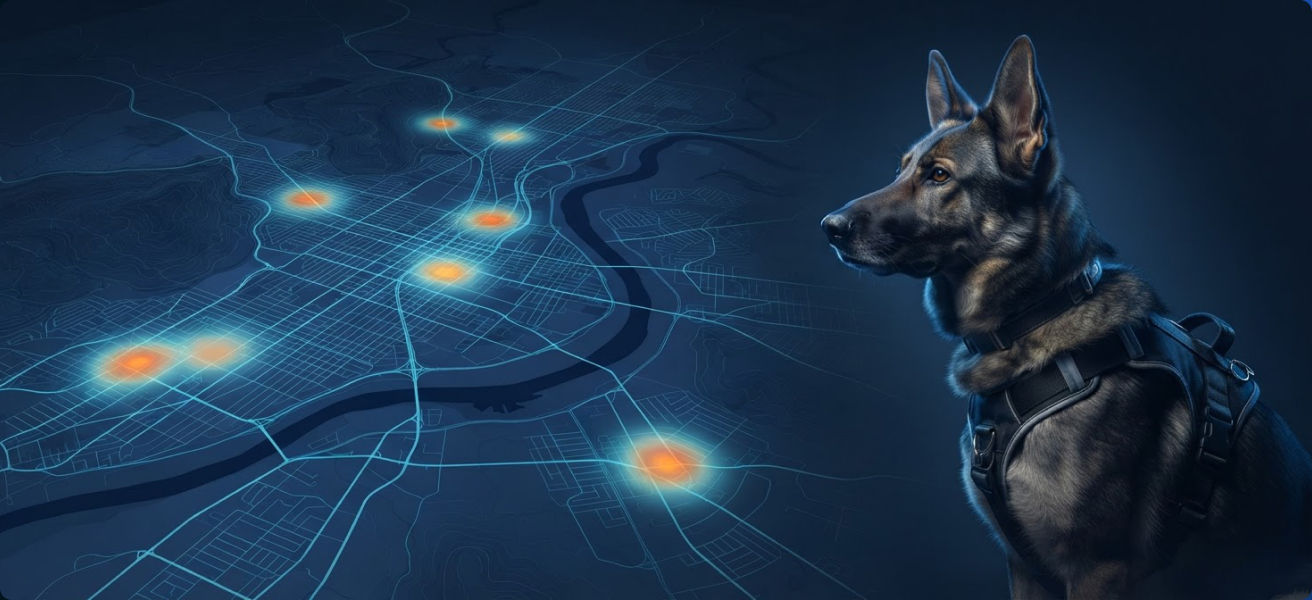
We just added a new tool for supervisors: the Deployment Heatmap. It gives you an interactive map of where your handlers’ K9 deployments are happening, so you can spot patterns, compare different types of activity, and share clear visuals with command staff.
We just added a new tool for supervisors: the Deployment Heatmap.
It gives you an interactive map of where your handlers’ K9 deployments are happening, so you can spot patterns, compare different types of activity, and share clear visuals with command staff.
See deployment activity on the map
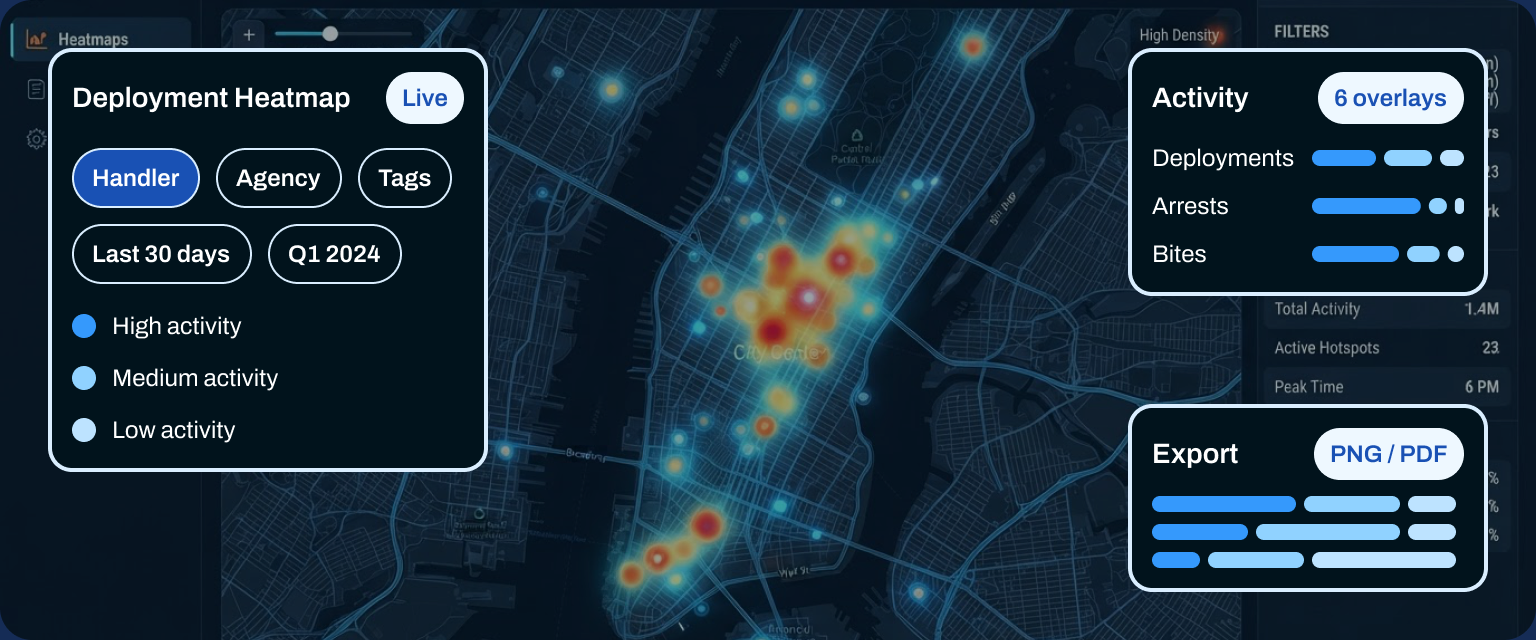
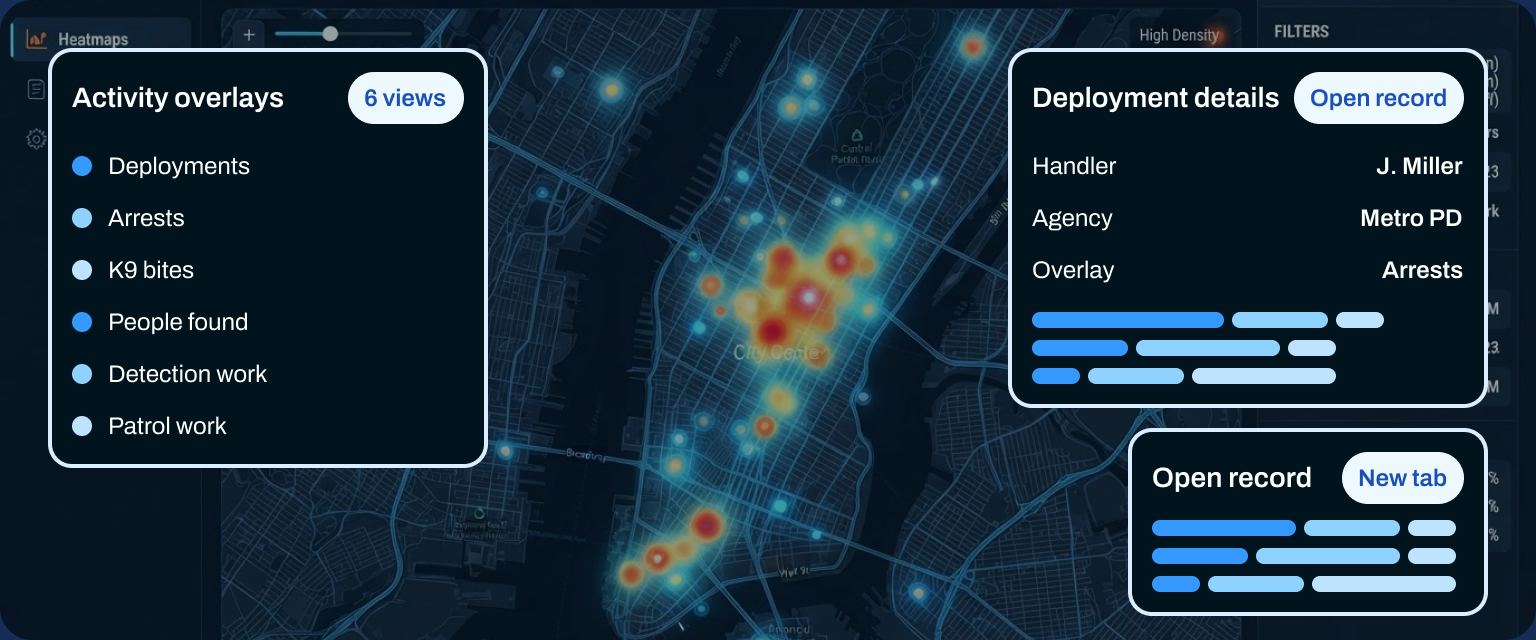
The Deployment Heatmap plots your unit’s deployment locations on a map. Areas with more deployments appear brighter and more intense, so you can quickly see where your teams are spending the most time.
You can filter the map by handler, requesting agency, deployment tag, or date range to narrow down exactly what you want to look at. Want to see one handler’s narcotics deployments over the past quarter? A few clicks gets you there.
Compare different types of K9 activity
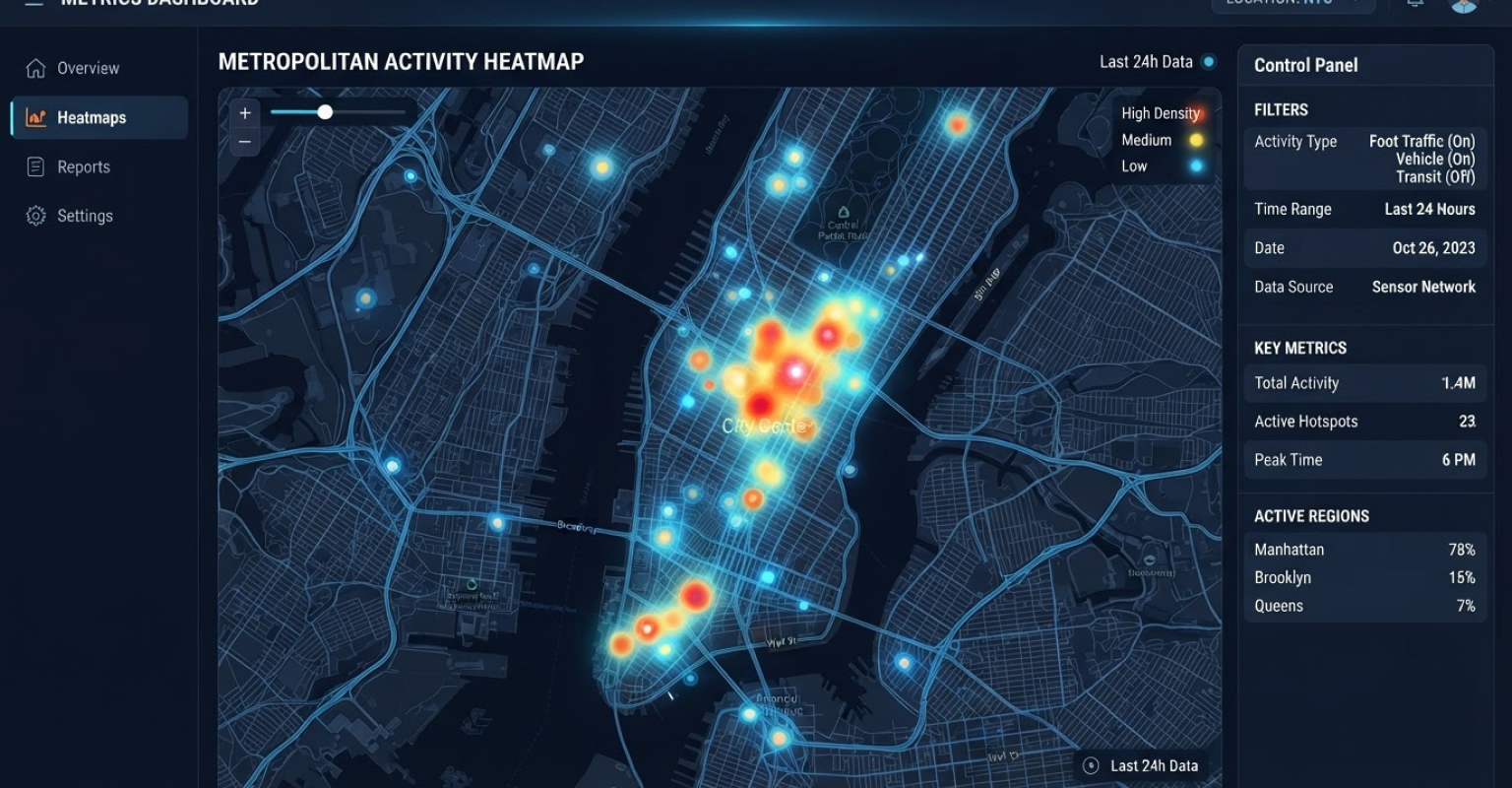
Switch between overlay views to see different types of activity:
Each view gives you a different picture of how your unit is operating. You can compare where arrests are concentrated versus where detection work is happening, or check whether deployment locations line up with the agencies requesting your teams.
Open the full deployment record from the map
Click any location on the map to see a popup with the deployment details. From there, you can open the full record in a new tab if you need to review the complete entry.
That makes it easier to go from the bigger picture to the individual deployment without searching through logs first.
Export the map for reports and briefings
You can save the current map view as a PNG or PDF.
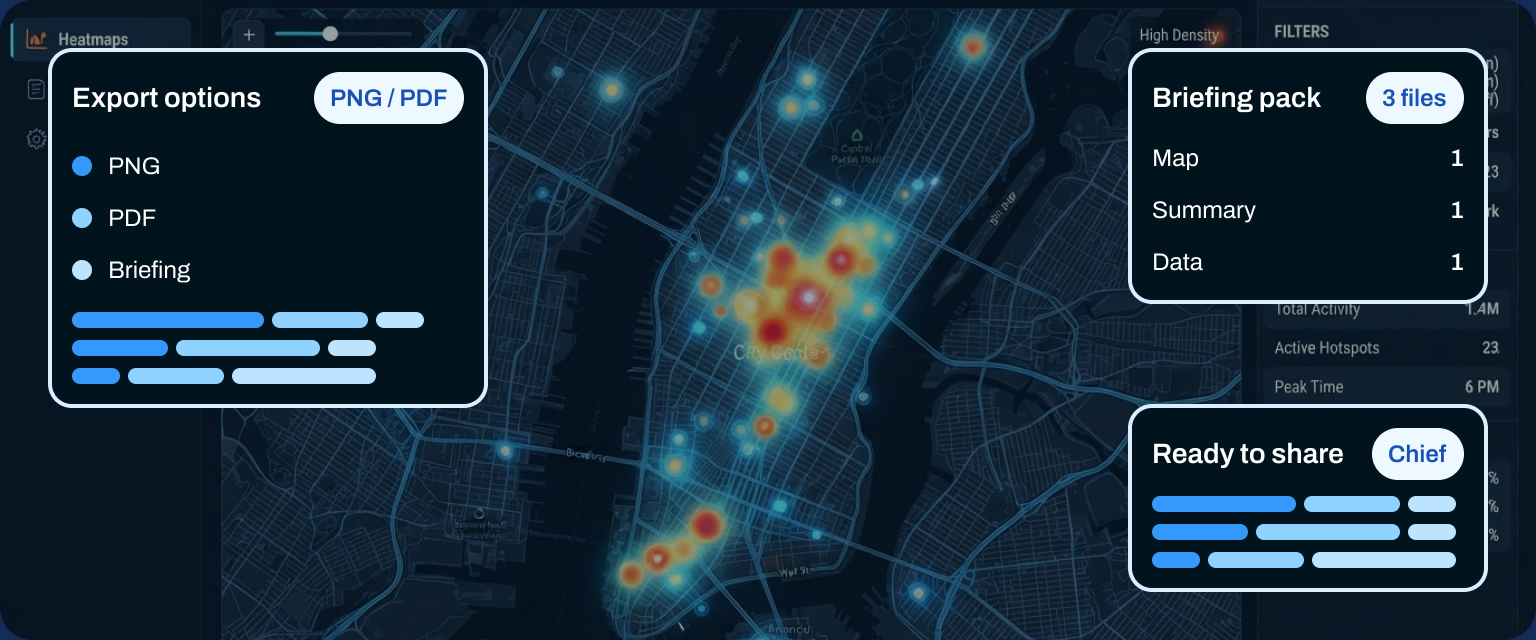
Whether you’re putting together a quarterly report, grant application, or briefing for your chief, you can export the exact view you need without building the visual from scratch.
Available now in PackTrack
The Supervisor Deployment Heatmap is available to all supervisors in PackTrack on desktop and in the mobile app.
For step-by-step instructions on using filters, overlays, and export options, visit the Deployment Heatmaps guide in our Help Center.
We’d love to hear what you think. If you have feedback or questions, reach out anytime.
System Update
0
min read
Updates to Streamline Your Records
We’re always working to make PACKTRACK faster and more user-friendly for handlers, trainers, and supervisors. Today, we’re excited to highlight several new improvements designed to save you time and improve communication across your team.
We’re always working to make PACKTRACK faster and more user-friendly for handlers, trainers, and supervisors. Today, we’re excited to highlight several new improvements designed to save you time and improve communication across your team.
Attach Documents to Events and Exercises
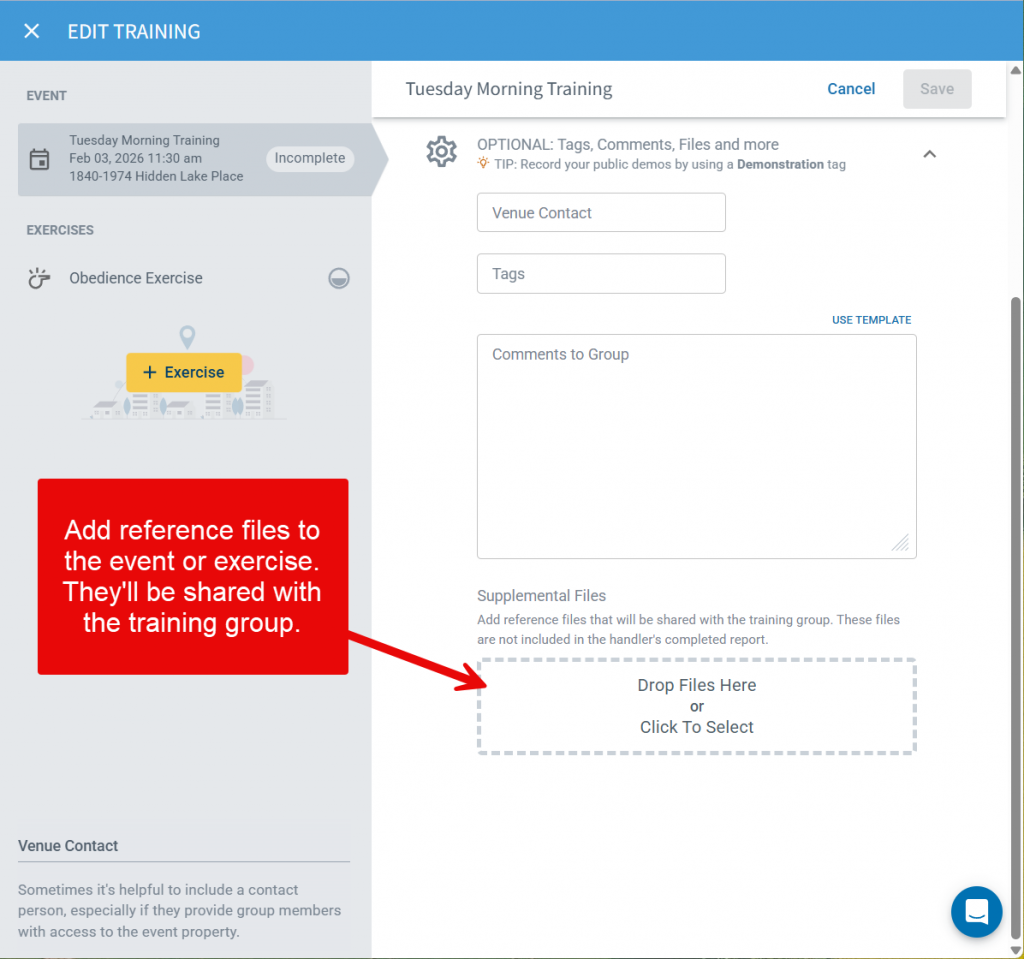
You’ve always been able to upload documents to individual exercise completions — but now you can include them directly in Events and Exercise definitions as well. This update gives handlers and trainers more flexibility to provide supplemental materials such as training outlines, reference documents, maps, diagrams, etc. Adding documents at the event or exercise level ensures everyone starts with the same information and supports more consistent, well-documented training.
Faster Data Entry with Autocomplete Locations
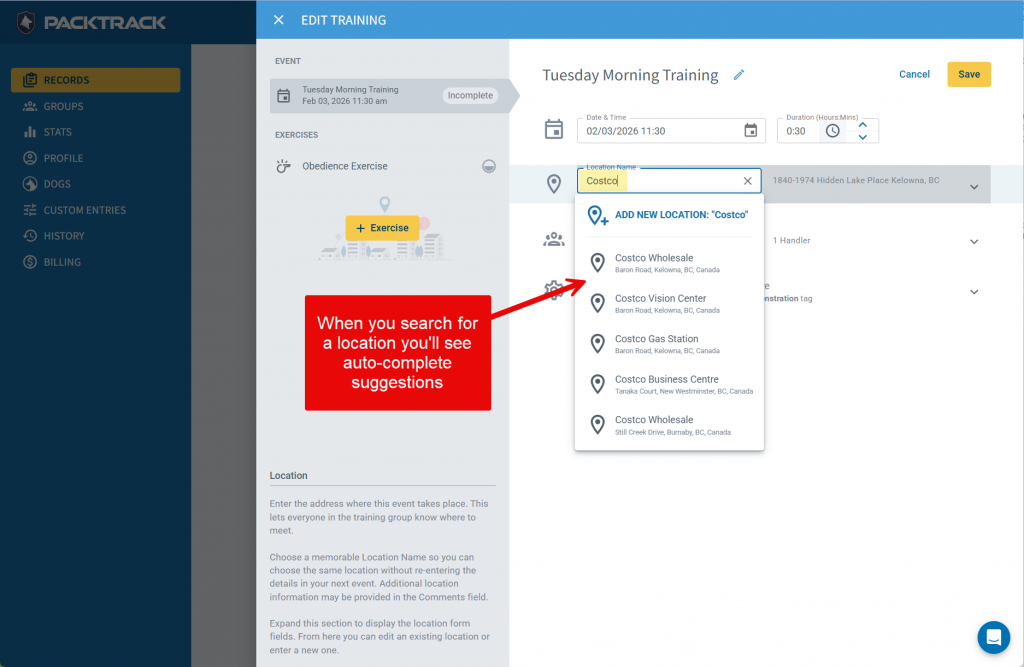
Recording where an event or deployment occurred is now even faster. PACKTRACK’s training and deployment forms now include Google-powered location autocomplete. Just start typing a name or address and nearby matching suggestions will appear. Select the correct option, and PACKTRACK will automatically fill in the relevant location fields for you. This means less typing, fewer mistakes and more accurate location data.
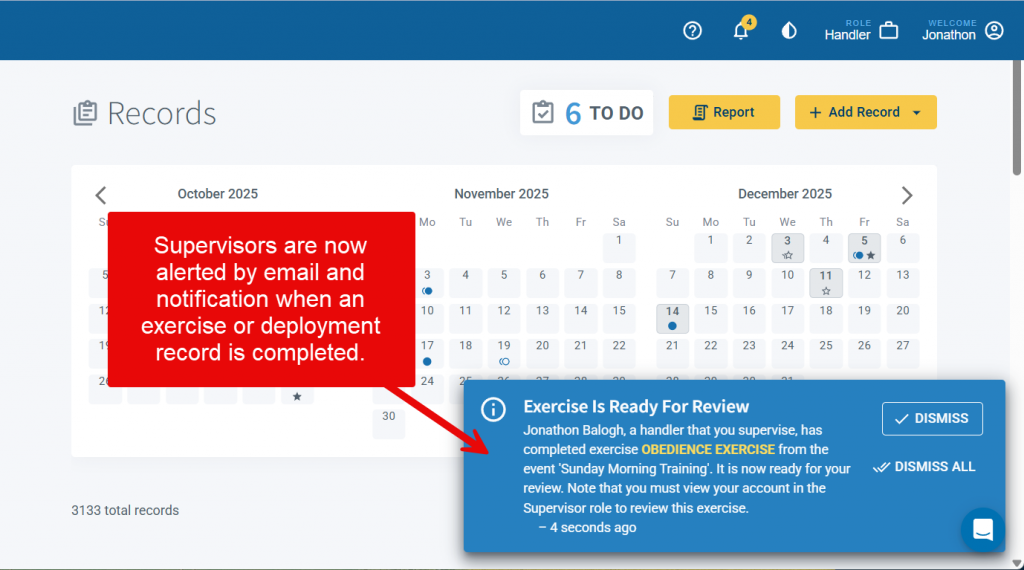
Supervisor Notifications for Completed Records
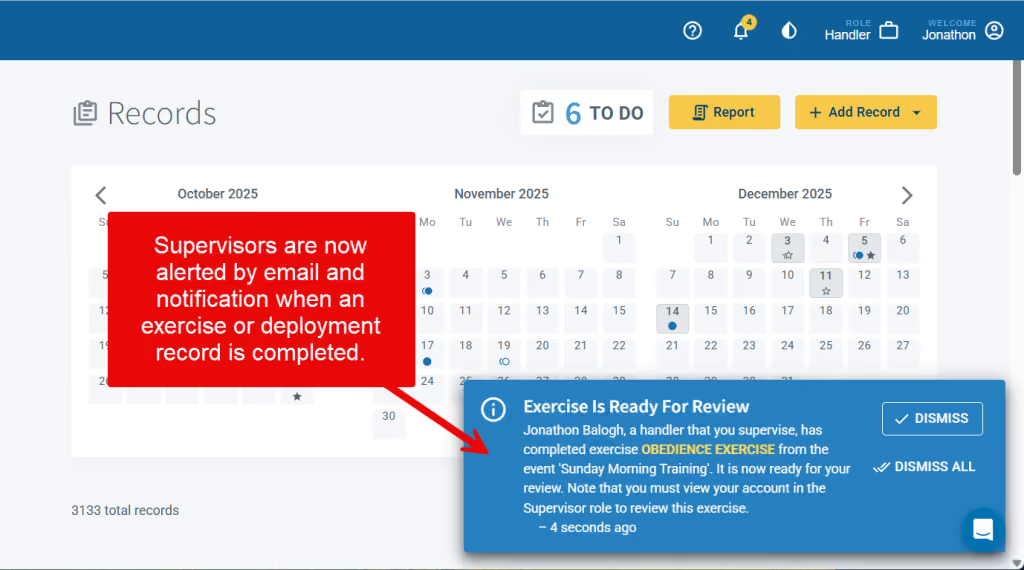
Supervisors can now choose to receive notifications whenever a handler they oversee completes a training or deployment record. This gives them a heads-up to review the new records. Notifications are sent by email as well as within PACKTRACK, keeping supervisors informed without requiring constant manual review. Supervisors can configure their preferences in the Notifications section of their Profile page, choosing whether to receive training record completion alerts, deployment record completion alerts or both. Note that these alerts are off by default. This feature enhances accountability and ensures important activity never gets overlooked.
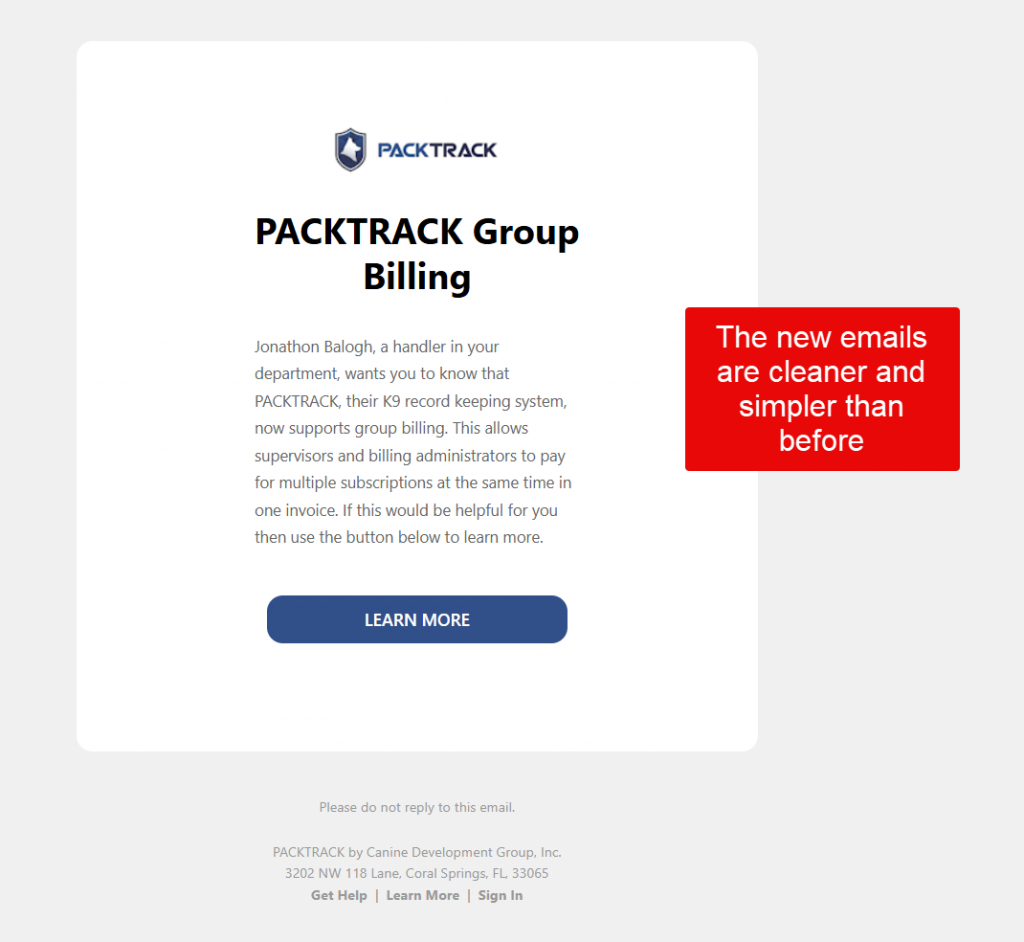
Cleaner, More Modern Email Styling
PACKTRACK emails just got a major upgrade. All system emails are now sent using clean, modern looking HTML formatting — with improved colors, visual hierarchy, and clear action buttons. These updates make PACKTRACK emails easier to read and quicker to act on, whether you're on your phone or desktop.
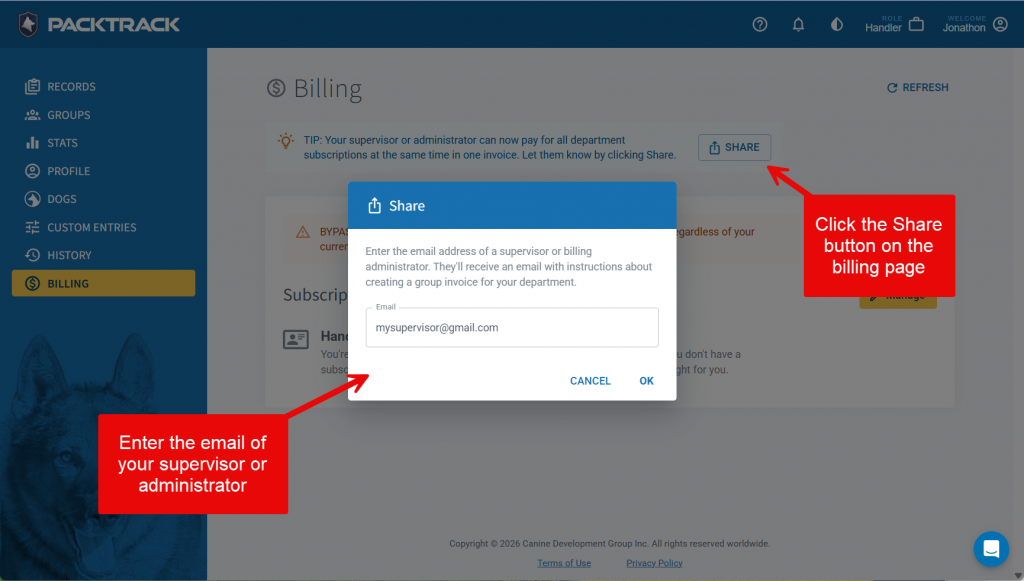
Share the News About Group Billing
As of a couple months ago, your supervisor or administrator can use the new Group Billing feature to pay for all department subscriptions at the same time in one invoice. We now make it easy to share this feature with others. Visit your Billing page, click the Share button and then enter the email address of anyone in your department that should know about this. They'll get an email with a link to our Group Billing help article.
These features are part of our ongoing effort to make PACKTRACK the most intuitive K9 record-keeping platform available. As always, we welcome your feedback and look forward to sharing even more updates soon. If you haven’t explored these new features yet, log in and give them a try!
System Update
0
min read
Group Subscriptions
Managing multiple K9 handler subscriptions just got a whole lot easier. We’re excited to announce our newest feature - Group Subscriptions - designed to give department billing managers complete control over their team’s subscriptions, all under a single account.
Managing multiple K9 handler subscriptions just got a whole lot easier. We’re excited to announce our newest feature - Group Subscriptions - designed to give department billing managers complete control over their team’s subscriptions, all under a single account.
One Invoice, One Account, Total Control
With Group subscriptions, billing managers can now pay for and manage the subscriptions of multiple K9 handlers together. No more juggling individual invoices or tracking down renewals across separate accounts. Everything is streamlined into one centralized billing dashboard. Managing your team’s subscriptions is simple and flexible. First, invite the handlers in your department to join your group subscription. Next, purchase a license with the desired number of seats. That's it! If handlers join or leave the department, you can easily add, remove, or reassign seats at any time.
Why It Matters
For agencies with multiple K9 handlers, managing subscriptions individually can be time-consuming and confusing. Group subscriptions eliminates that friction, offering:
- Simplified billing – One invoice covers your entire team.
- Flexible management – Add or remove handlers as your team changes.
- Better oversight – Track your active users and seat usage in one place.
Step by Step Guide
Step 1: Get the Billing Manager role
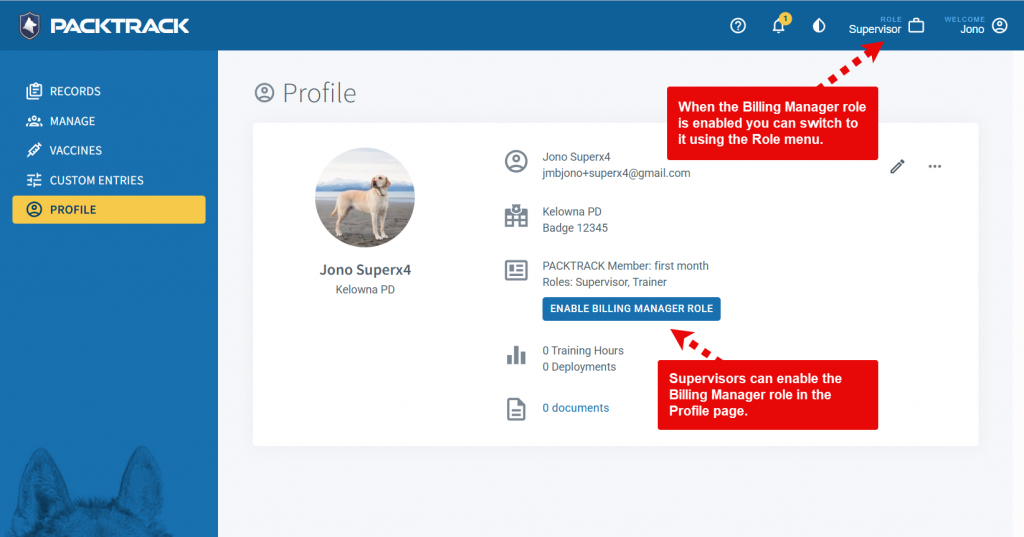
To access the group subscription feature you need to use the new Billing Manager role. A billing manager can be a handler, supervisor or administrator that's responsible for ensuring that everyone in the department has an up to date subscription. Only one person needs to do this for the department. You may select this role at
registration or, if you're currently a supervisor, then you can add the Billing Manager role from your Profile page. You may also ask for the role to be added to your account using our support chat.
Step 2: Choose handlers to be managed
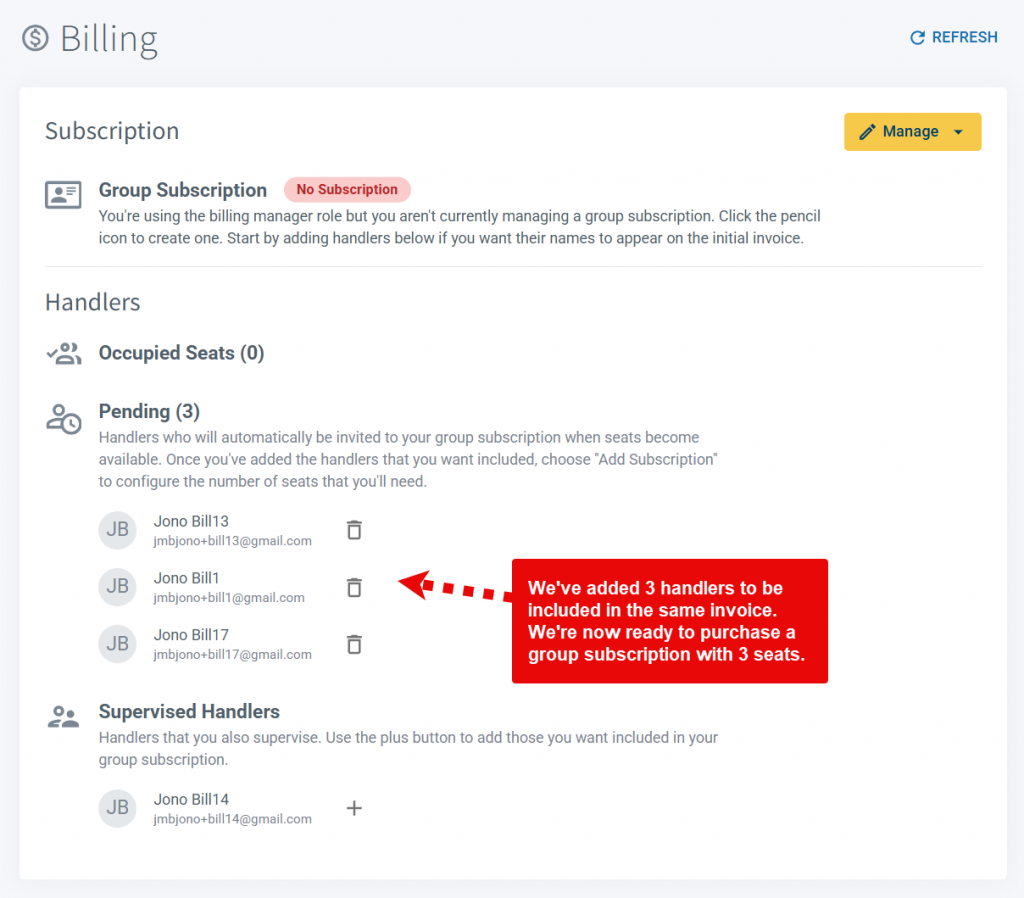
Switch to the Billing Manager role and choose the Billing tab. Here, you'll add the handlers that you want to include in your group subscription. Note that your invitations are queued in the Pending list and will be sent later. The goal is simply to identify the handlers that you want to be covered.
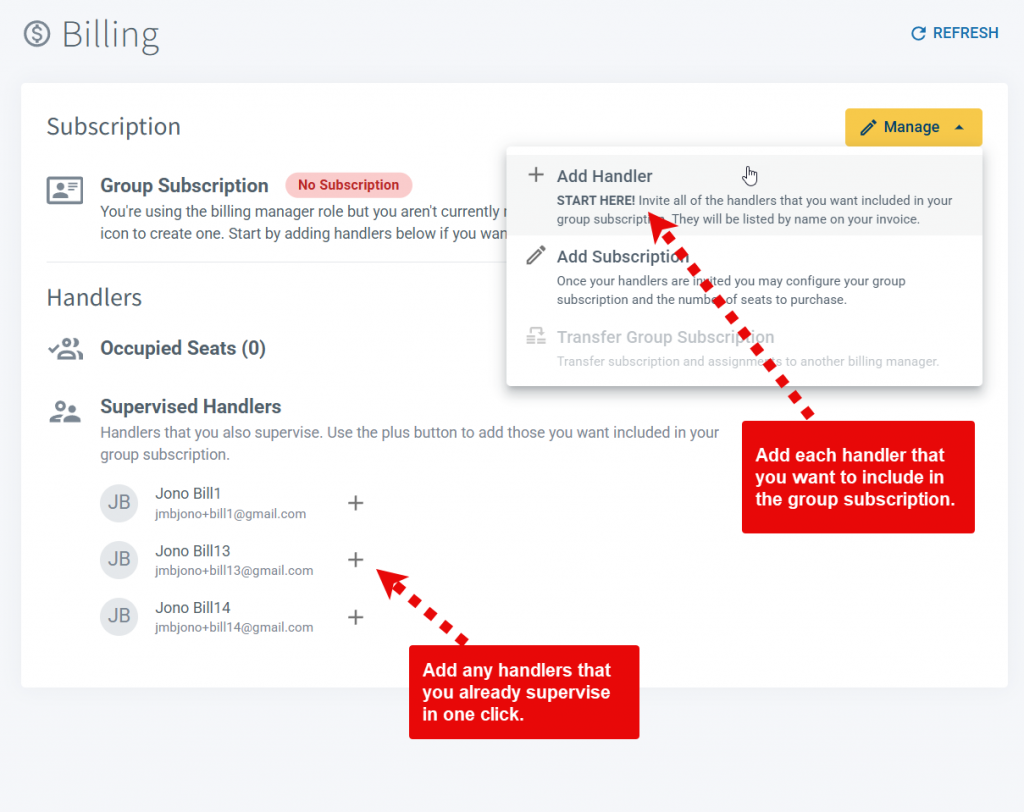
Use the Add Handler option in the Manage menu to provide the email address for each handler. If you already supervise handlers then they can be added by clicking the plus button next to their name in the Supervised Handlers list. If you add a handler that isn't a PACKTRACK member then they will receive an email asking them to sign up. This is a great way to onboard the handlers in your department with the PACKTRACK service. When they complete the registration they'll automatically be queued in the Pending list to be included in this group subscription.
Step 3: Purchase a group subscription
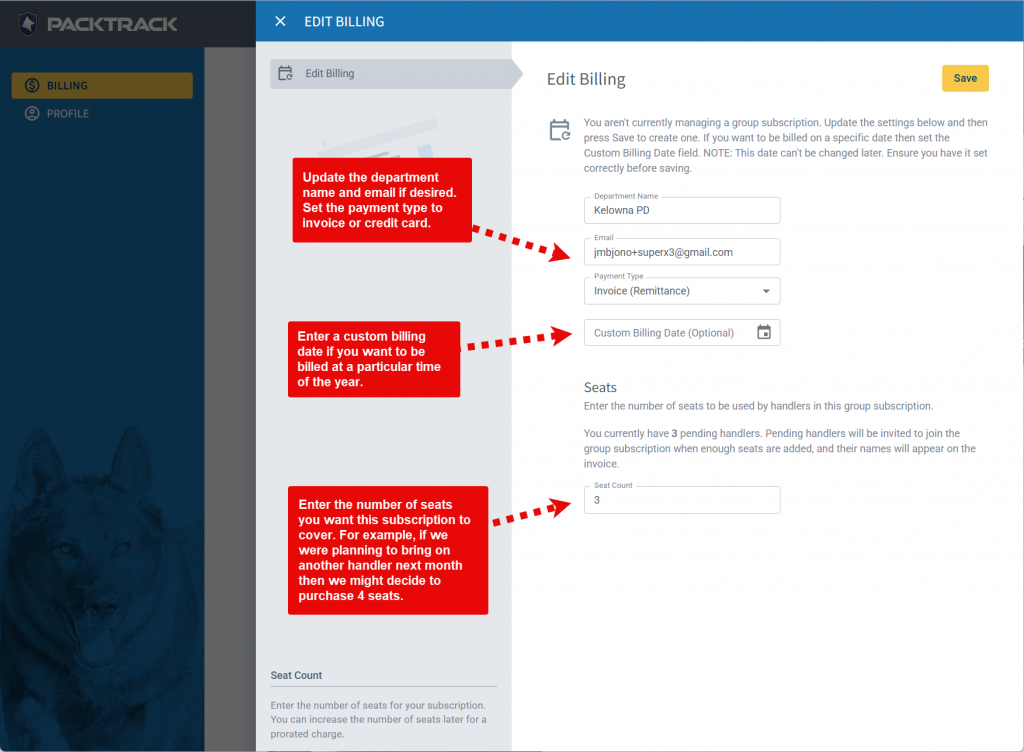
Now that you've identified the handlers that you want to include, you're ready to configure the group subscription. Click the Add Subscription option in the Manage drop down menu to open the billing editor. Adjust the department name and email address if desired, choose the desired payment type (invoice or credit card) and then enter the number of seats that you'd like to purchase. You also have the option of setting a specific billing date. If you want to be billed every year on January 1st then you'd enter that date here.
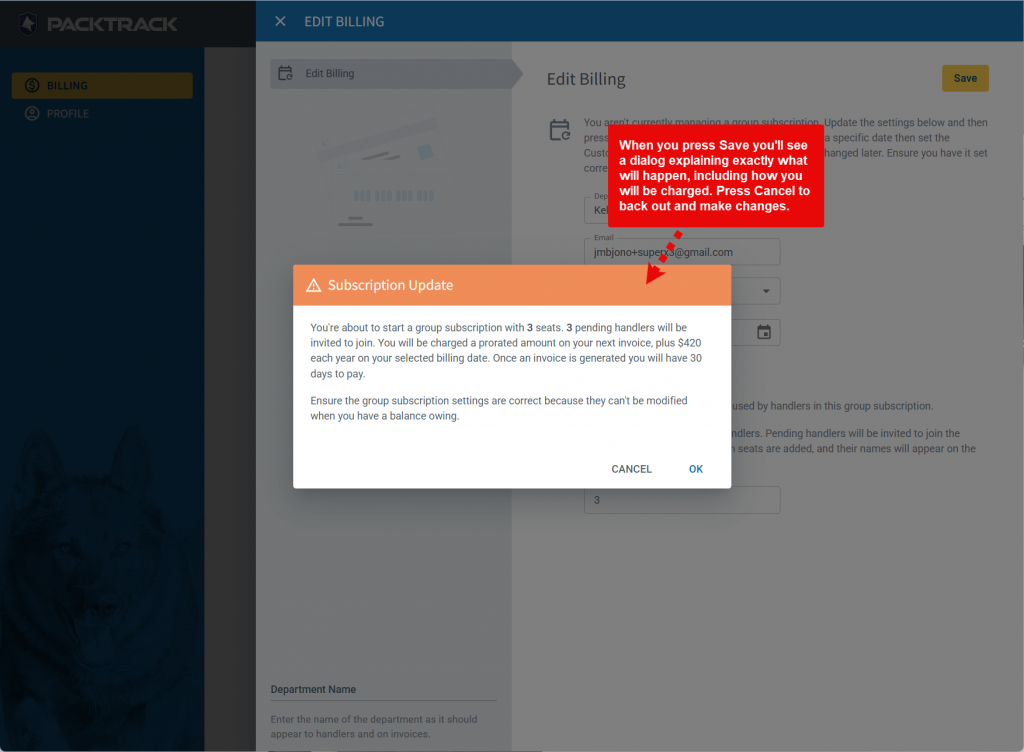
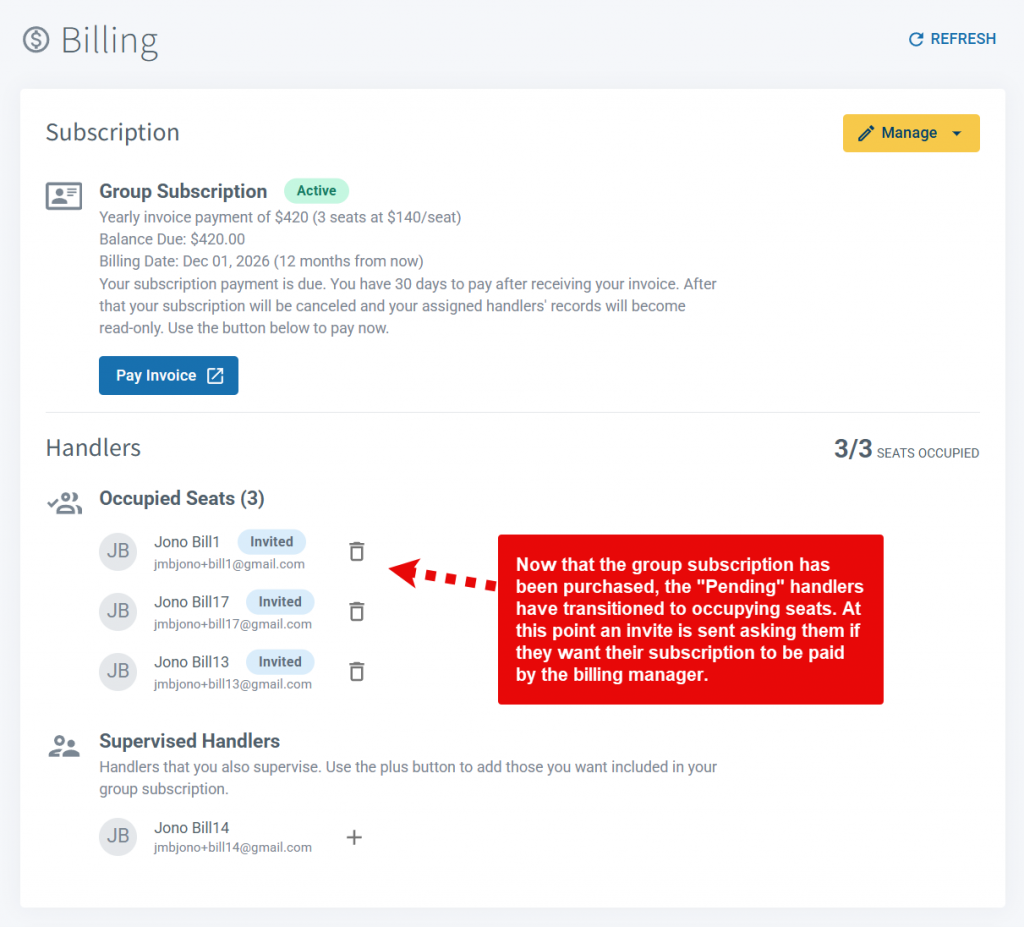
Once you purchase your subscription, the Billing page will update. Pending handlers will occupy the newly available seats and be invited to have their subscription paid for by the billing manager.
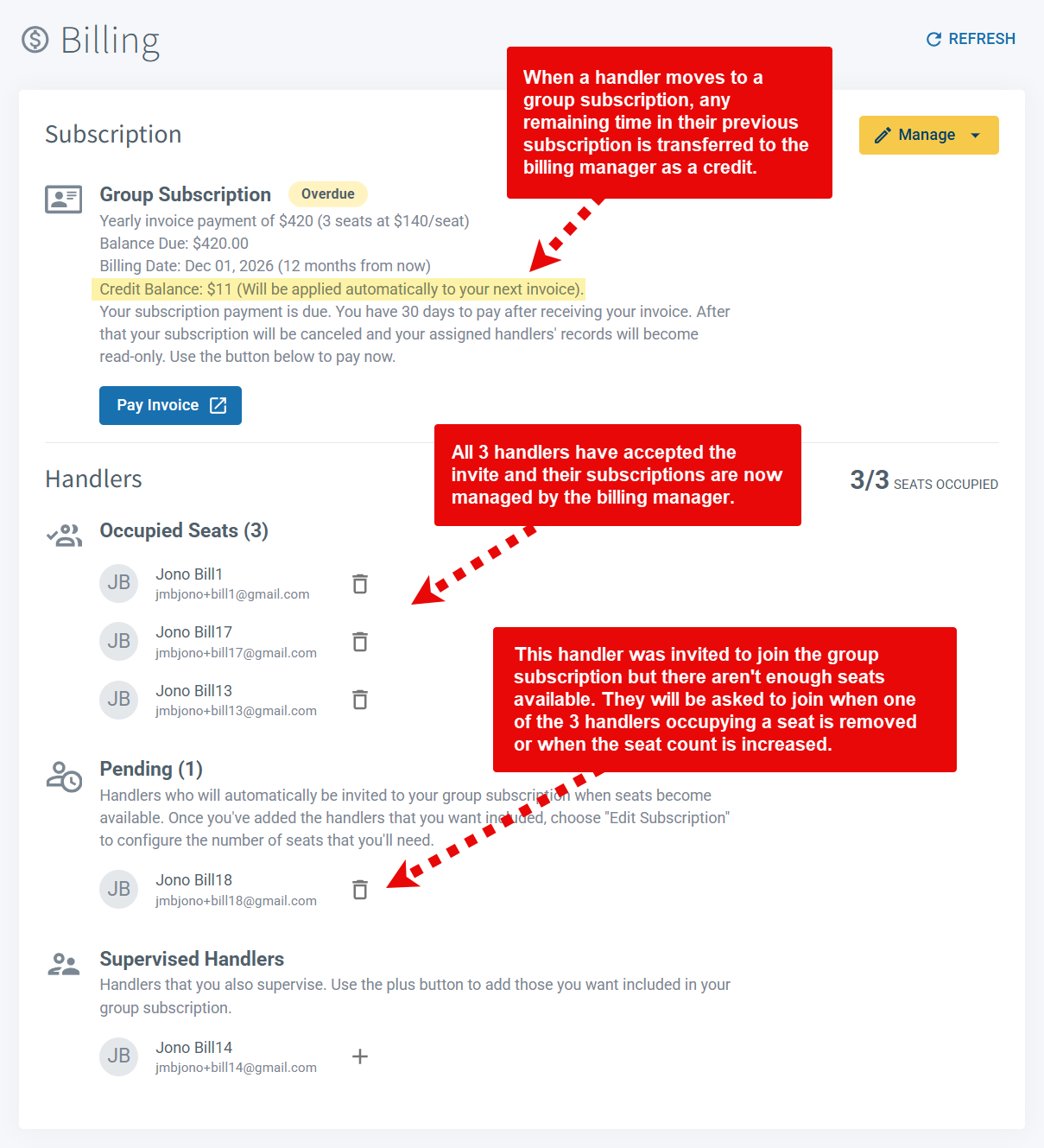
Handlers accept the invite and join the group subscription. Their previous subscription is cancelled. If there is paid time left on the handler's previous subscription then the unused portion will be credited to the billing manager's group subscription.
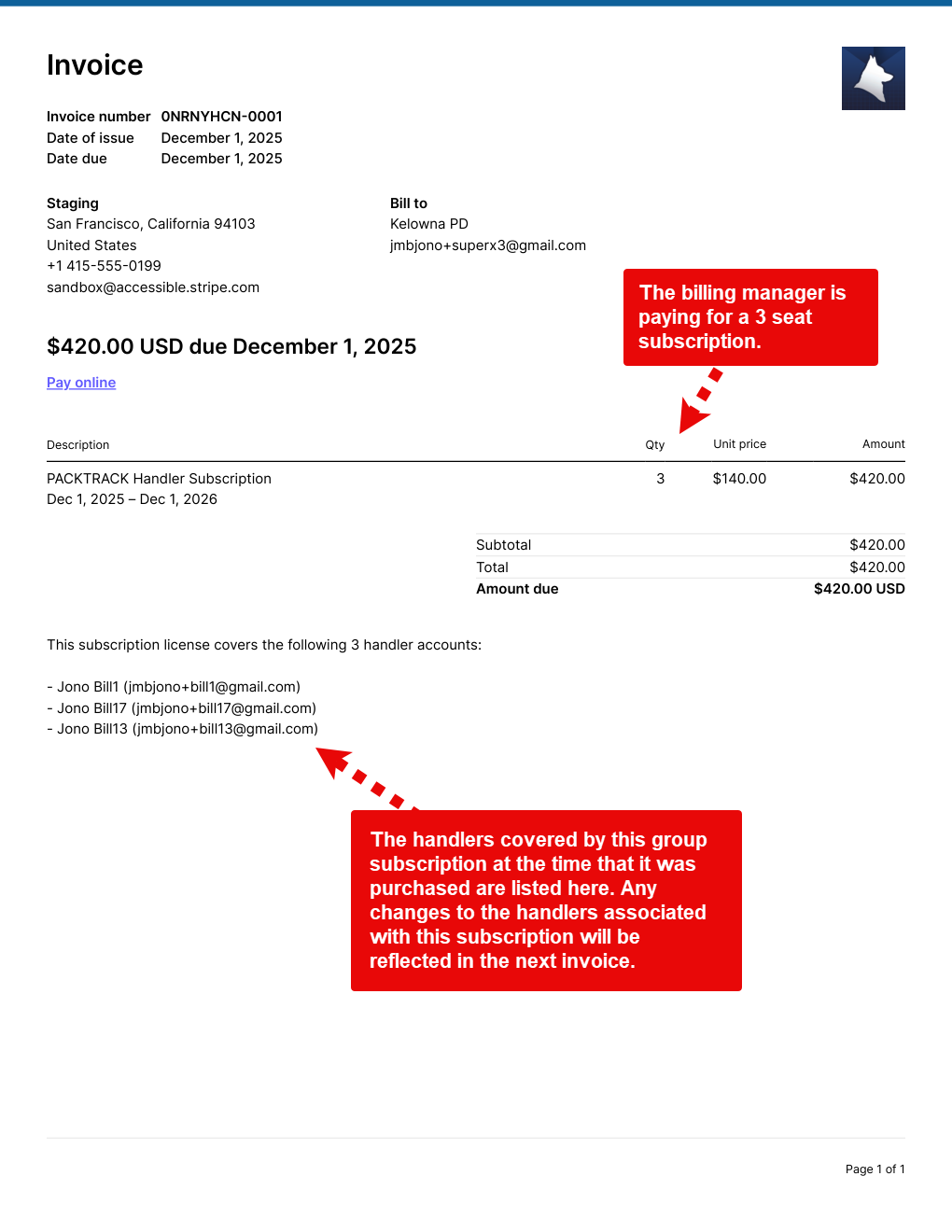
The billing manager receives an invoice based on the number of purchased seats. All handlers who occupy seats are listed on the invoice. This reflects the handlers assigned to this group subscription at the time that it was created. Future changes to the list of handlers will be shown on the invoice which is due at your next billing date.
Step 4: Make changes later
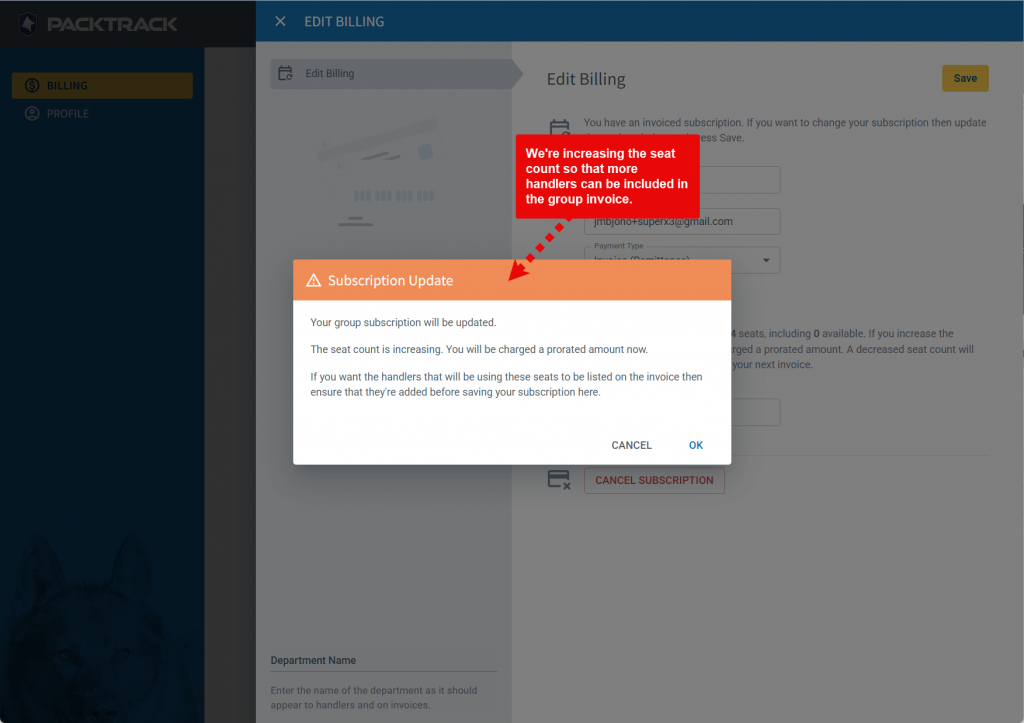
What happens if things change? Perhaps you need to swap out one handler for another or add/remove seats before the next billing date. You can remove assigned handlers using the trash can icon next to their names. Add new ones using the Add Handler option in the Manage drop down menu or select them from the Supervised Handlers list. If you need to adjust the seat count then use the Edit Subscription option in the Manage drop down menu and adjust the Seat Count field up or down. Increasing the count will result in a prorated charge based on the amount of time remaining in your subscription. Decreasing the count will lower the subscription cost shown on your next yearly invoice.
Group subscriptions are all about making life easier for K9 teams and their departments — freeing up more time for what really matters: supporting the dogs and handlers who keep our communities safe. We encourage departments of all sizes to use the group subscription feature to simplify billing. Consider forwarding this page to your department administrator to let them know about this feature. We're constantly updating and improving the PACKTRACK experience and we'd love to hear your feedback.