
Managing multiple K9 handler subscriptions just got a whole lot easier. We’re excited to announce our newest feature – Group Subscriptions – designed to give department billing managers complete control over their team’s subscriptions, all under a single account.
One Invoice, One Account, Total Control
With Group subscriptions, billing managers can now pay for and manage the subscriptions of multiple K9 handlers together. No more juggling individual invoices or tracking down renewals across separate accounts. Everything is streamlined into one centralized billing dashboard.
Managing your team’s subscriptions is simple and flexible. First, invite the handlers in your department to join your group subscription. Next, purchase a license with the desired number of seats. That’s it! If handlers join or leave the department, you can easily add, remove, or reassign seats at any time.
Why It Matters
For agencies with multiple K9 handlers, managing subscriptions individually can be time-consuming and confusing. Group subscriptions eliminates that friction, offering:
- Simplified billing – One invoice covers your entire team.
- Flexible management – Add or remove handlers as your team changes.
- Better oversight – Track your active users and seat usage in one place.
Step by Step Guide
Step 1: Get the Billing Manager role
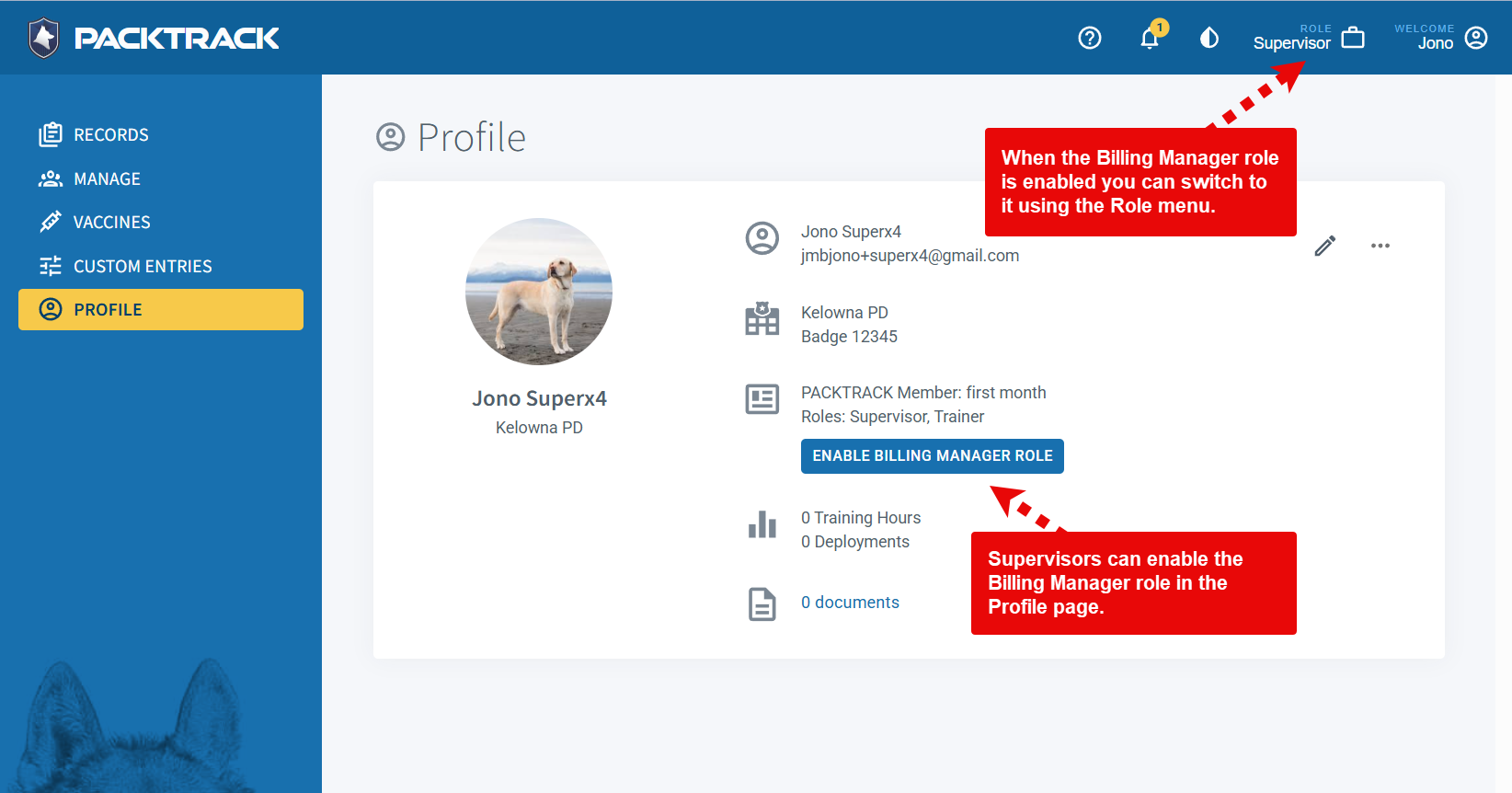
To access the group subscription feature you need to use the new Billing Manager role. A billing manager can be a handler, supervisor or administrator that’s responsible for ensuring that everyone in the department has an up to date subscription. Only one person needs to do this for the department. You may select this role at registration or, if you’re currently a supervisor, then you can add the Billing Manager role from your Profile page. You may also ask for the role to be added to your account using our support chat.
Step 2: Choose handlers to be managed
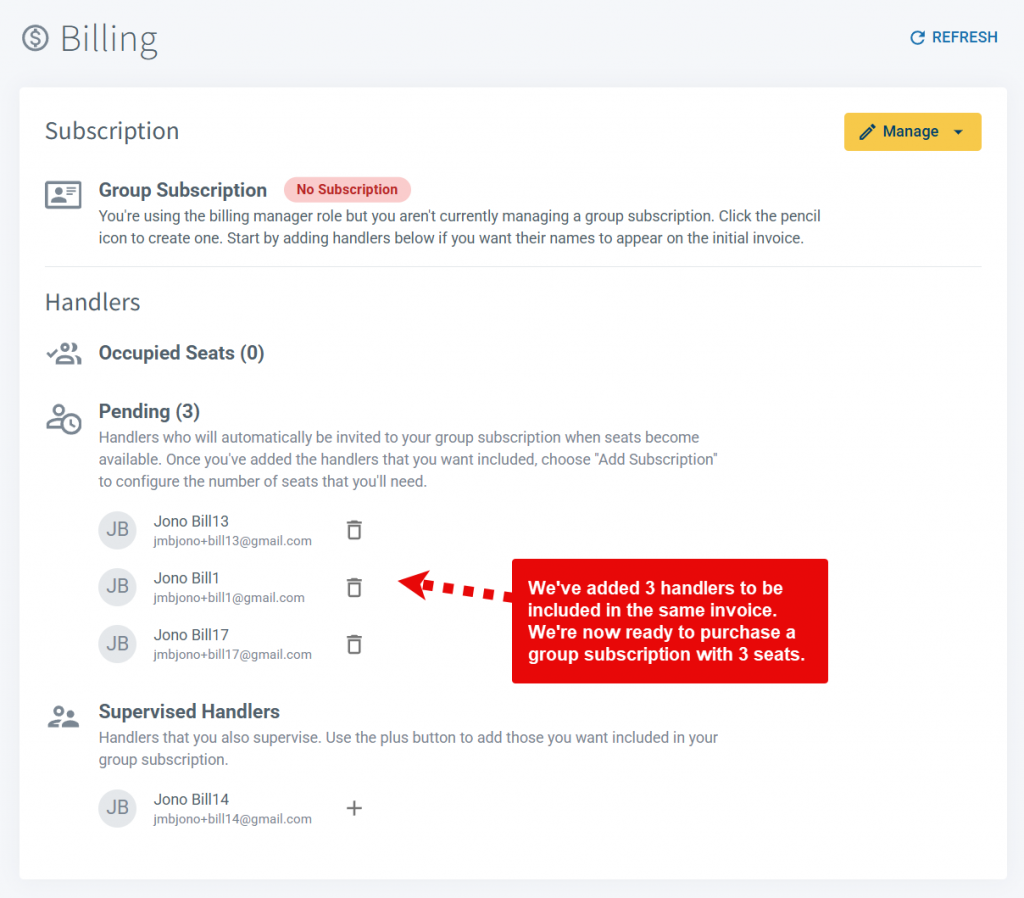
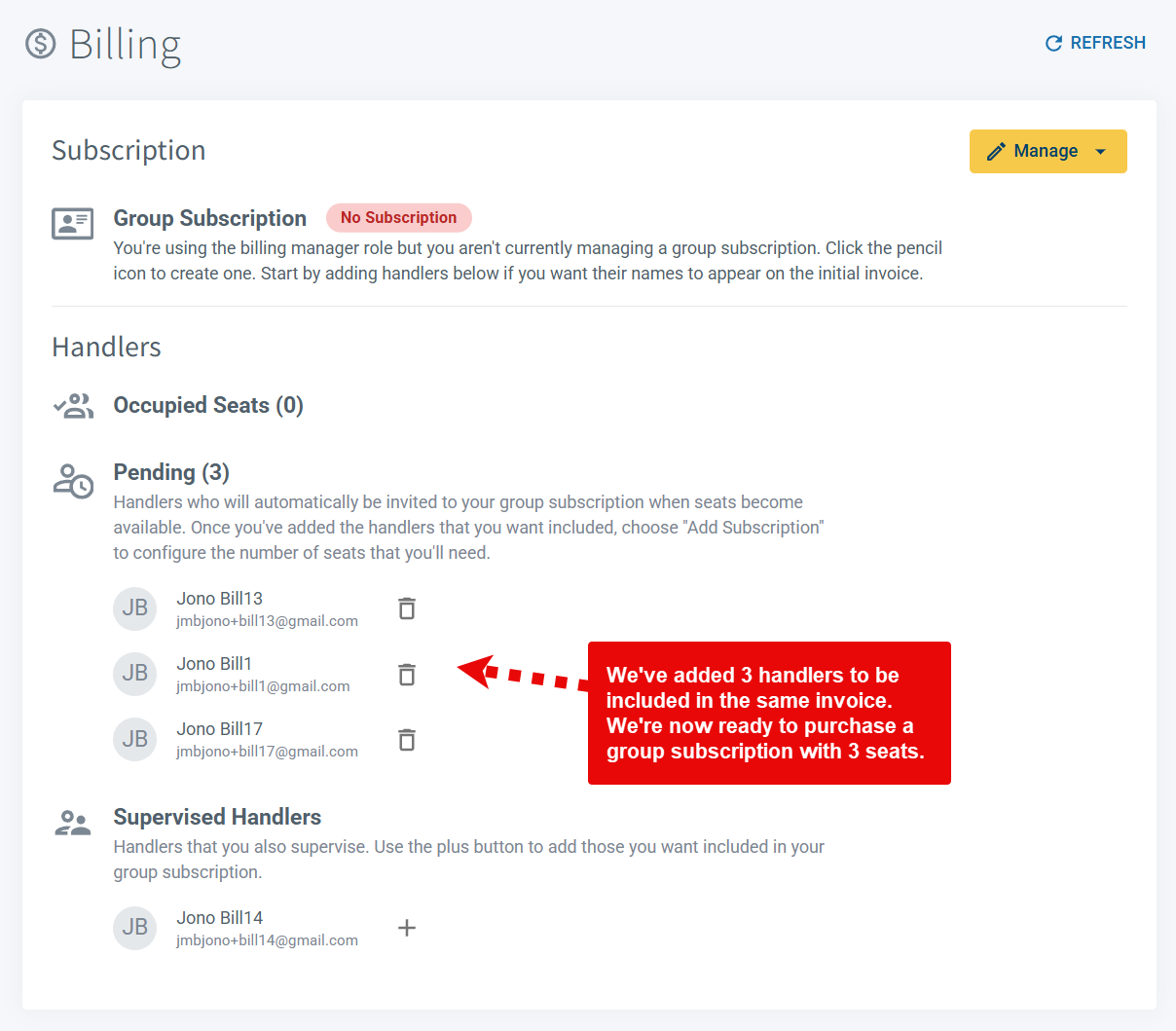
Switch to the Billing Manager role and choose the Billing tab. Here, you’ll add the handlers that you want to include in your group subscription. Note that your invitations are queued in the Pending list and will be sent later. The goal is simply to identify the handlers that you want to be covered.
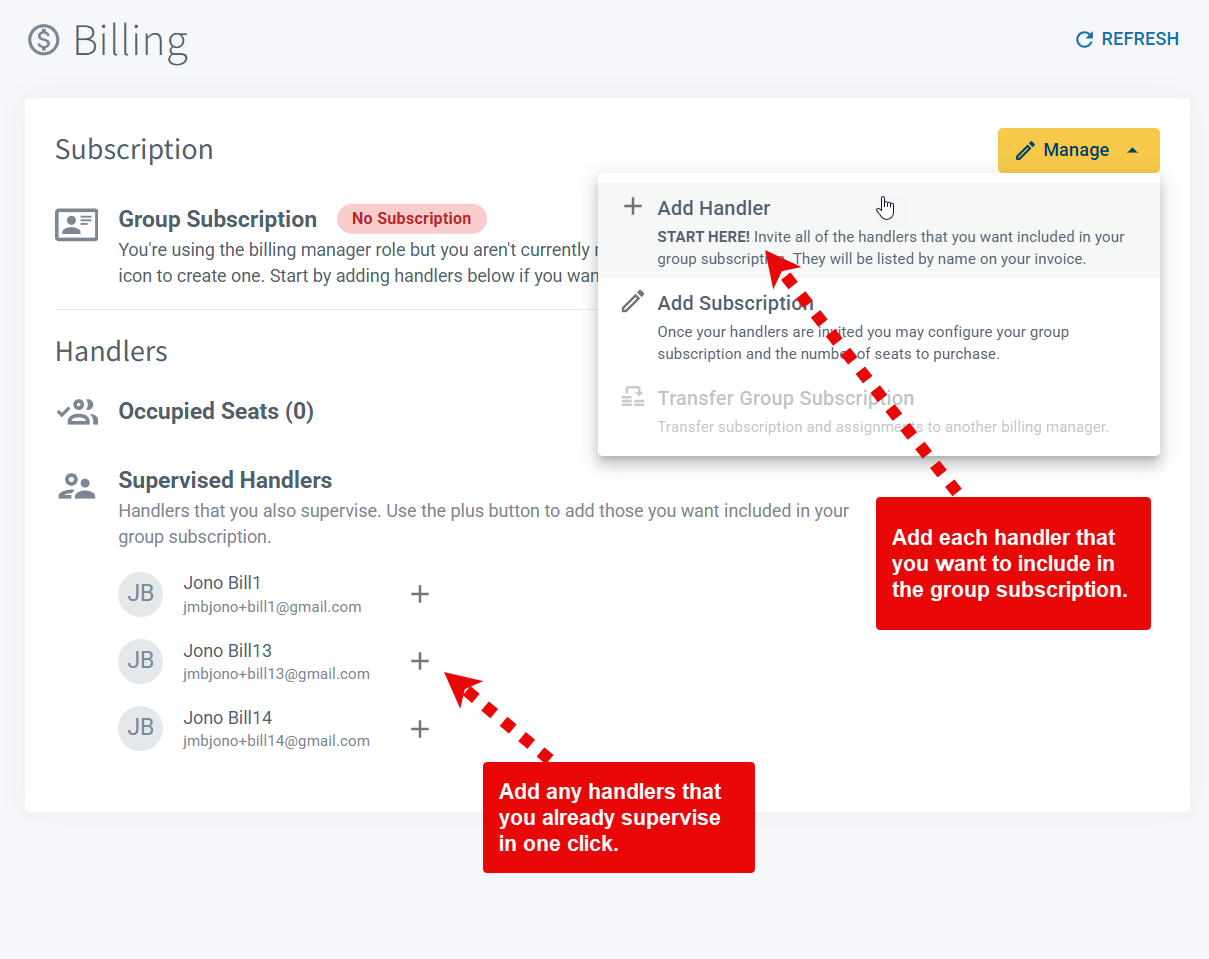 Use the Add Handler option in the Manage menu to provide the email address for each handler. If you already supervise handlers then they can be added by clicking the plus button next to their name in the Supervised Handlers list. If you add a handler that isn’t a PACKTRACK member then they will receive an email asking them to sign up. This is a great way to onboard the handlers in your department with the PACKTRACK service. When they complete the registration they’ll automatically be queued in the Pending list to be included in this group subscription.
 Step 3: Purchase a group subscription
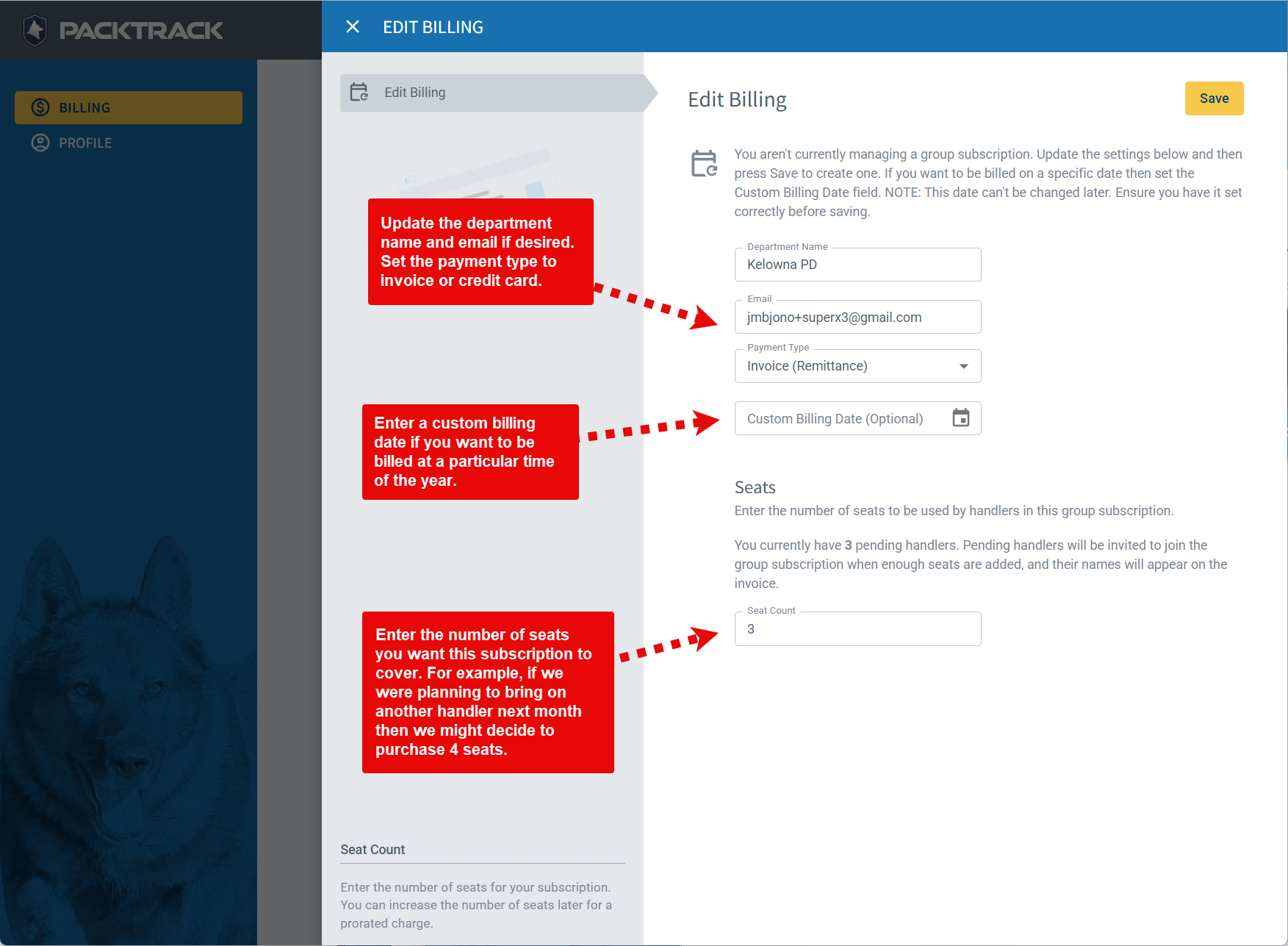
Now that you’ve identified the handlers that you want to include, you’re ready to configure the group subscription. Click the Add Subscription option in the Manage drop down menu to open the billing editor. Adjust the department name and email address if desired, choose the desired payment type (invoice or credit card) and then enter the number of seats that you’d like to purchase. You also have the option of setting a specific billing date. If you want to be billed every year on January 1st then you’d enter that date here.
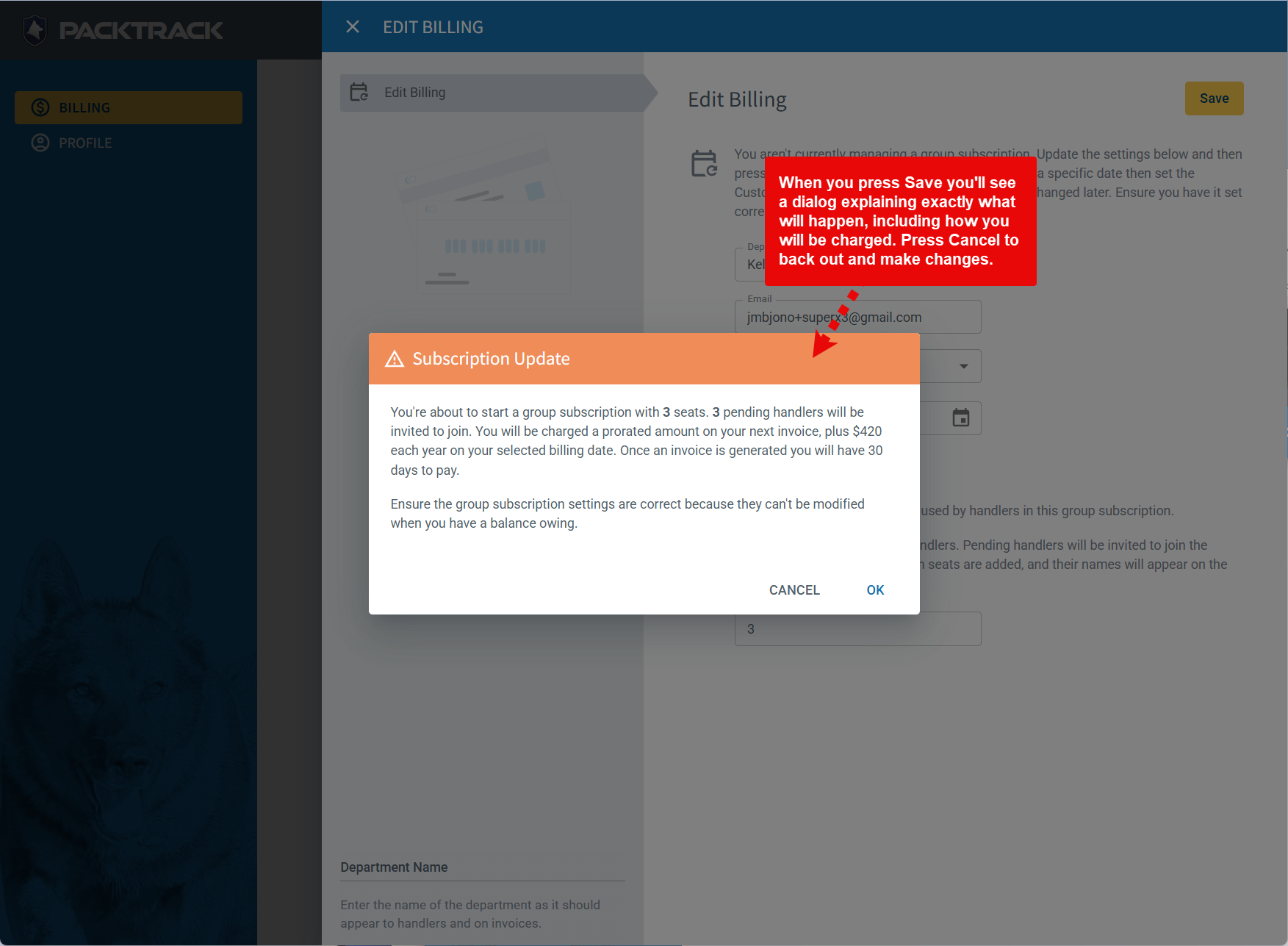
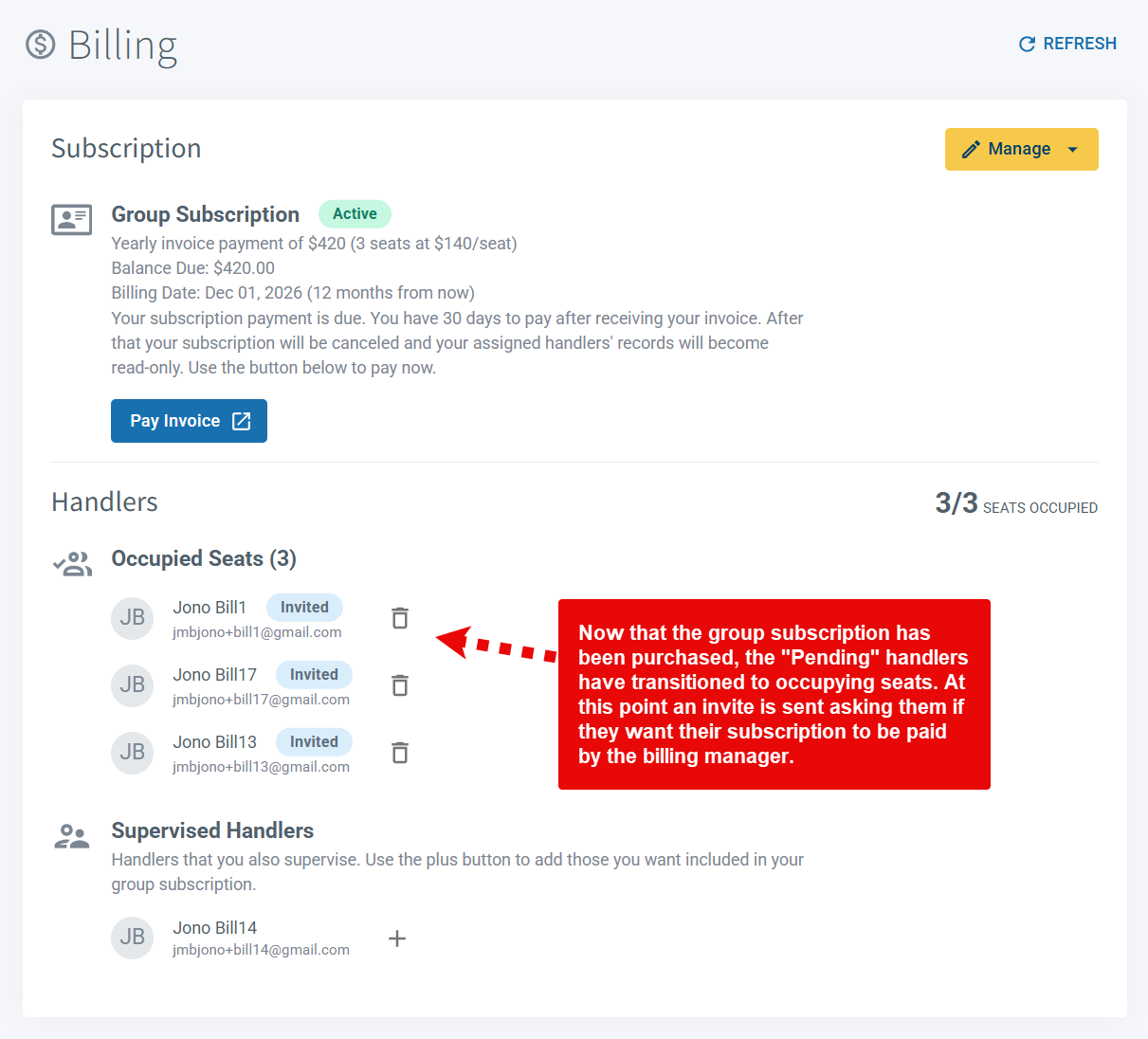
Once you purchase your subscription, the Billing page will update. Pending handlers will occupy the newly available seats and be invited to have their subscription paid for by the billing manager.
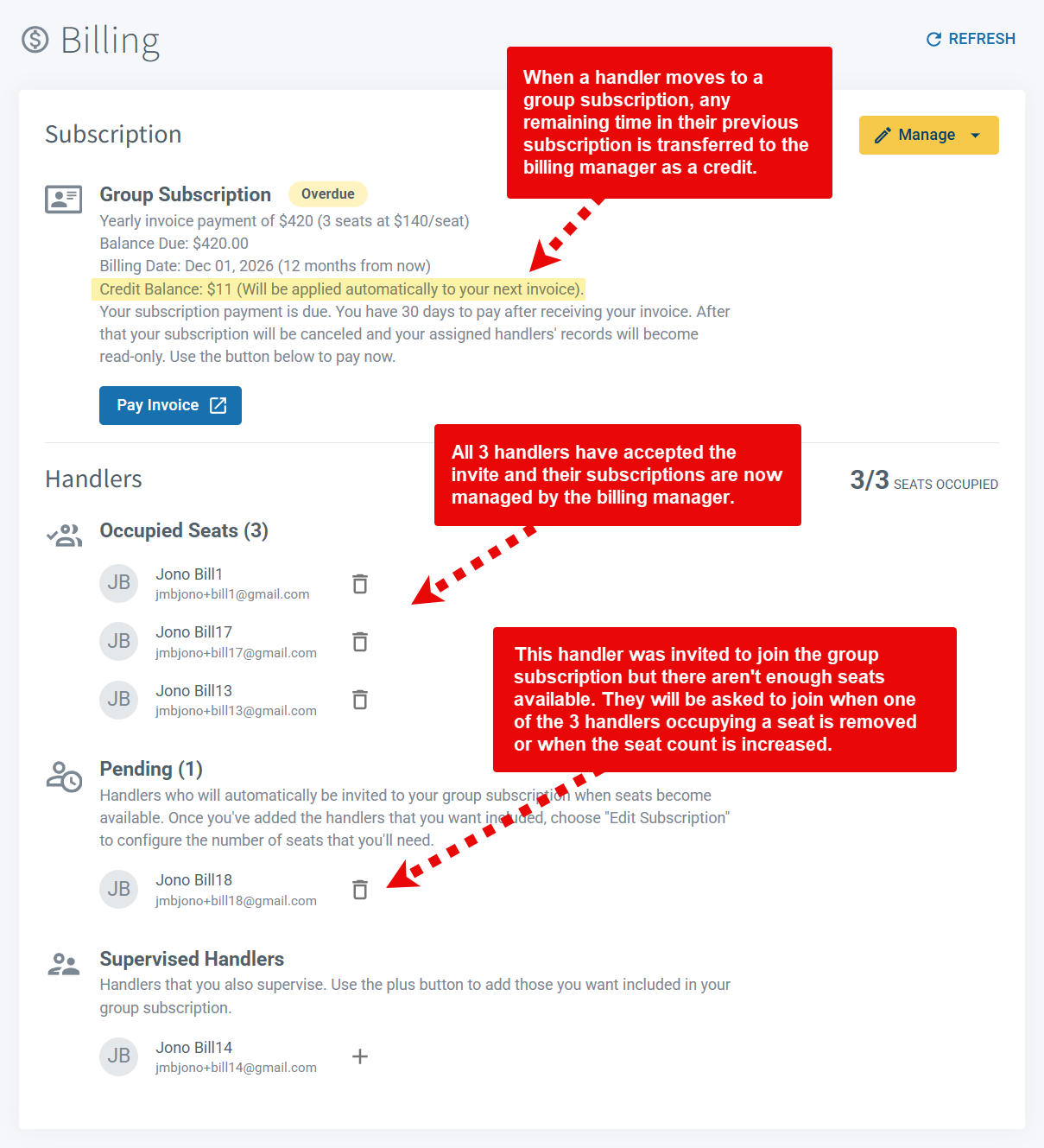
Handlers accept the invite and join the group subscription. Their previous subscription is cancelled. If there is paid time left on the handler’s previous subscription then the unused portion will be credited to the billing manager’s group subscription.
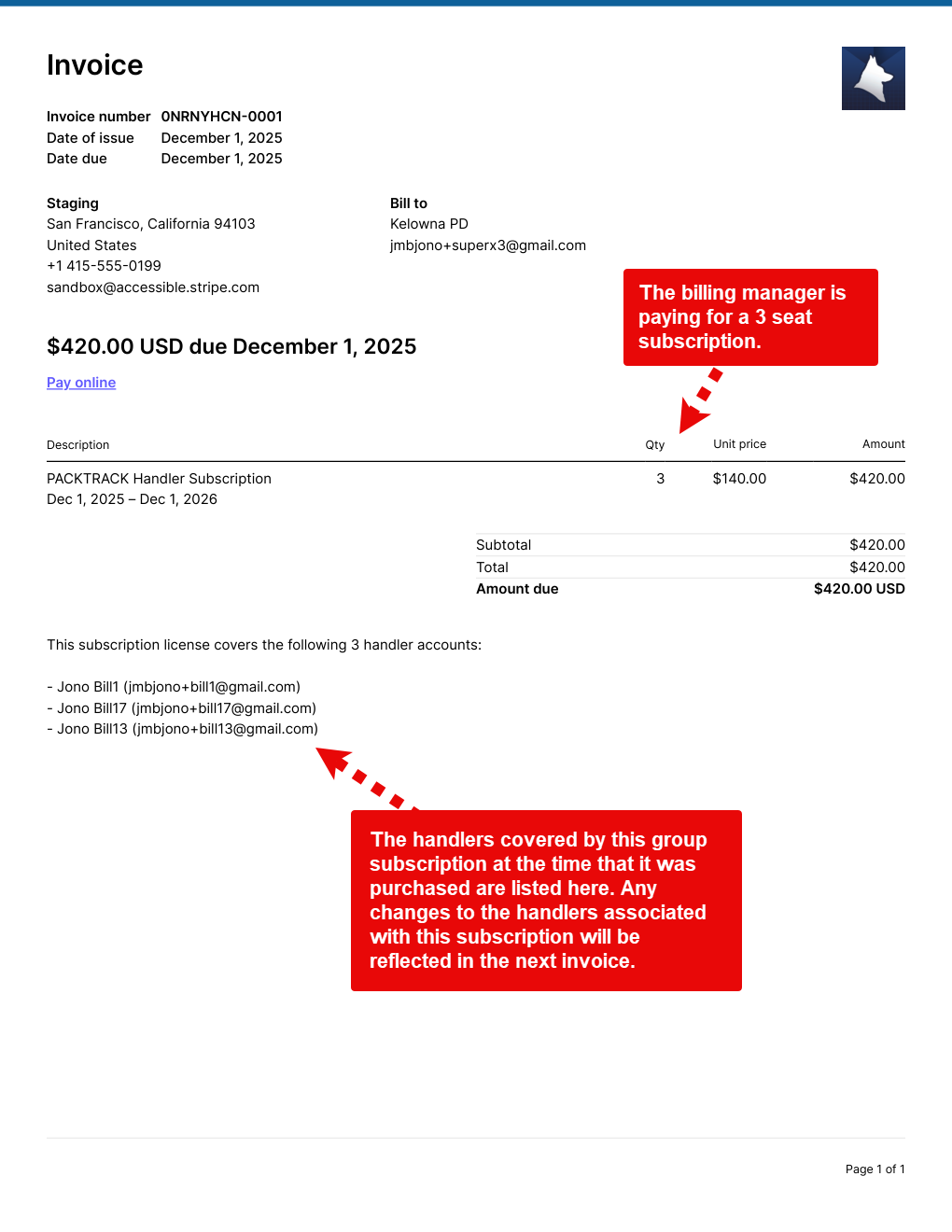
The billing manager receives an invoice based on the number of purchased seats. All handlers who occupy seats are listed on the invoice. This reflects the handlers assigned to this group subscription at the time that it was created. Future changes to the list of handlers will be shown on the invoice which is due at your next billing date.
Step 4: Make changes later
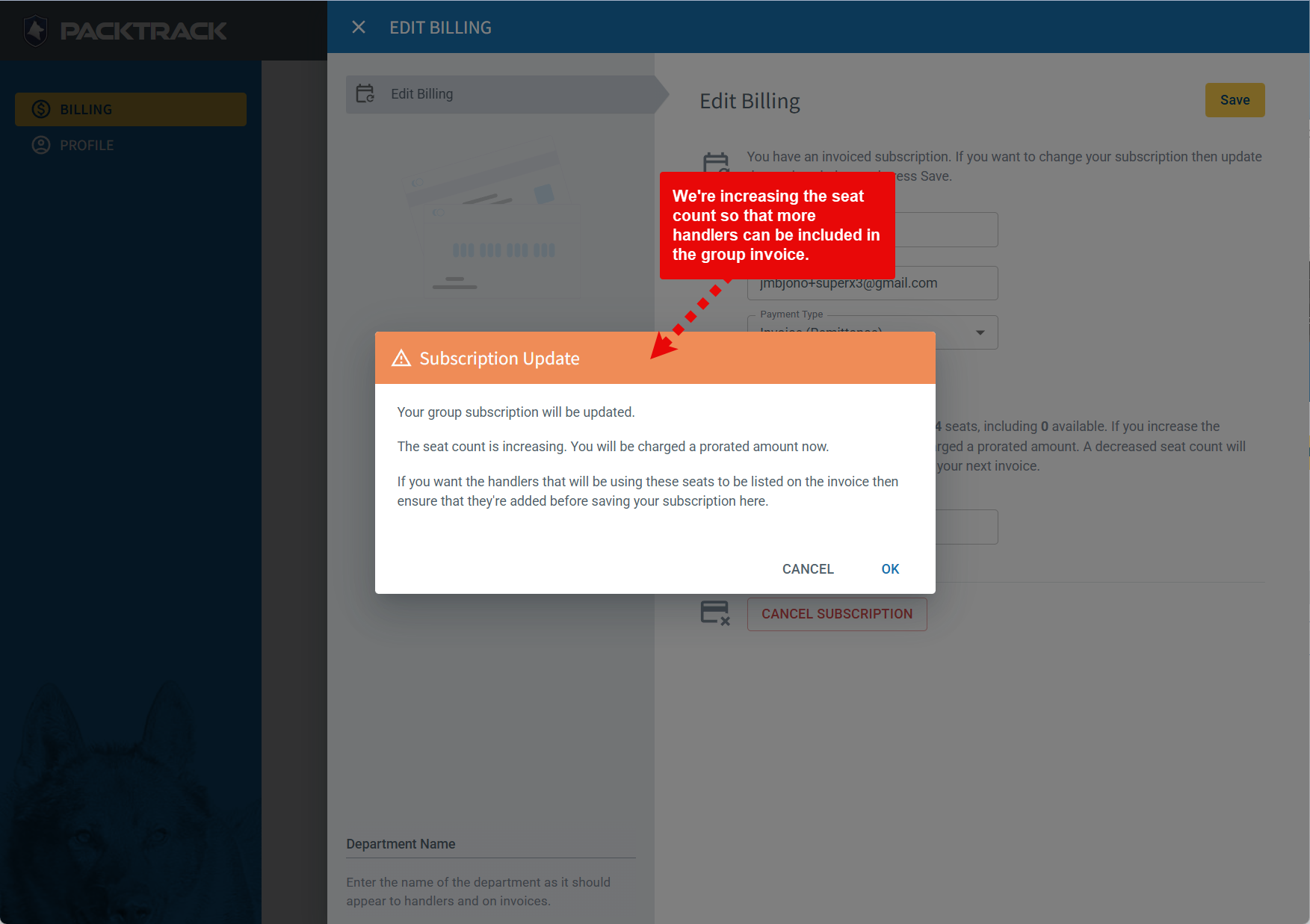
What happens if things change? Perhaps you need to swap out one handler for another or add/remove seats before the next billing date. You can remove assigned handlers using the trash can icon next to their names. Add new ones using the Add Handler option in the Manage drop down menu or select them from the Supervised Handlers list. If you need to adjust the seat count then use the Edit Subscription option in the Manage drop down menu and adjust the Seat Count field up or down. Increasing the count will result in a prorated charge based on the amount of time remaining in your subscription. Decreasing the count will lower the subscription cost shown on your next yearly invoice.
Group subscriptions are all about making life easier for K9 teams and their departments — freeing up more time for what really matters: supporting the dogs and handlers who keep our communities safe. We encourage departments of all sizes to use the group subscription feature to simplify billing. Consider forwarding this page to your department administrator to let them know about this feature. We’re constantly updating and improving the PACKTRACK experience and we’d love to hear your feedback.