

Custom Entries
Learn how to create, edit, and manage custom dropdown values in PackTrack. Standardize entries across your department for consistent K9 record-keeping.


Overview
Managing K9 records requires accuracy and consistency. We know how frustrating it can be when small mistakes, like a typo in a dropdown option or duplicate entries, create confusion in your reports.
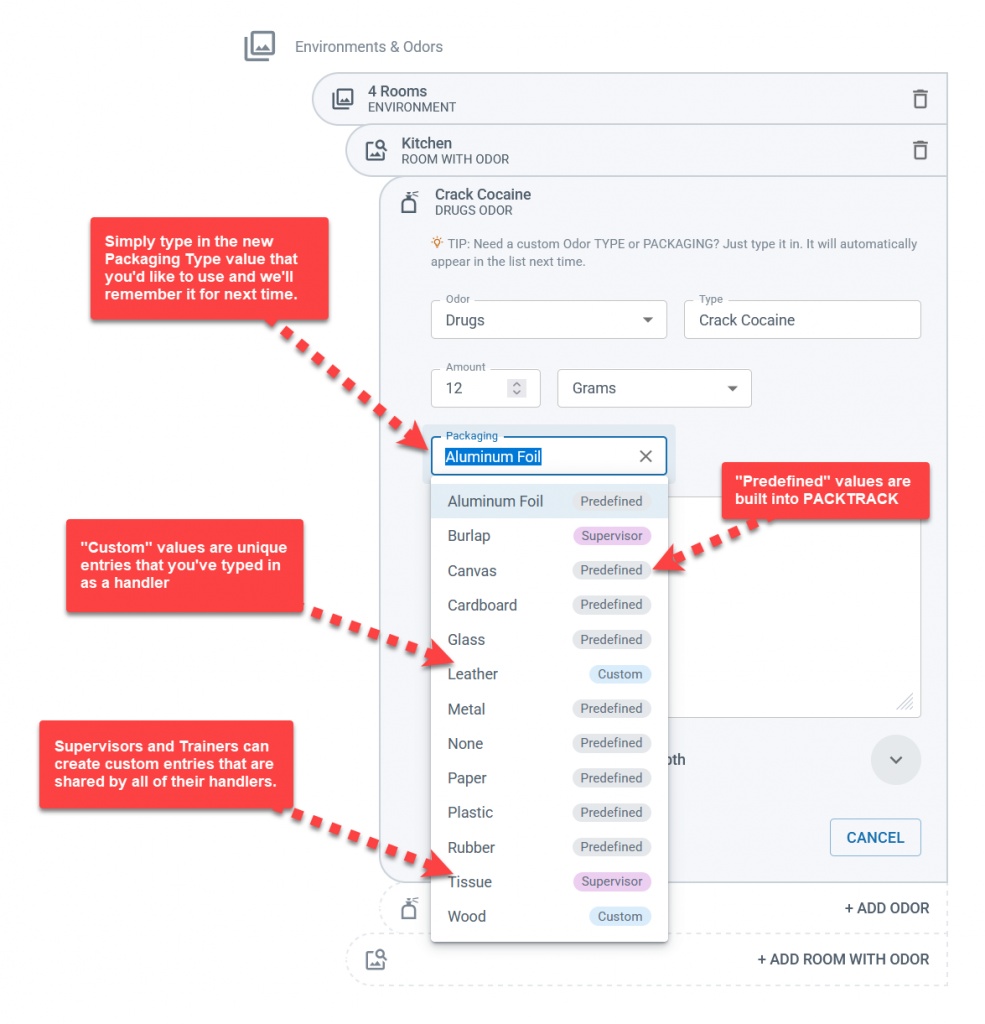
That's why we've made PackTrack flexible. If you don't find an option you're looking for in a dropdown, you can add your own. For example, you might want to specify that your detection odor was packaged in cloth.
PackTrack provides several predefined options for packaging types, but if the one you need isn't listed, type in the new value instead of choosing an existing option. It will be stored as a new packaging type for next time.
These unique values are called "custom entries." You can customize odors, packaging, event and deployment tags, requesting units, and weather.
Why would you edit custom entries?
If you add a lot of values or belong to a department where these values are standardized, the Custom Entries page gives you the flexibility to keep things organized. Common reasons to edit custom entries:
- Fix spelling mistakes and improve wording
- Merge values that are similar or standardized
- Delete values that are no longer used in your records
What's on the Custom Entries page?
The Custom Entries page provides an overview of all the values that have been added to PackTrack. If you have a lot, you can filter by custom entry type using the dropdown at the top of the page.
Values are shown in a grid. Each row shows the value, the entry type, who made the entry, and the number of references to this entry in your records.
Click the VIEW link to open the Records page. It will be filtered to show the records containing that entry.
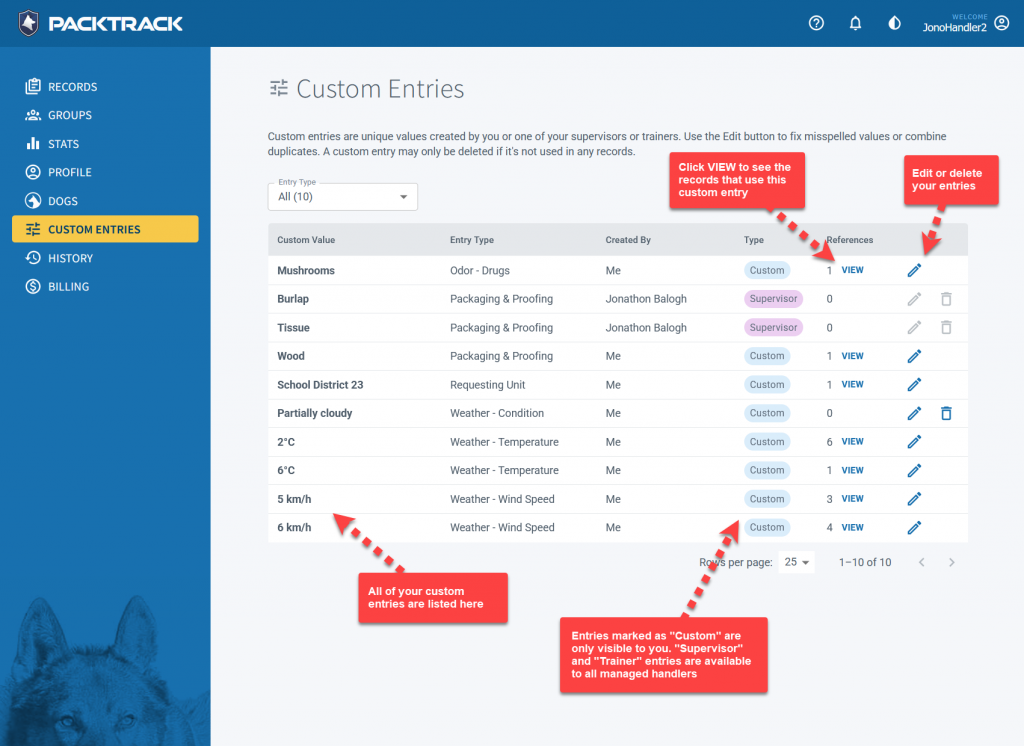
How to edit custom entries
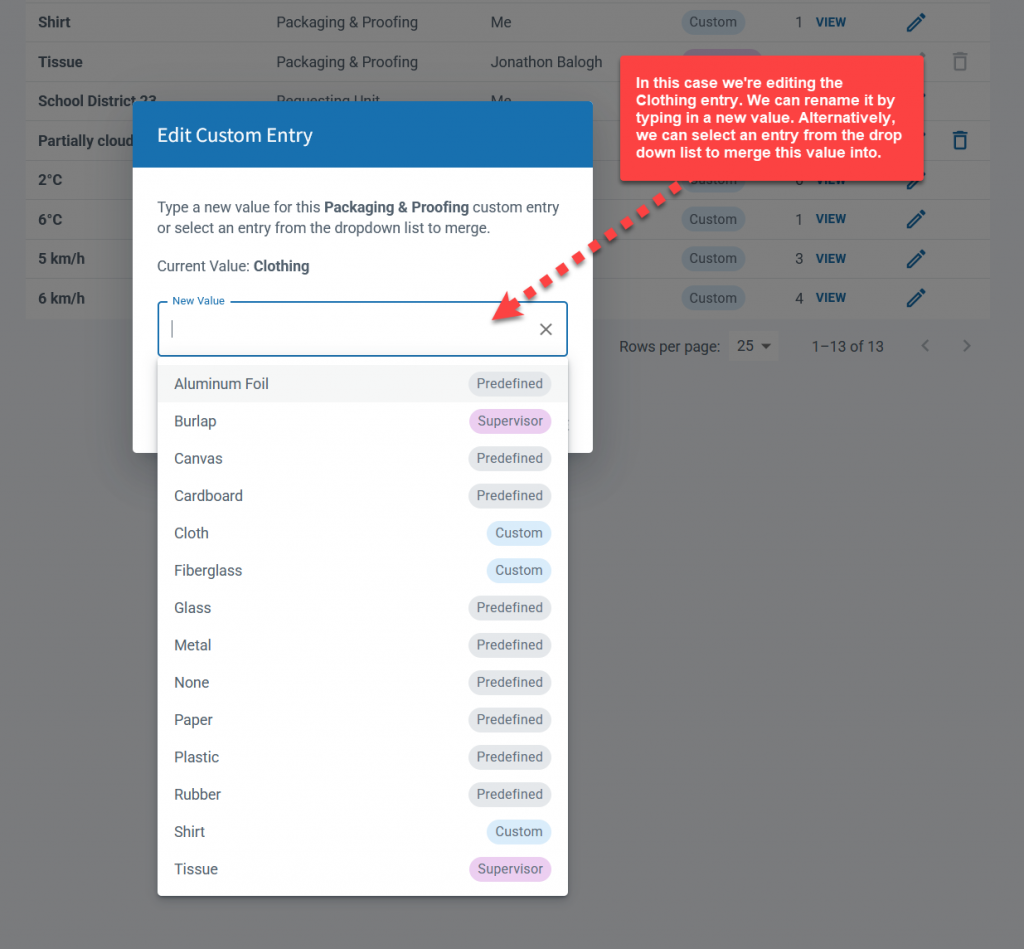
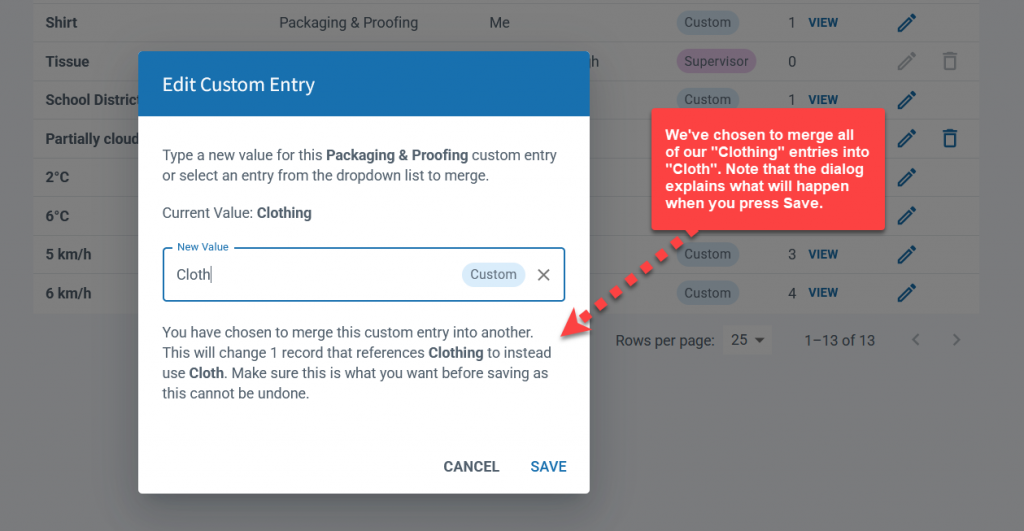
Each row in the grid includes an edit button that opens a dialog to walk you through your changes. To replace your current value with an existing value, simply choose one from the dropdown list. To rename the current value, type it in.
The dialog will explain exactly what happens if you save your changes. If the entry is no longer used anywhere in your records, the row in the table will also show a delete option.
How supervisors and trainers use custom entries
Custom entry editing is also available to supervisors and trainers. These roles can view the custom entries for all handlers that they manage. There are a couple reasons they might want to make changes:
- Correct handler mistakes or inconsistencies
- Enforce standard terms within the department
Supervisors and trainers can edit entries just like handlers. If one of their handlers misspells a word, for example, they can easily fix it. These roles can also ensure that the same terminology is used by everyone in the department. This keeps reports clean and eliminates duplication.
Rather than manually fix every custom entry, supervisors and trainers are encouraged to define their own official values for their handlers to use.
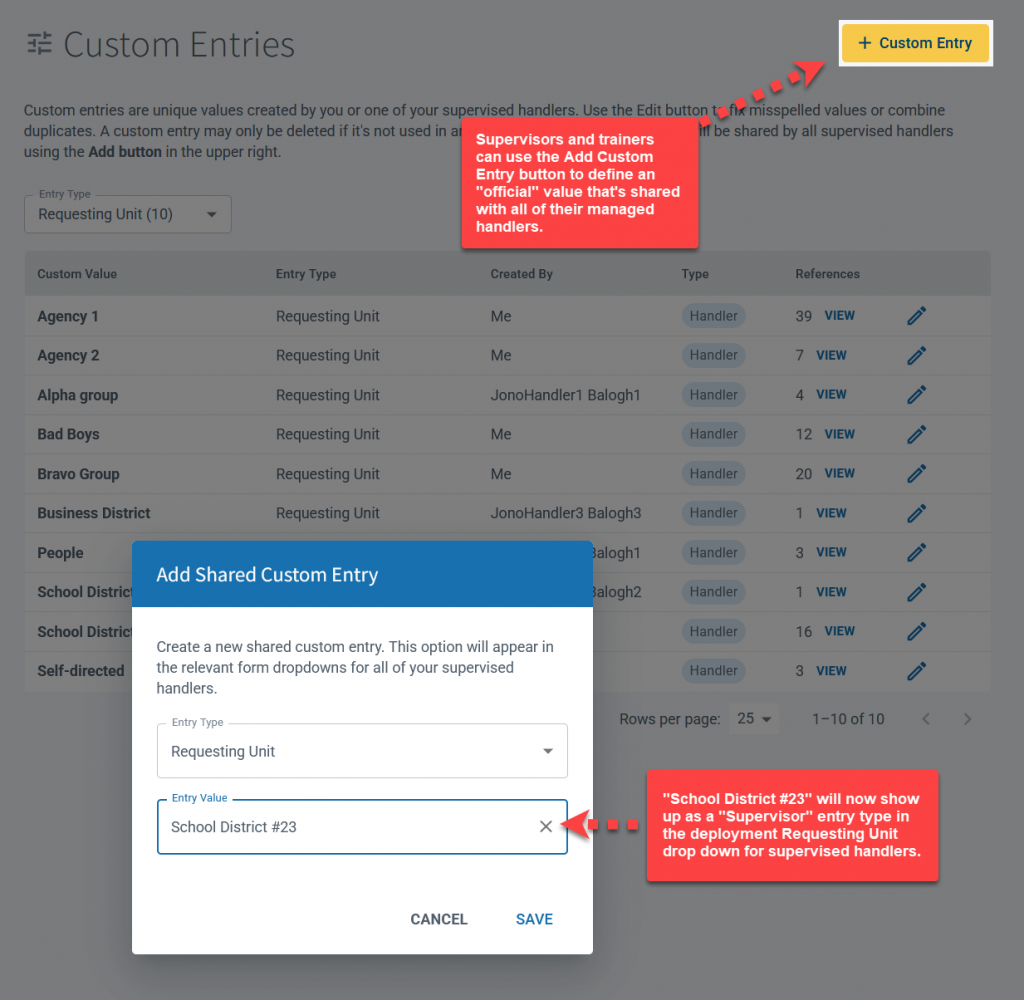
For example, a supervisor may notice that the deployment requesting unit for "School District 23" is recorded differently by each handler. Handlers within the department might label this as "District 23", "school" or "Education district."
The supervisor can use the Add Custom Entry button to define a "Supervisor" entry for requesting units in their department. This creates a standardized entry value that will appear in the Requesting Unit/Agency dropdown for all handlers in that department.
It's best to define these official entry values ahead of time to create a standardized list of department terms.
Frequently Asked Questions
What types of values can I customize?
You can edit odors, packaging, event and deployment tags, requesting units, and weather.
Can I delete a custom entry?
Only if it is no longer referenced in any of your records. If it has no references, a delete option appears in the row.
What happens when I merge two custom entries?
All records referencing the old value are updated to use the new value. The dialog explains exactly what will change before you save.
Can supervisors edit custom entries for their handlers?
Yes. Supervisors and trainers can view and edit custom entries for all handlers they manage.
How do I standardize custom entries across my department?
Supervisors and trainers can use the Add Custom Entry button to define official values. These appear in the dropdown for all handlers in the department.

Still need help?
Can't find what you're looking for? Message the PackTrack team from the chat inside the app, or reply to any PackTrack email.