

Tagging Records
Keeping your K9 records organized makes it easier to find what you need quickly. One of the simplest ways to categorize your work is by using a tagging system.


What are tags?
Tags are custom labels that you can attach to your K9 training event and deployment records to filter information more efficiently.
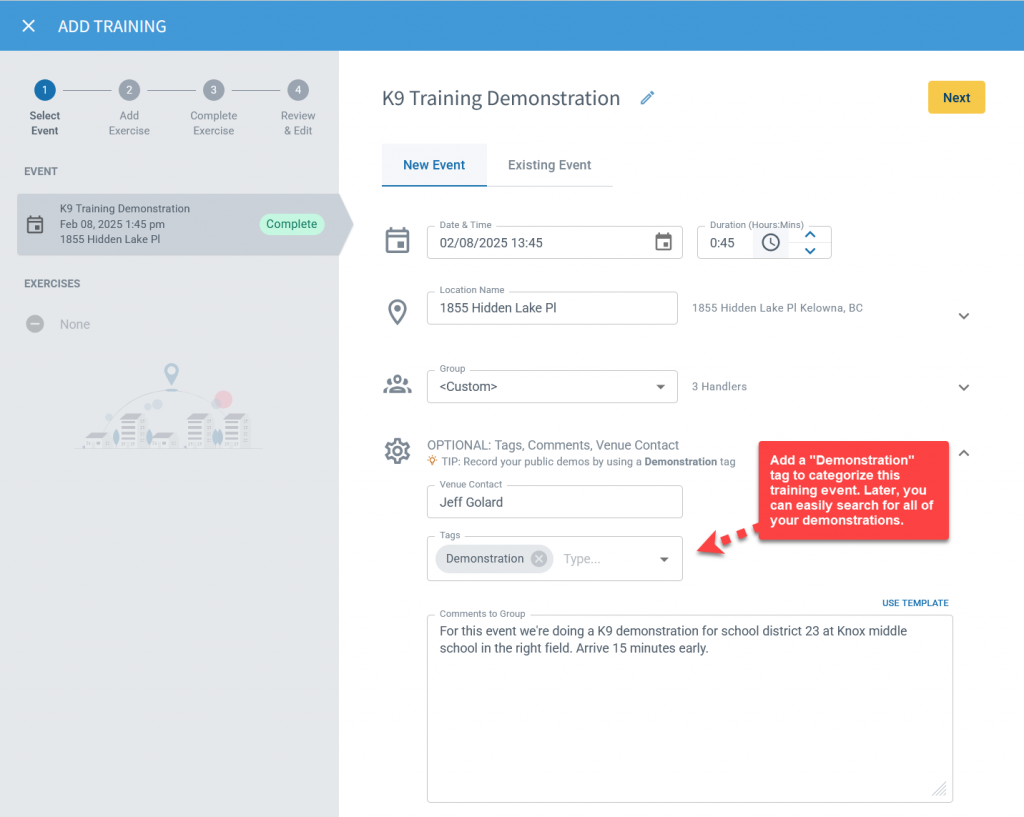
Unlike rigid folder structures, tags offer flexibility, allowing you to label records with multiple relevant terms of your own choosing. For example, for a training session, you might add an event tag like “Demonstration” or “Certification.”
For a deployment, you might tag it as “Off Duty” or “Call Out.” Later, when you need to see all of your demonstration records, you can simply search for the appropriate tag name rather than digging through your records manually.
How tags work
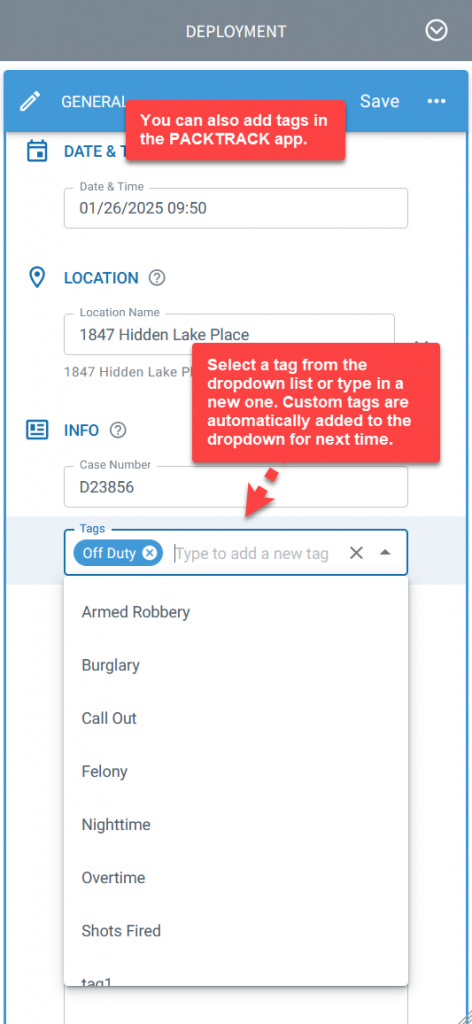
PackTrack supports tagging for training events and deployment records. If you have a record that you’d like to label, use the Tags dropdown to choose an entry or type in your own term.
Custom tags are automatically listed in the dropdown the next time you use it. Feel free to add as many tags as you need.
Default training event tags
PackTrack includes the following default tags for training events:
- Demonstration
- Scent Wall
- Certification
- Shock Collar
Default deployment tags
PackTrack includes the following default tags for deployments:
- Overtime
- Off Duty
- Call Out
- Burglary
- Armed Robbery
- Felony
Finding tagged records
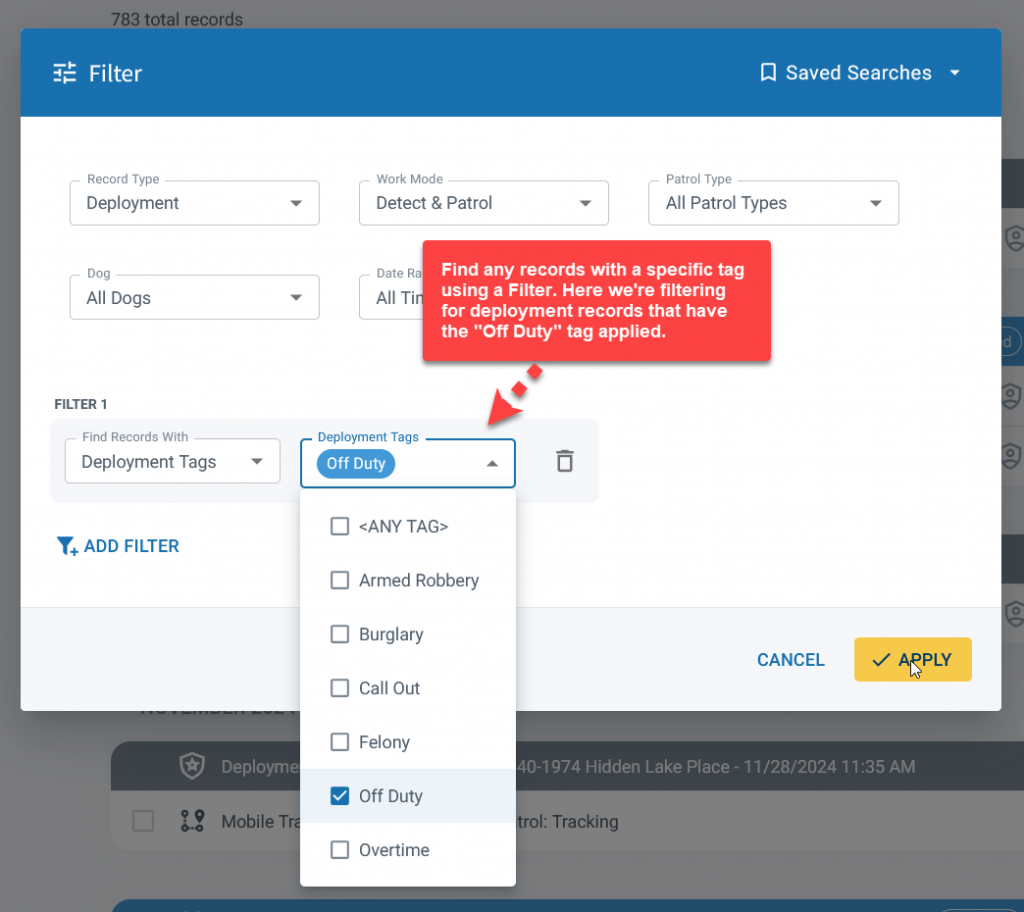
Let’s say you’ve been regularly tracking your off duty deployments by setting the “Off Duty” tag for each record. You can search for these deployments using the record Filter button.
In the dialog that appears, choose the Add Filter option and then select the Deployment Tags criteria. Next, choose the “Off Duty” tag and then hit Apply. Your record list is now filtered to only show your off duty deployments.
You can easily run reports on these specific records using the Report button. Also note that the filtering dropdown has an option for “<Any Tag>”. Choose this to find all deployments that have any tag at all.
The same process works for training events. Use the Add Filter option and select the Training Event Tags criteria to filter by training tags.
Tags in reports
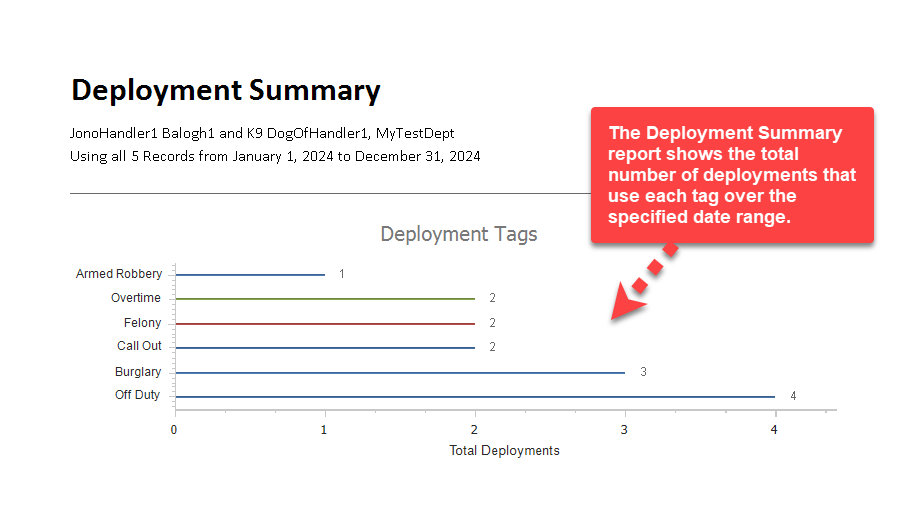
Tags are counted and displayed in both the Training Summary and Deployment Summary reports.
The Training Summary report shows how many times each training event tag was applied within the selected date range. The Deployment Summary report does the same for deployment tags.
A convenient bar graph shows the total number of times each tag was applied in each report.
Frequently Asked Questions
What’s the difference between event tags and deployment tags?
Event tags apply to training events (e.g., Demonstration, Certification). Deployment tags apply to field activities (e.g., Off Duty, Call Out). Each type has its own set of defaults and custom entries.
Can I search for records that have any tag at all?
Yes. The filtering dropdown includes an “<Any Tag>” option that shows all tagged records of that type.
Do custom tags carry over to other handlers in my department?
No. Custom tags you create are specific to your account. Supervisors can standardize tags using the Custom Entries page.
How are tags displayed in reports?
Training Summary and Deployment Summary reports include a bar graph showing how many times each tag was applied within the selected date range.
Can I tag a record with more than one label?
Yes. Add as many tags as needed to a single training event or deployment record.

Still need help?
Can't find what you're looking for? Message the PackTrack team from the chat inside the app, or reply to any PackTrack email.