

How to Use Location Tracking
Step by step instructions for using each of the 3 location tracking modes


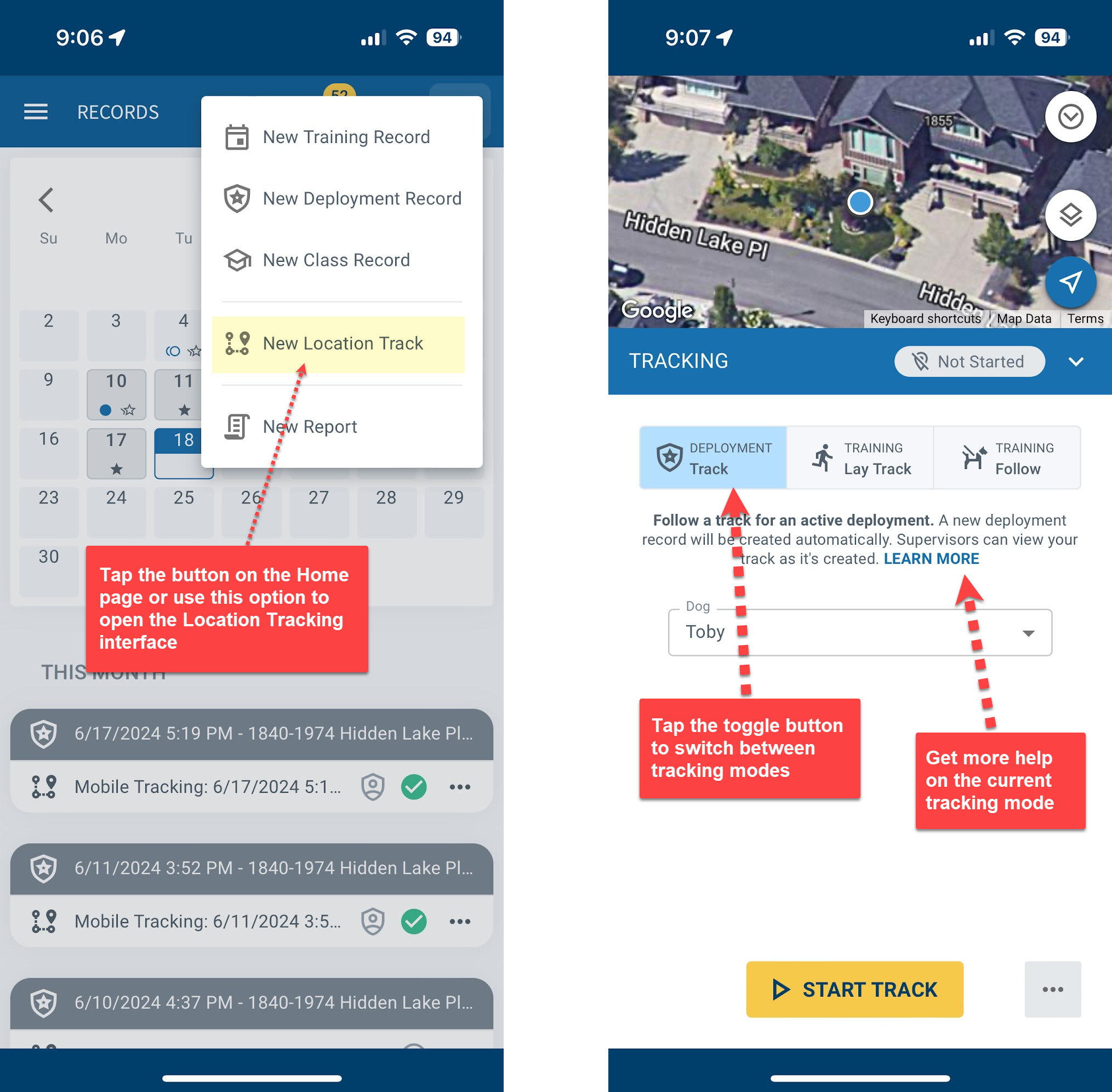
The Location Tracking interface is available in the PackTrack mobile app. Tap the Location Tracking button on the Home page or select the Plus button and then New Location Track on the Records page.
There are three distinct tracking modes:
- Deployment Track
- Training Lay Track
- Training Follow
The instructions below explain each mode in order. You may also view the instructions for each tracking mode within the app by pressing the appropriate LEARN MORE link before starting your track.
Helpful references:
Mode 1: Follow deployment track
Use the deployment tracking feature to record the path you take during a deployment. PackTrack automatically generates a deployment record, records your route and shows it live on your phone.
When you’re done you may save the track for later or choose to complete the associated deployment record right away. Relevant tracking data, such as duration, distance, turns and weather is automatically populated in your deployment record along with a map of your track.
Supervisors have the option of viewing your track remotely as it’s created.
Steps
- Press the Start Track button, lock the screen, and put it in your pocket.
- Follow the track with your K9. Your position is recorded as you move.
- Record any important locations by taking a picture with the Quick Pin button.
- Press the Stop Track button when the track is done.
- Save the track for later or complete the tracking deployment record right away.
Mode 2: Lay training track
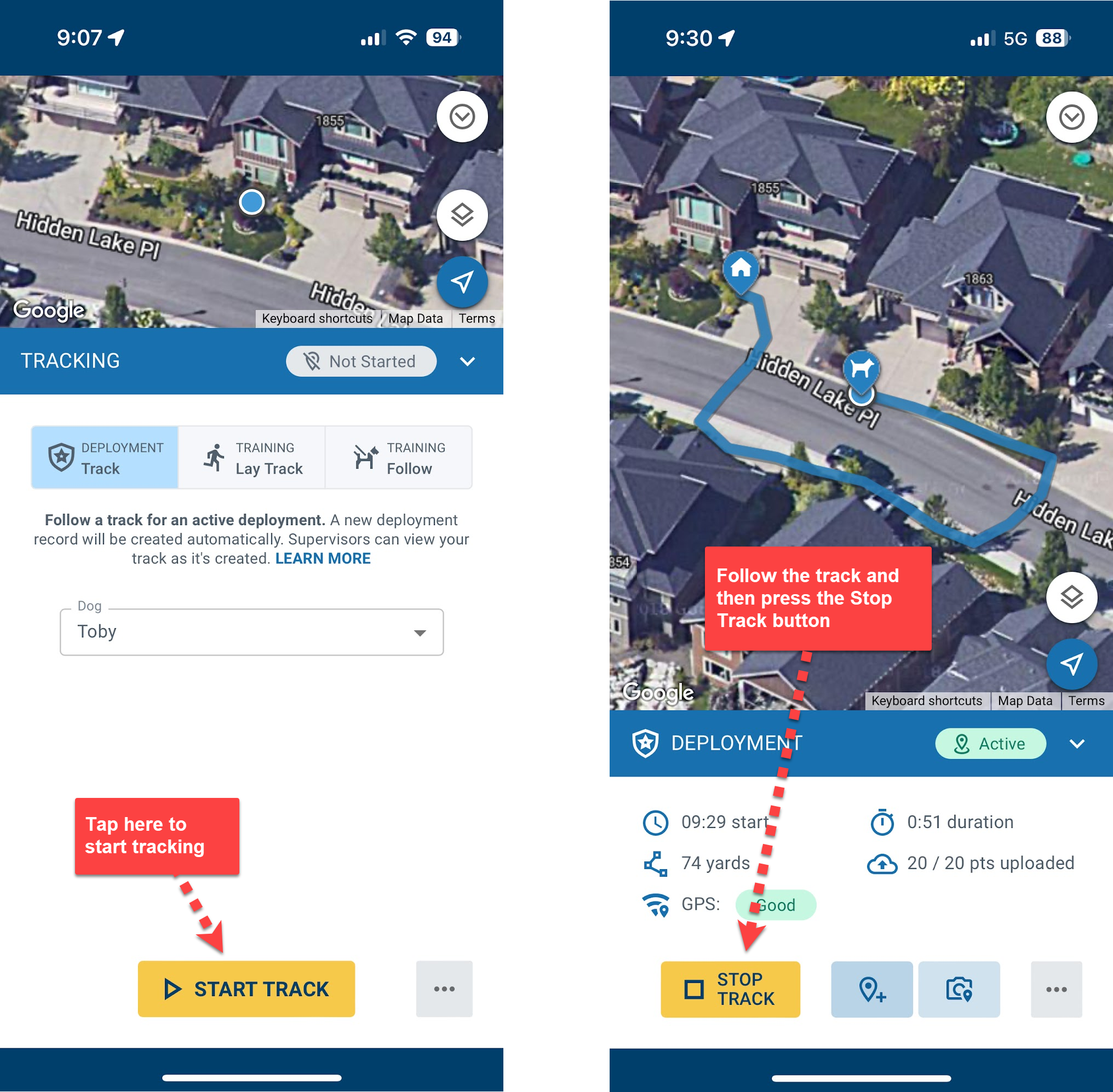
As the track layer, your role is to create an invisible scent trail for the K9 team to follow during training. PackTrack records your path and displays it live on your phone as you go. When your laid track is done it becomes available to follow by any K9 team within 500 yards of the starting point.
Track layers do not require a PackTrack account. Tap the link in the app on the first screen to bypass login and jump straight to the track laying screen. Before starting your track, feel free to customize the laid track name to make it easier for the K9 team to find later.
Note that laid tracks have a limited life and will disappear after 3 days if not used by a track follower.
Steps
- Press the Start Track button, lock the screen, and put it in your pocket.
- Continue moving to create a path that the K9 team will follow. Your position is recorded as you move.
- Record any important locations by taking a picture with the Quick Pin button.
- Press the Stop Track button when the laid track is done.
- Save the track so that it can be followed by the K9 team.
Mode 3: Follow training track
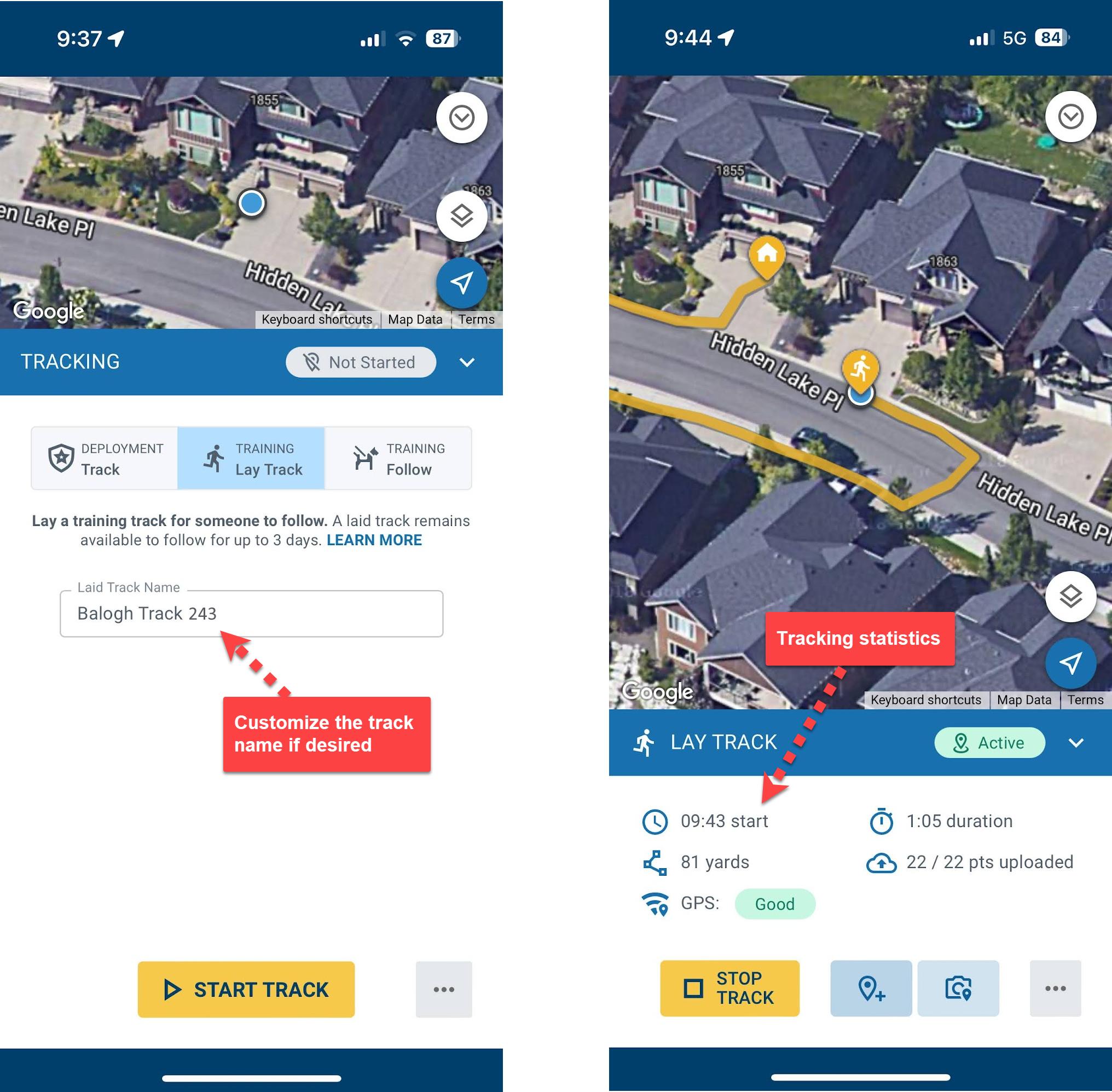
The K9 team is responsible for accurately following the invisible scent trail left by the track layer. If you previously created an exercise then select it from the Tracking Exercise dropdown. If not, select the “Create new exercise automatically” option and PackTrack will create a training event and exercise just for you.
Next, choose your K9 and the laid track that you will follow. You must be within 500 yards of where the laid track was started to see it as an option. To follow without specifying the laid track, choose the “Follow without laid track” option.
Finally, choose the laid track’s visibility:
- Hidden — you won’t see the laid track or where it starts
- Start Location — you’ll see where the laid track started
- Visible — the entire laid track is revealed (this sets the “Track location is known” checkbox in your exercise completion record)
When you’re ready, tap the Start Track button to begin following the track layer’s path and tap the Stop Track button when done.
Steps
- Choose appropriate settings for the exercise, K9, laid track, and laid track visibility.
- Press the Start Track button, lock the screen, and put it in your pocket.
- Follow the scent trail of the track layer. Your position is recorded as you move.
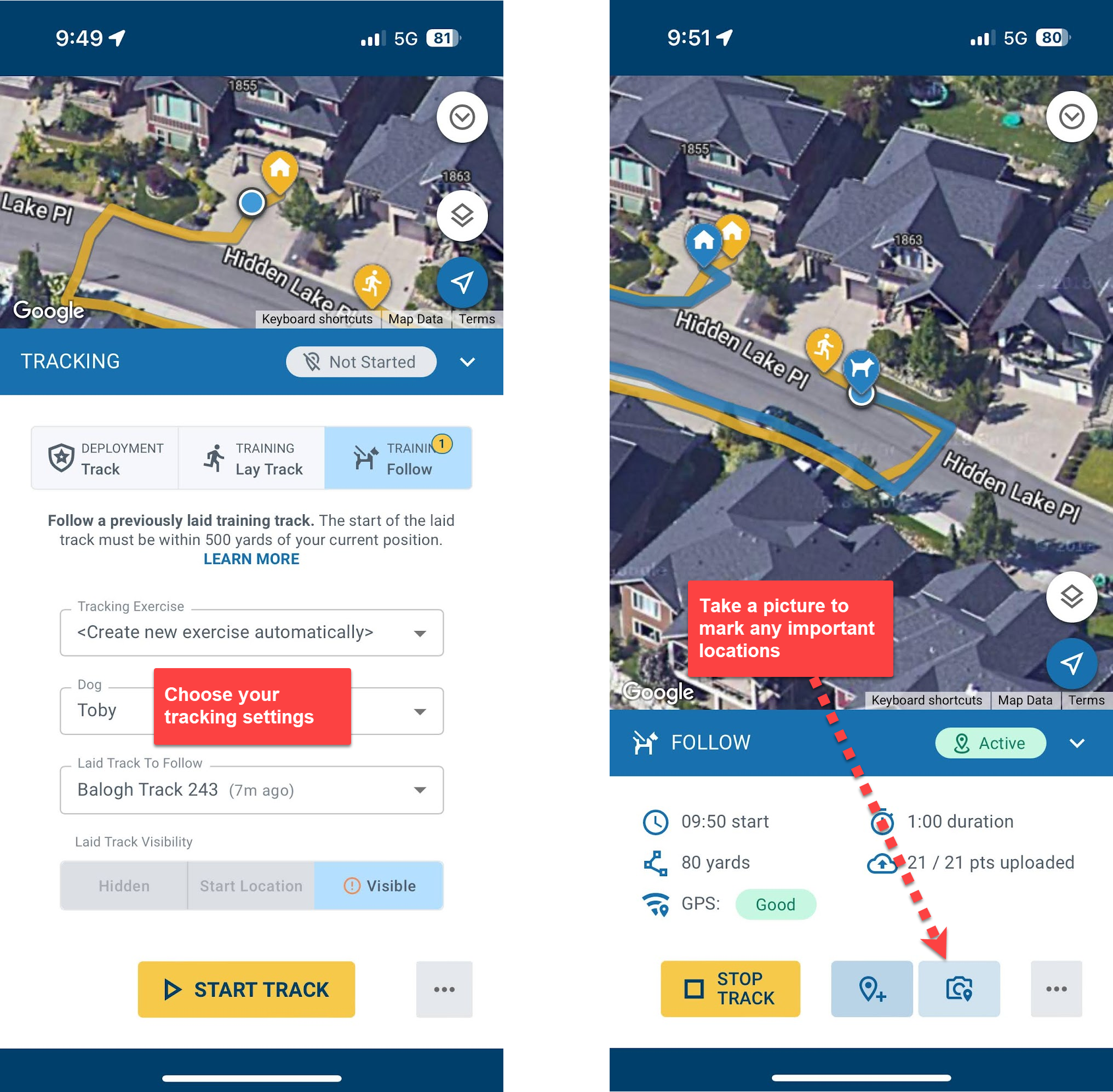
- Record any important locations by taking a picture with the Quick Pin button.
- Press the Stop Track button when you finish following the track.
- Save the track for later or fill out the tracking exercise completion record right away.
Frequently Asked Questions
Do I need to keep the screen on while tracking?
No. Turn off the screen and keep the phone in your pocket. PackTrack continues recording your location in the background.
How close do I need to be to pick up a laid track?
Within 500 yards of where the laid track was started.
Can the K9 team follow a track without a laid track recorded?
Yes. Select the “Follow without laid track” option on the track setup screen.
Does the track layer need a PackTrack account?
No. Tap the SKIP LOGIN link on the first screen to bypass login and go straight to the track laying screen.

Still need help?
Can't find what you're looking for? Message the PackTrack team from the chat inside the app, or reply to any PackTrack email.