

Reporting Overview
PackTrack's reporting tools let you generate printable or downloadable reports from your training and deployment records.


What is a report?
A report takes information that you’ve entered into PackTrack and displays it in a readable format that’s easy to print or save as a PDF file. It might show a single record, such as a training exercise or deployment, or it could combine many records together in a long list or summarized view.
Where do I create reports?
Reports can be created in a couple of places in PackTrack. If you’re viewing your record list and just want to print one of the records that you see there, you can use the context menu. The context menu is activated by clicking the 3 dots at the end of the record row. This will create a full record report containing all of the details for that record.
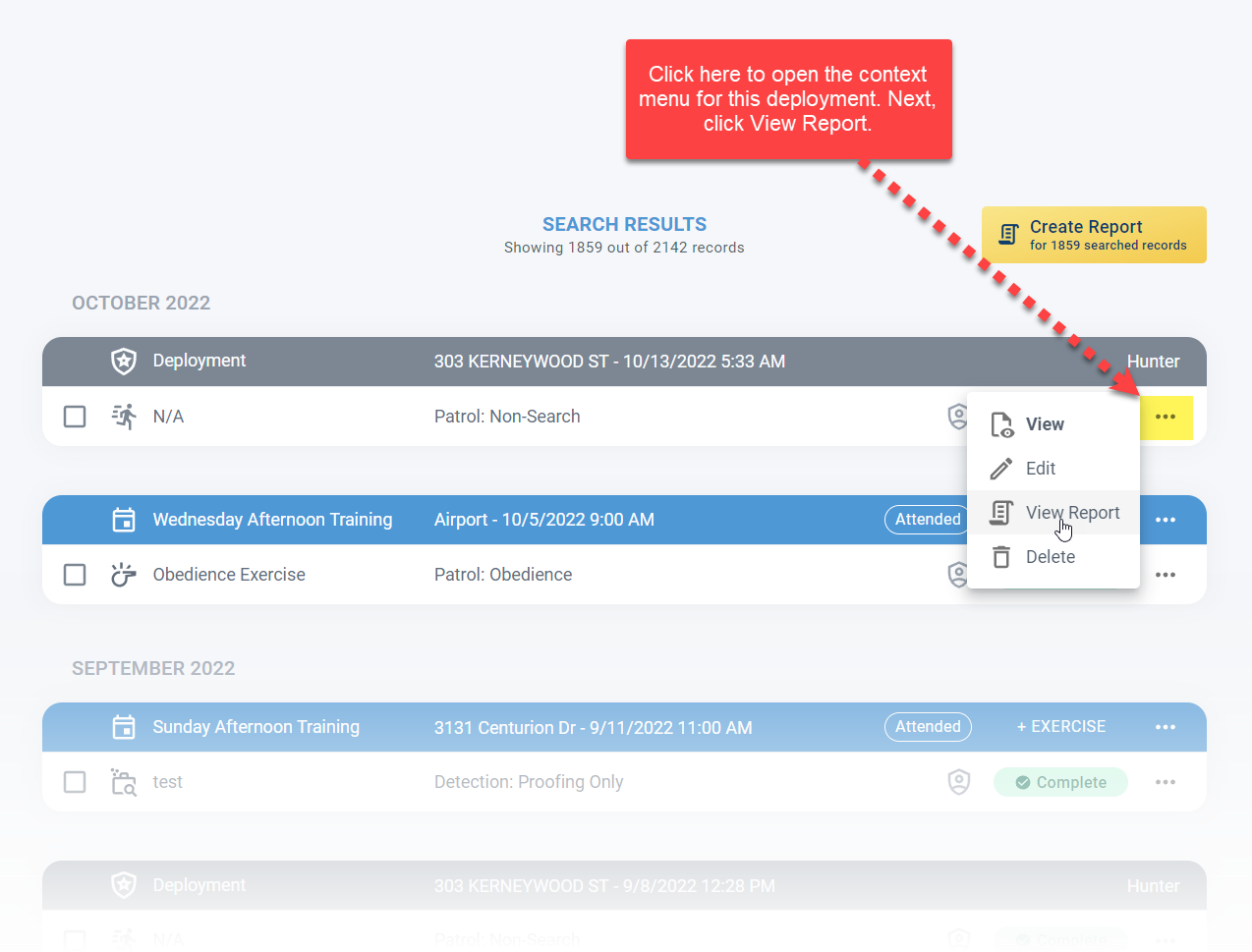
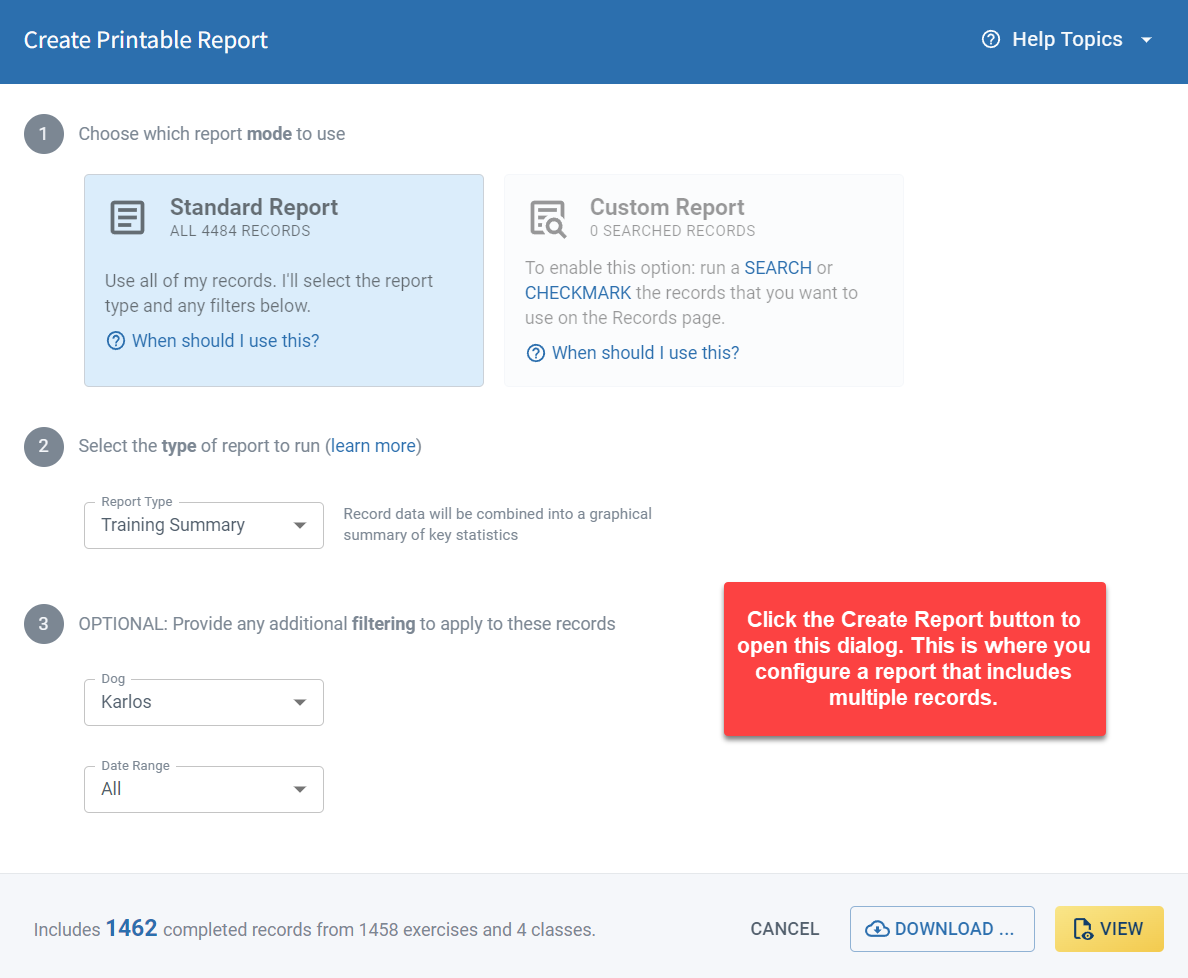
The second way to generate reports is using the yellow Create Report button shown above the record list. Clicking this will open a dialog where you can choose which type of report to create. Unlike the context menu option, which is used to create a single record report, the Create Report button is used for reports containing multiple records.
What types of reports are available?
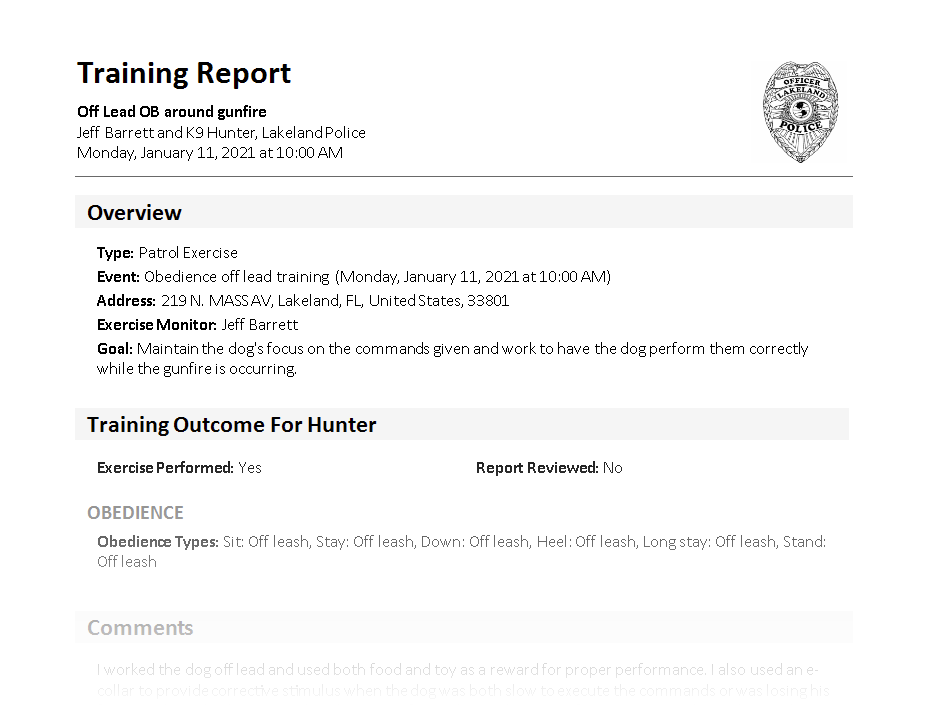
There are two main types of reports: a Full Record report and a Summary report. A full record report includes all of the details about the included records.
A summary report combines information from multiple records. For example, it might list the records or show summary statistical information.
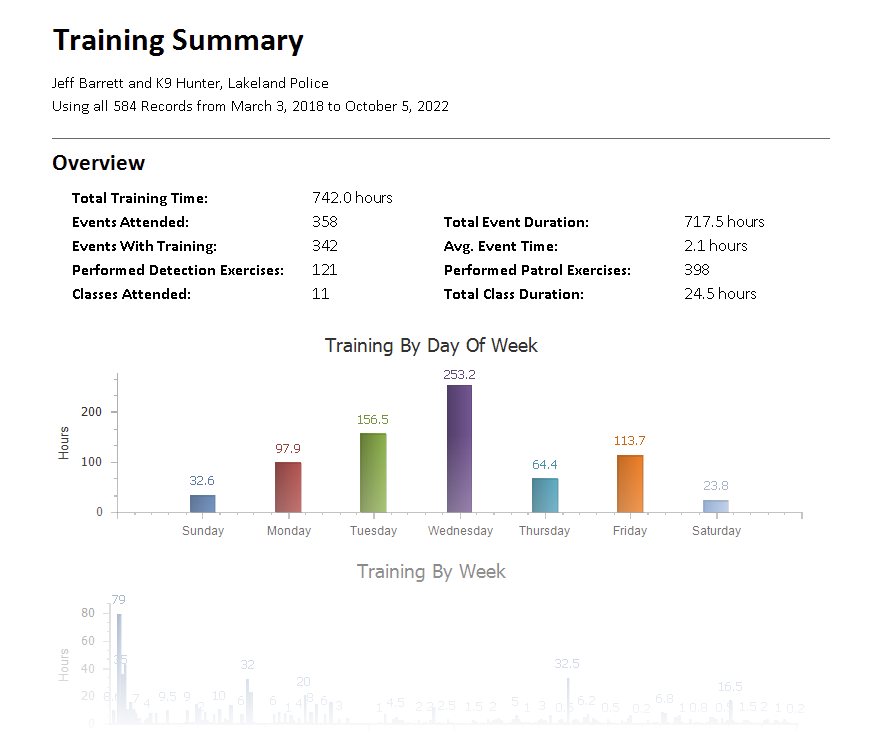
Learn more about the different report types in the Report Types & Samples guide.
How do I set which records to use in the report?
PackTrack allows you to specify exactly which records should be included in a report. The reporting dialog supports two modes of operation: Standard Reports and Custom Reports.
Standard reports use all of your records. The dialog allows you to specify the report type and a date range.
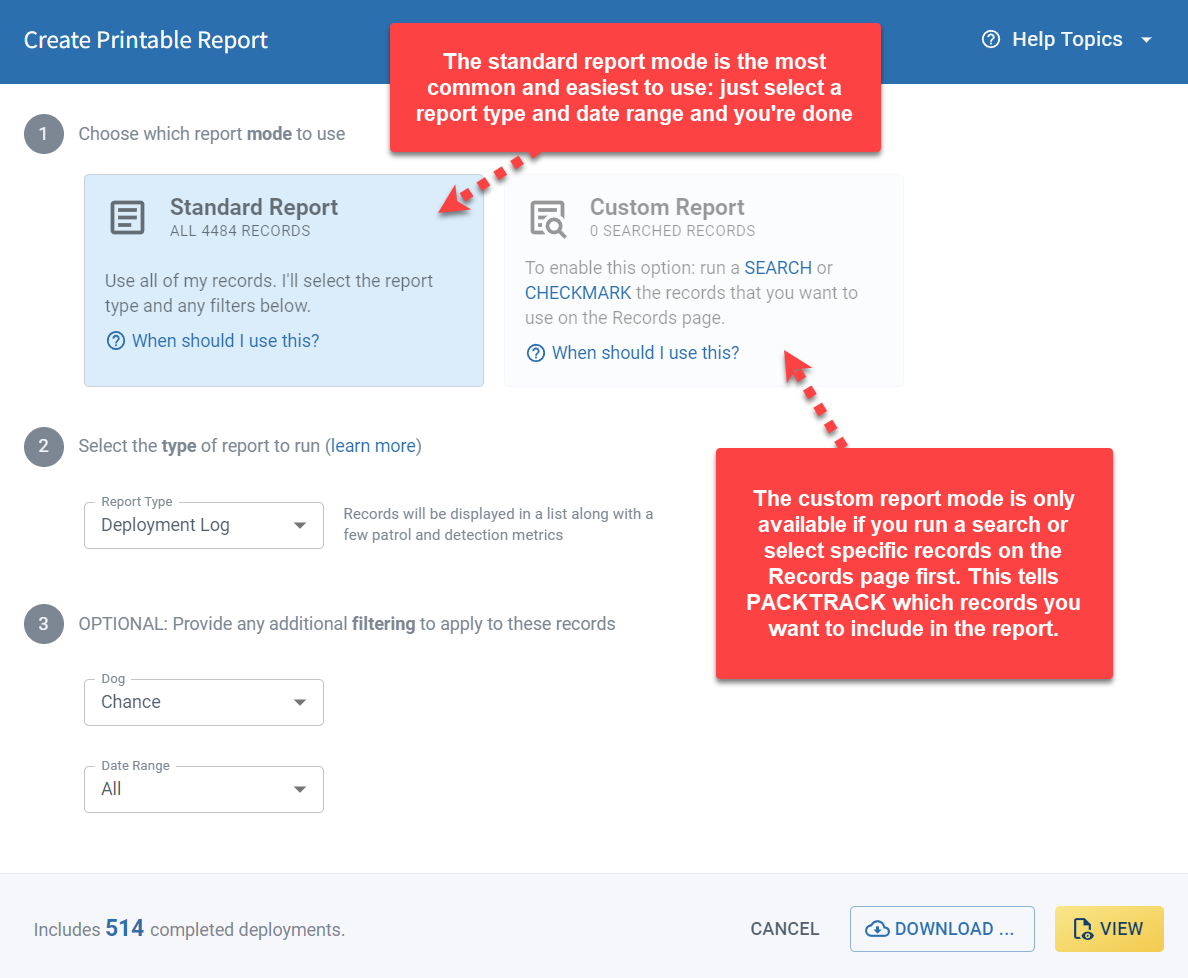
There may be times when you want to use only a subset of your records in a report. For example, you might want a log report which lists all of your obedience exercises. Or perhaps you need a report with statistics on every deployment where there was an arrest.
In this case you’ll need to create a custom report, which requires that you run a search on the Records page first. Learn more in the Custom Reports guide.
Can I run reports from my phone?
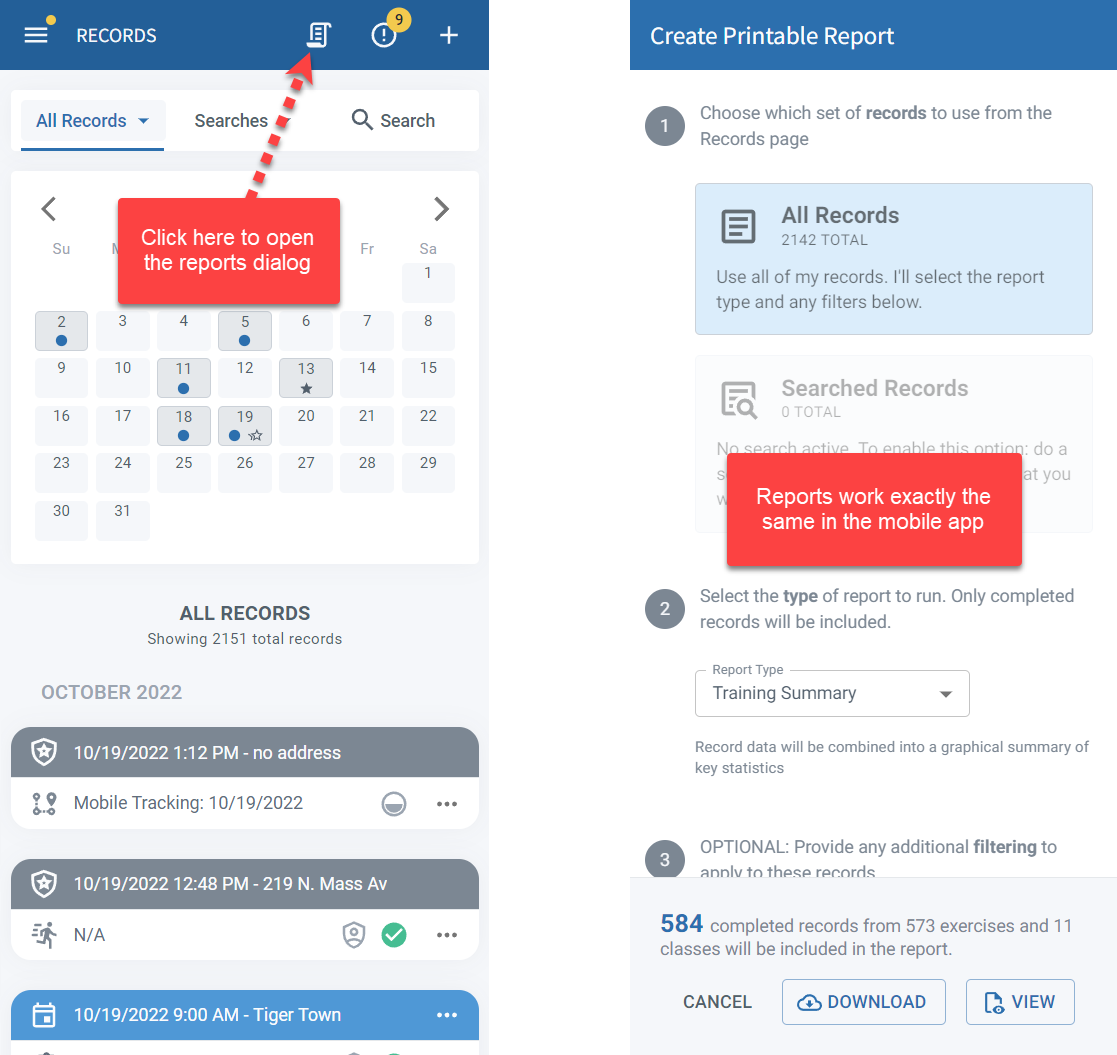
Reports also work on the PackTrack mobile app. While it can be difficult to see reports on a small phone screen, you can still save them or print directly from your phone.
How do I run large reports?
Some reports take a long time to generate. This is most common when trying to print the entire training history of a dog using the detailed report type (which includes all record data).
When reports are expected to take a long time to generate, PackTrack will disable the View option in the reports dialog. In this case, click the Download button instead.
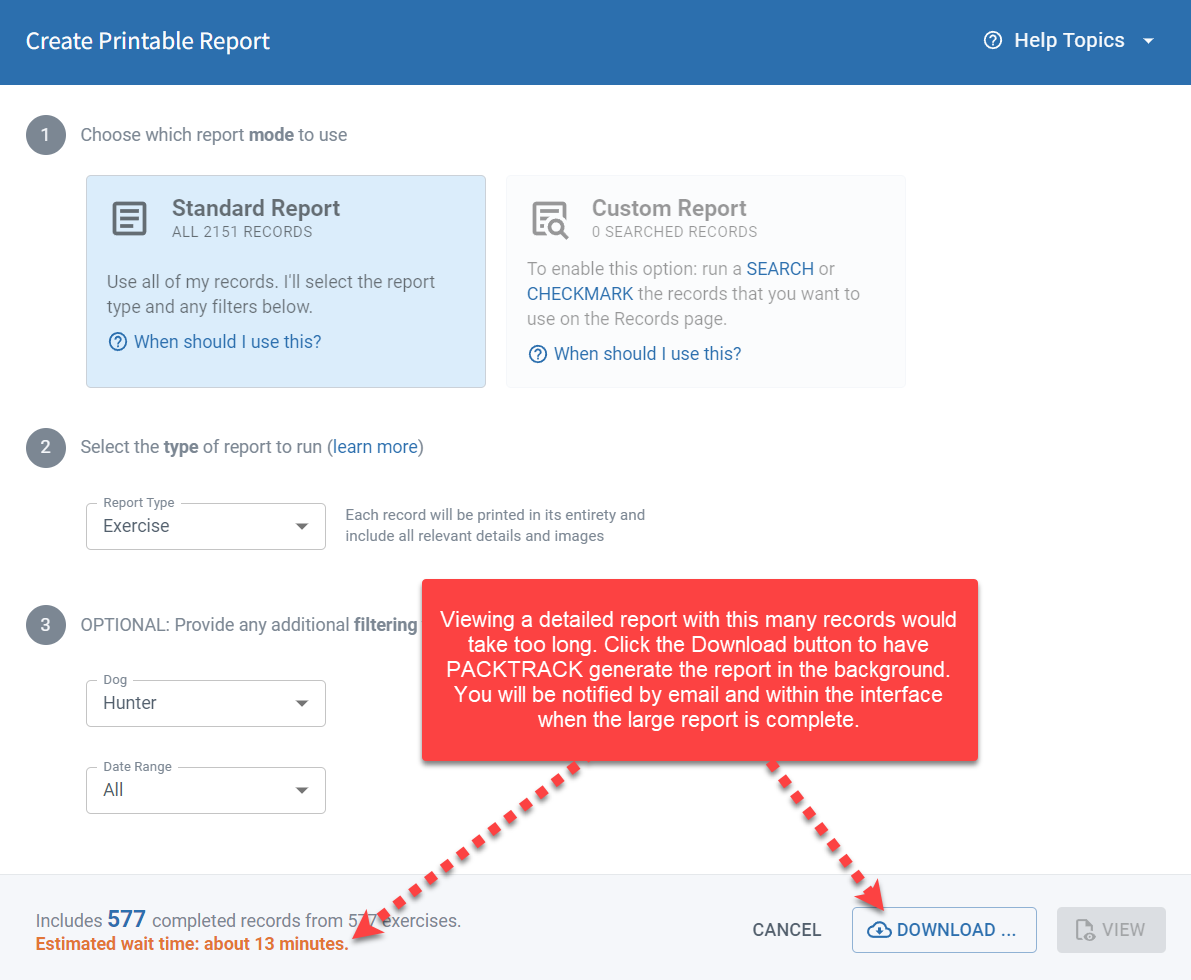
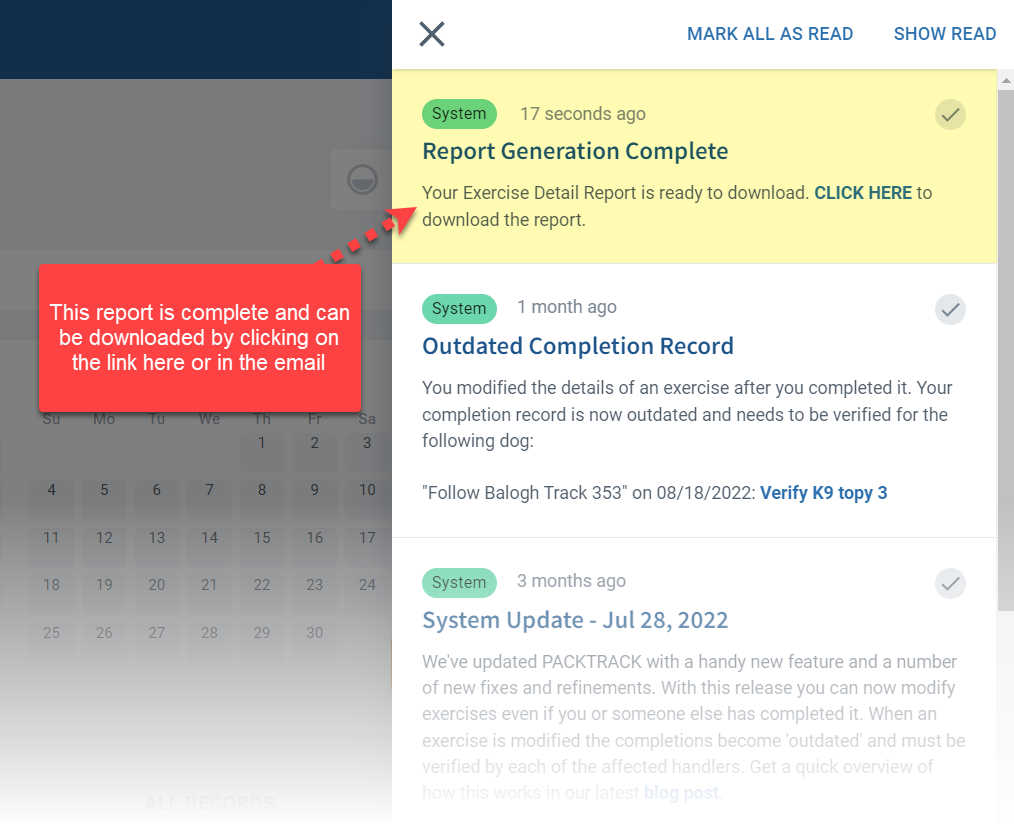
You will be notified when the report is ready by email and with a notification in the website or mobile app. You can then click the included link to download the report.
Frequently Asked Questions
What file format are reports saved in?
Reports are saved as PDF files that can be printed or shared.
Can I include records from a specific date range in my report?
Yes. The reporting dialog lets you set a date range for standard reports. For more specific filtering, use custom reports with the search function.
What’s the difference between a standard report and a custom report?
Standard reports include all records within a date range. Custom reports let you filter to a specific subset of records using the search function on the Records page.
Why is the View button disabled on my report?
Large reports are generated in the background. Use the Download button instead and you’ll be notified by email when the report is ready.
Can supervisors generate reports for their handlers?
Yes. Supervisors can create reports across all handlers they manage.

Still need help?
Can't find what you're looking for? Message the PackTrack team from the chat inside the app, or reply to any PackTrack email.