

Single Sign-On With a Microsoft Account
Set up SSO so your team signs in with Microsoft.


The Sign in with Microsoft feature provides a simple and secure way to sign into PackTrack using your Microsoft work account.
Before you start
- This feature works with Microsoft Entra ID (formerly Active Directory) only. Personal Microsoft accounts are not supported.
- You must have an active PackTrack account.
- It works in both the web browser and the PackTrack app (v5.2.0 or above).
- SAML-based single sign-on is not yet supported.
- Reach out to your IT department to confirm this feature is right for you. They can help you get set up.
Connect your Microsoft account
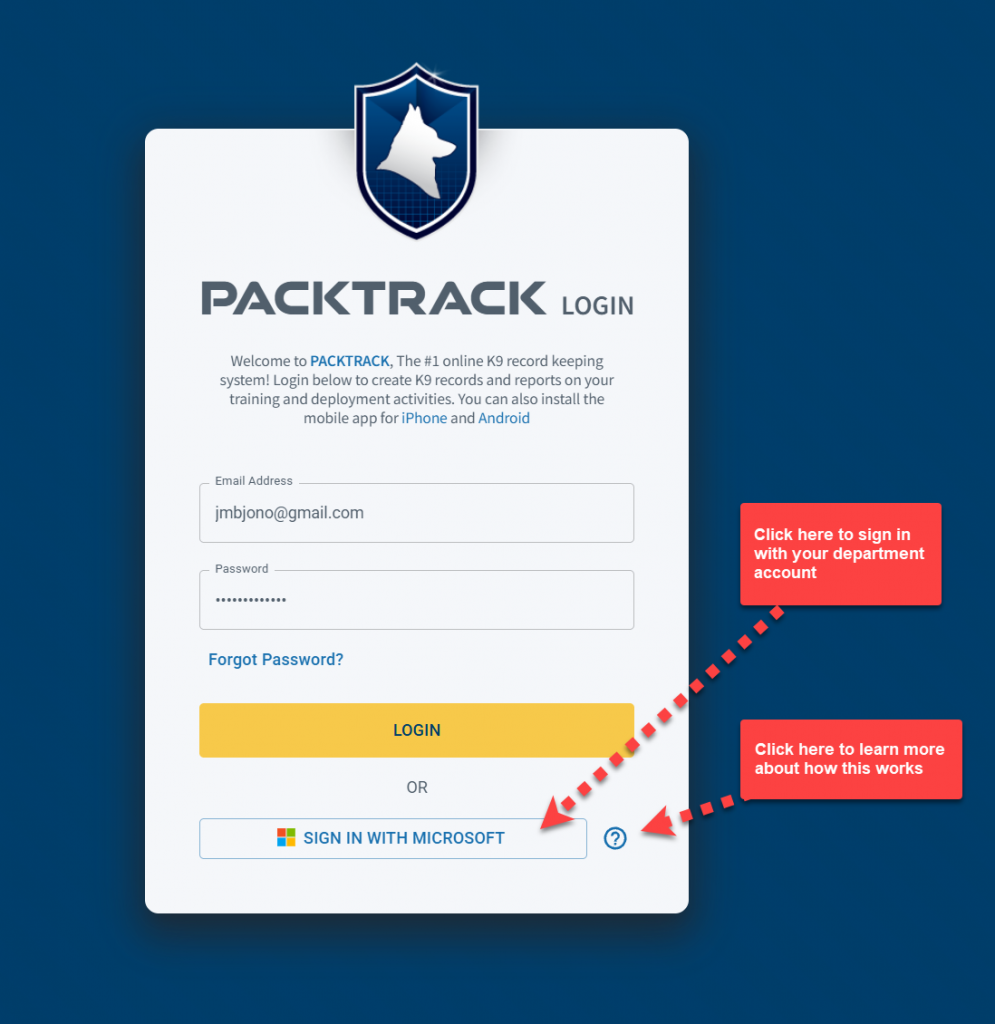
Step 1:
Click the Sign in with Microsoft button.
Step 2:
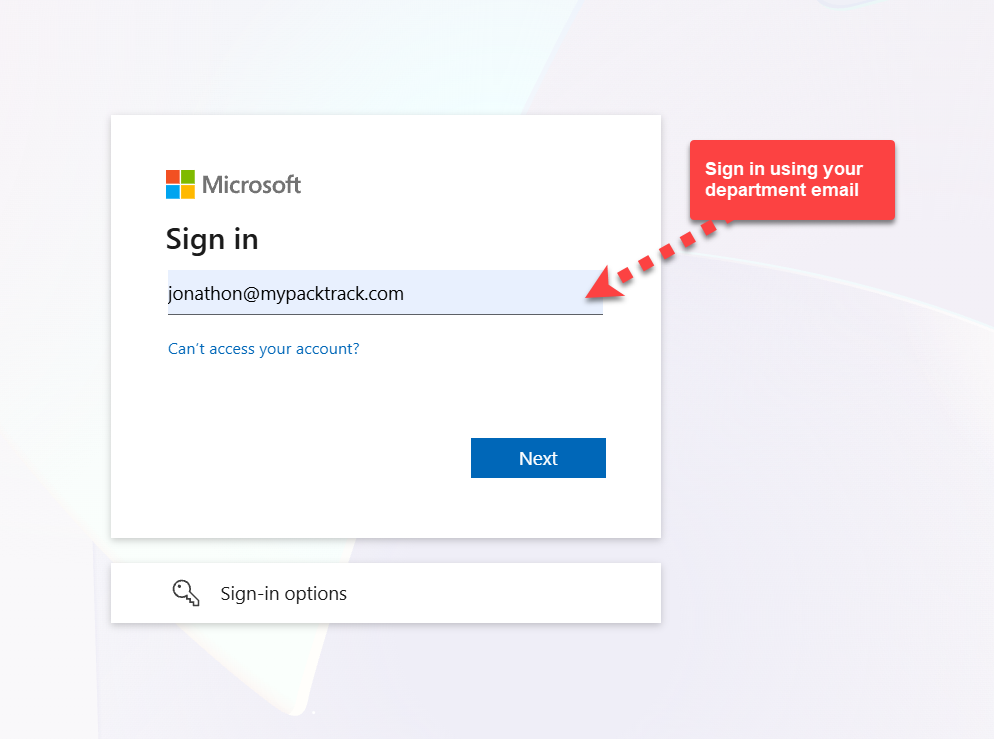
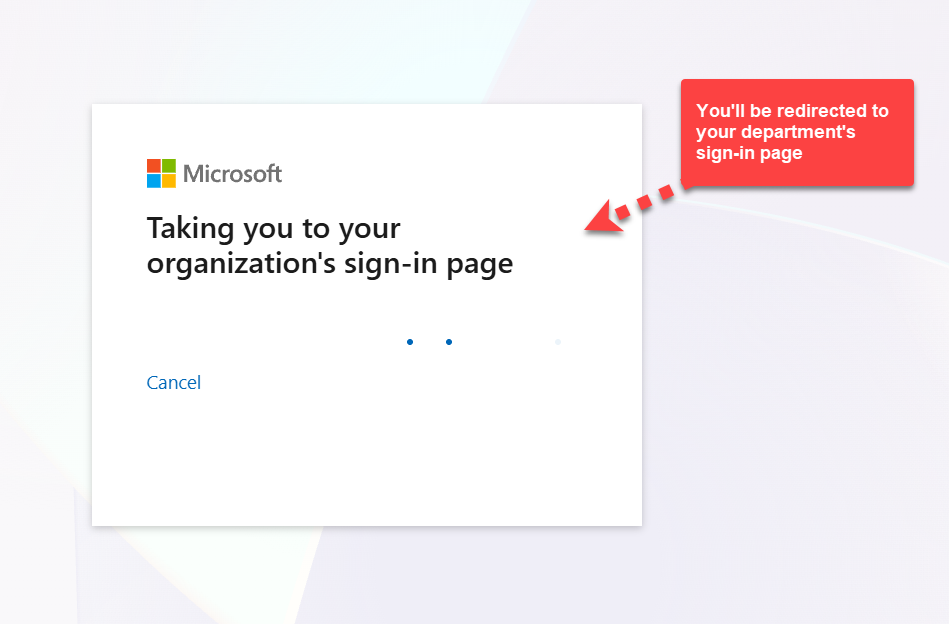
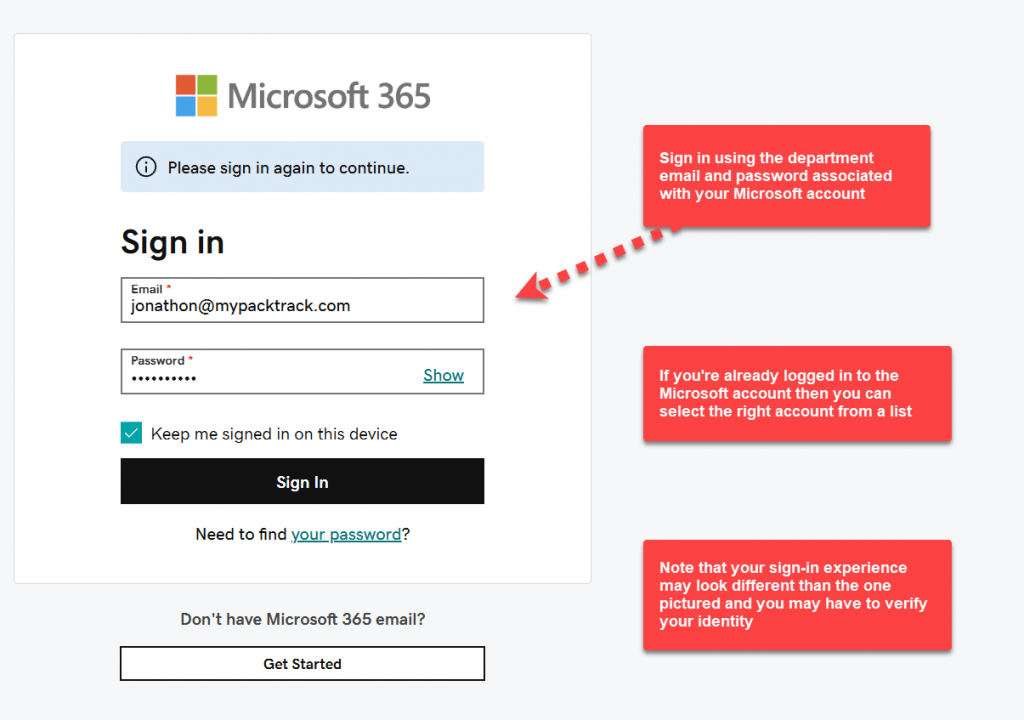
Enter your department email and wait to get redirected to your department login. Once there, type in the department email address and password associated with your Microsoft account or select it from the list. You may also have to verify yourself using 2-factor authentication.
Step 3:
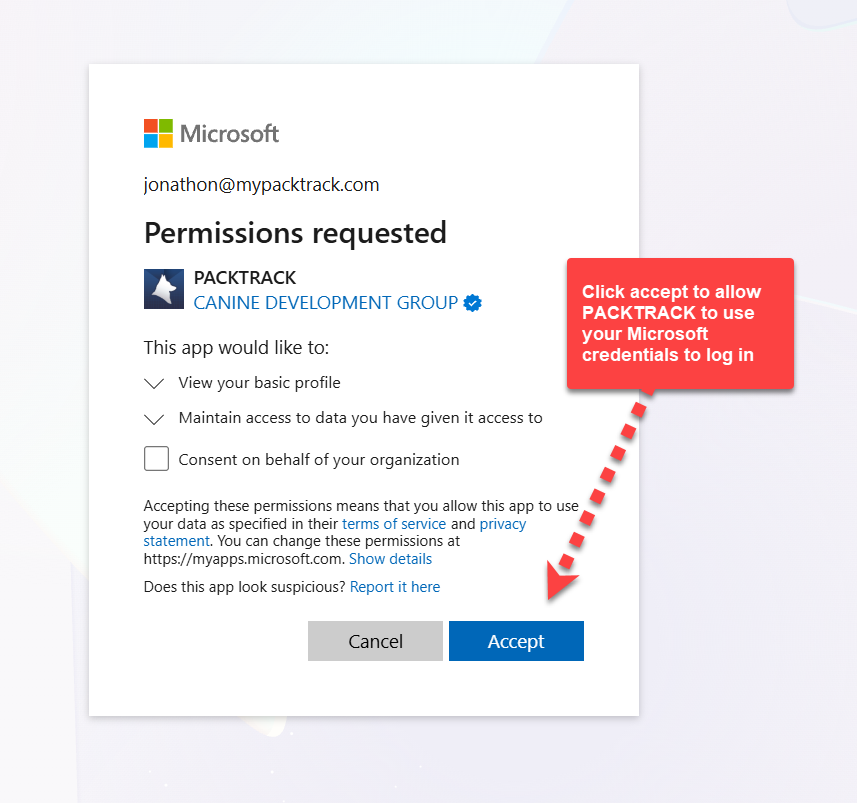
Click Accept on the permission screen to allow PackTrack to use your Microsoft account credentials to log in.
Step 4:
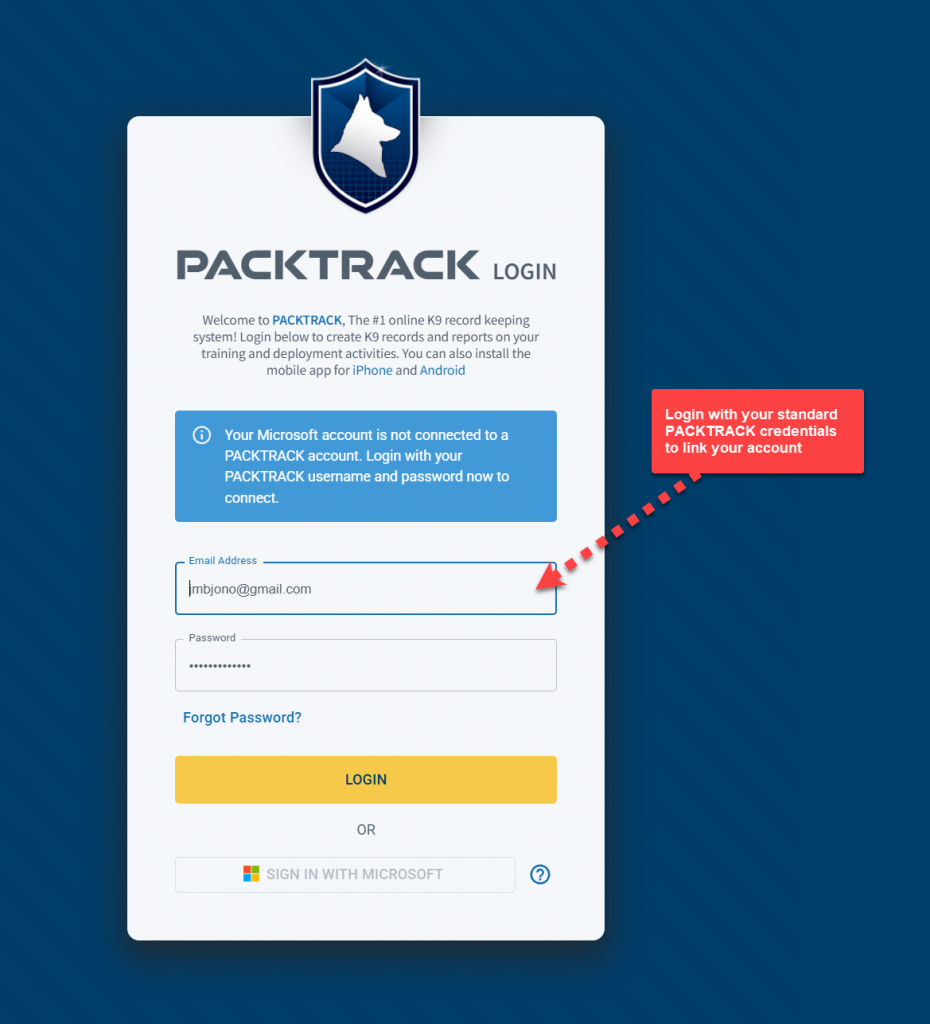
You should now be back at the login page and see a note asking you to link your PackTrack account. If you don’t see this, try reloading the page. Type in your PackTrack email address and password.
Step 5:
You’re all set. The next time you press the Sign in with Microsoft button you’ll just need to enter your department credentials.
As an alternative, you can also configure Single Sign-On after you’re logged in. Simply visit the Microsoft Account option in your Profile page and click the Connect Microsoft Account button.
Disconnect your Microsoft account
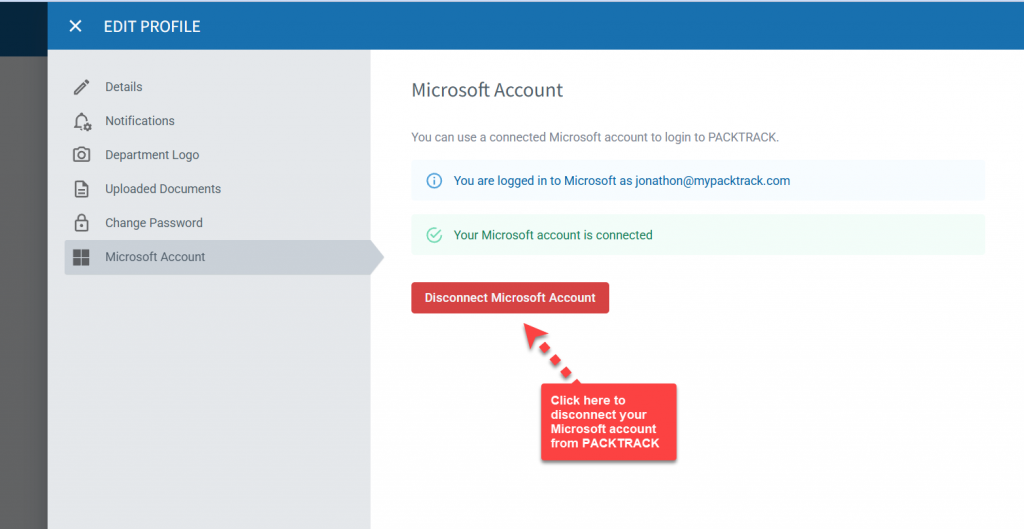
If you connected the wrong account or want to remove your Microsoft account from PackTrack, use the disconnect option. Click the Profile link in the main menu, then select the Microsoft Account option. Click the Disconnect Microsoft Account button.
Technical note (for Entra ID administrators only)
In some situations it may be desirable to approve the PackTrack app for SSO across all users of your department. This can be especially helpful if there are restrictions on who can add service principals to your Entra ID configuration.
Admins that are authorized to consent on behalf of the department can use this link to grant tenant-wide admin consent to the PackTrack application. Learn more about how this works.
When this is complete, the PackTrack service principal is added to your Enterprise Applications list in Entra ID. This allows all department users to access the application without explicitly providing consent.
Note, however, that they must still link their department credentials to PackTrack the first time that they use SSO.
Frequently Asked Questions
Can I use a personal Microsoft account (like Outlook.com or Hotmail)?
No. The Sign in with Microsoft feature only works with Microsoft work accounts through Entra ID (formerly Active Directory). Personal Microsoft accounts are not supported.
What if my department uses SAML instead of Entra ID for SSO?
SAML-based single sign-on is not yet supported in PackTrack. Check with your IT department to confirm which method your organization uses.
Do I still need my PackTrack password after setting up SSO?
You’ll need it once during setup to link your accounts. After that, you can sign in using just your department Microsoft credentials.
Can an Entra ID admin approve PackTrack for the entire department at once?
Yes. An authorized admin can grant tenant-wide consent so that all department users can access PackTrack without individually approving the permission screen. Users still need to link their credentials the first time they use SSO.

Still need help?
Can't find what you're looking for? Message the PackTrack team from the chat inside the app, or reply to any PackTrack email.