
Dark Mode
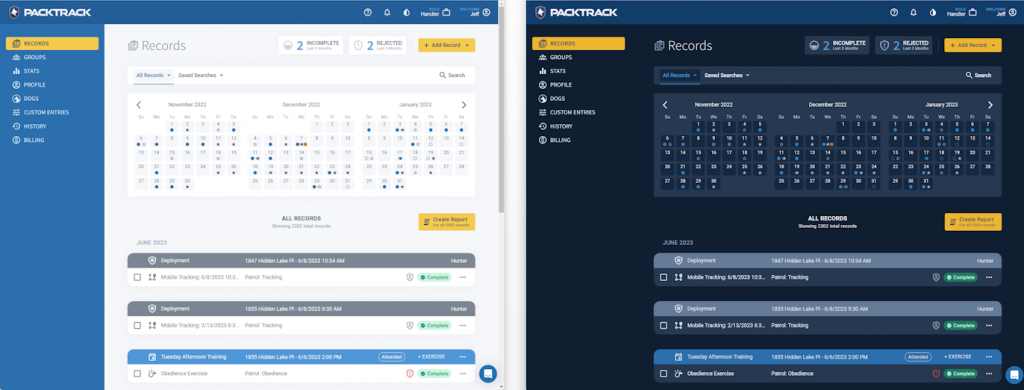
PACKTRACK provides both light and dark mode views with identical functionality across all user roles and devices.


PackTrack provides both a light and dark mode view of your records. Many people prefer looking at a dark screen in daily use as it can help reduce eye strain. You may also just prefer a dark screen. Whatever your reasons, PackTrack makes it easy to customize your experience.
All of the functionality remains exactly the same no matter which mode you prefer. It’s also available across all roles: handler, trainer, and supervisor. Dark mode works great on phones too. It can even improve battery life (a little).
How to switch themes
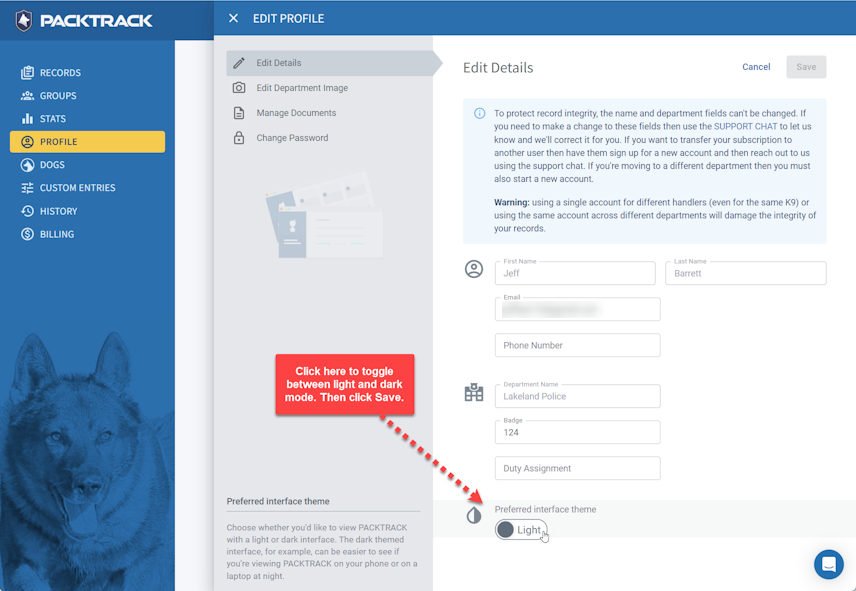
From your profile
Open your PackTrack Profile and edit the Details. Here you’ll see a toggle for switching between both themes. Change the theme setting and hit Save.
From the title bar (desktop)
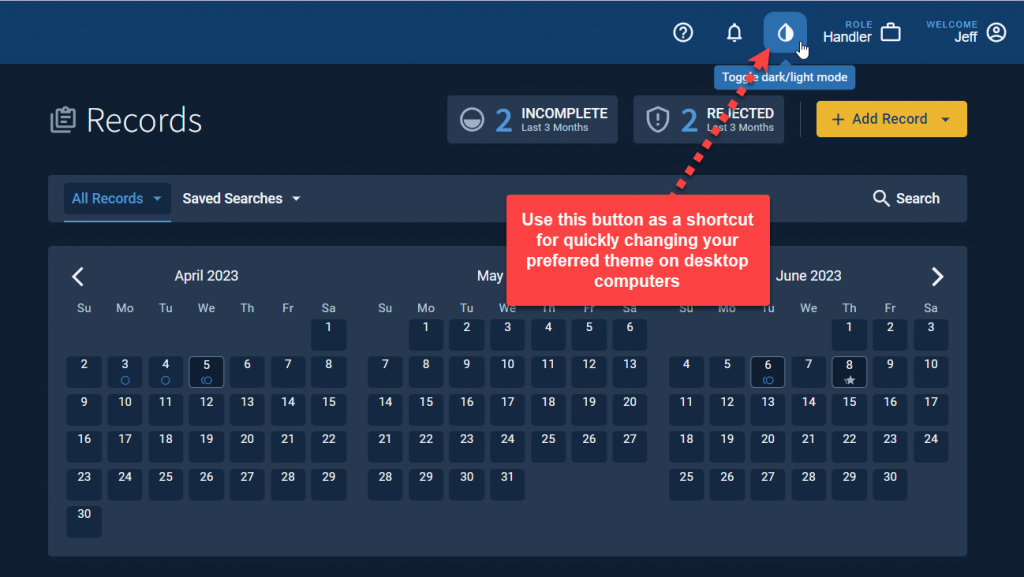
If you’re using PackTrack on a computer, there’s a shortcut for switching between light and dark modes right on the title bar.
Your selected view mode is saved with your account and will be remembered when you next log in.
Note: Report previews continue to show with a white background.
Frequently Asked Questions
Does dark mode apply to the mobile app as well?
Yes. Dark mode works across the web interface and the mobile app on both iOS and Android. Your preference is saved to your account, so it carries across devices.
Will dark mode change how my printed reports look?
No. Report previews and printed reports continue to use a white background regardless of your theme setting.
Is there a keyboard shortcut for toggling dark mode?
On desktop, you can use the theme toggle in the title bar for quick switching. There’s no separate keyboard shortcut.

Still need help?
Can't find what you're looking for? Message the PackTrack team from the chat inside the app, or reply to any PackTrack email.