

Single Record Reports
Learn how to create a printable report for one record
If you need a printable report for just one exercise, class, or deployment, you can generate it directly from the Records page.


How to generate a single record report
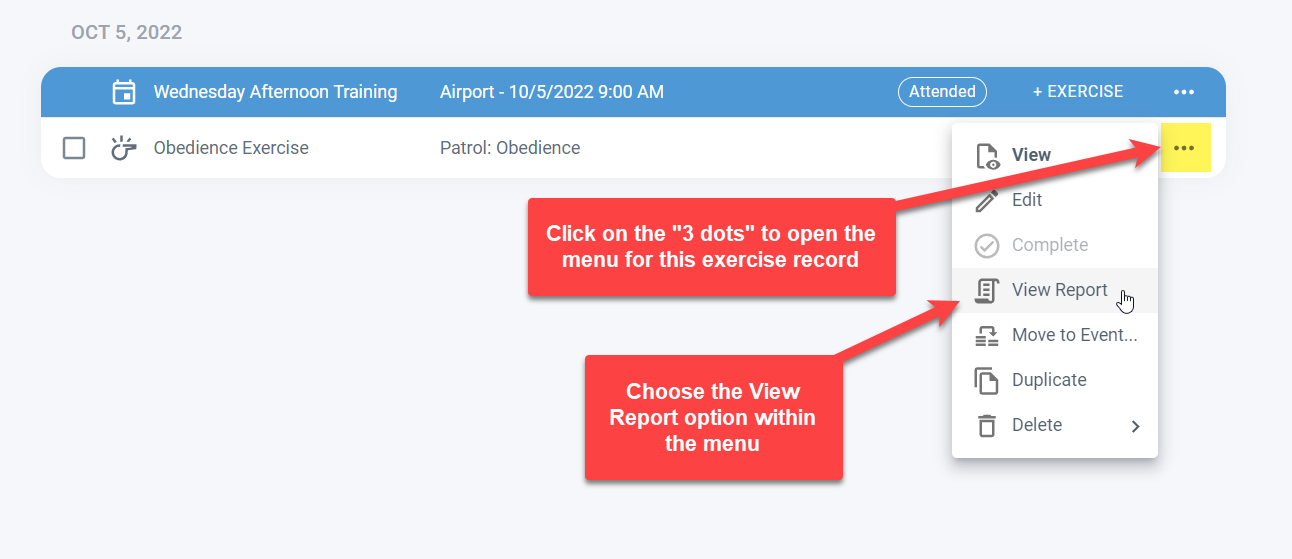
Find the record that you’d like to print. Click the context menu at the far right of the record row (the button with 3 dots) and then select View Report.
This works for all three record types: exercises, classes, and deployments.
Viewing and saving the report
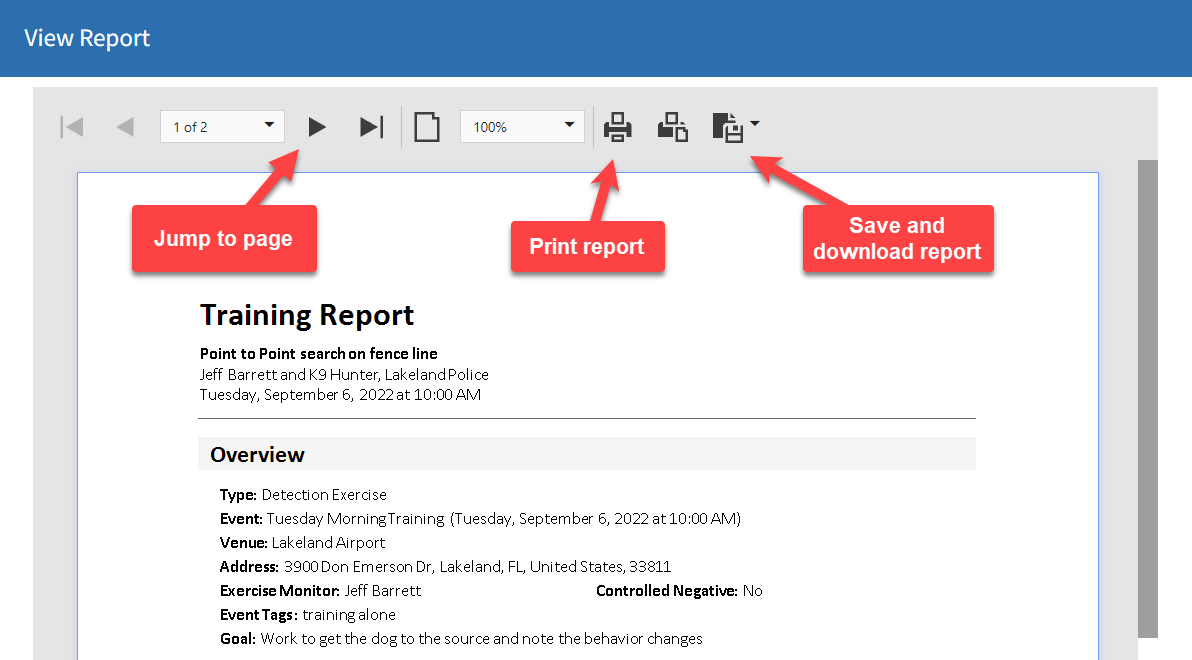
Clicking View Report will open a preview of your report. Scroll up and down to see all of the pages or use the arrow buttons at the top to advance one page at a time.
There are additional buttons available to print the report or save it in several formats such as Word Document or PDF.
Reports on mobile
The same functionality is available in the app on your phone. While the reports can be hard to see on a smaller phone screen, the app supports printing directly from your phone to the nearest printer.
Frequently Asked Questions
Which record types support single record reports?
All three: exercises, classes, and deployments.
What formats can I save a single record report in?
Word Document, PDF, and other formats are available from the report viewer.
Can I print a report directly from my phone?
Yes. The mobile app supports printing to the nearest printer, though reports are easier to read on a larger screen.
Is the single record report the same as a full record report?
Yes. A single record report is a full record report that includes all details for one specific record.

Still need help?
Can't find what you're looking for? Message the PackTrack team from the chat inside the app, or reply to any PackTrack email.