
Browse all articles in
System Update
System Update
0
min read
K9 App Improvements
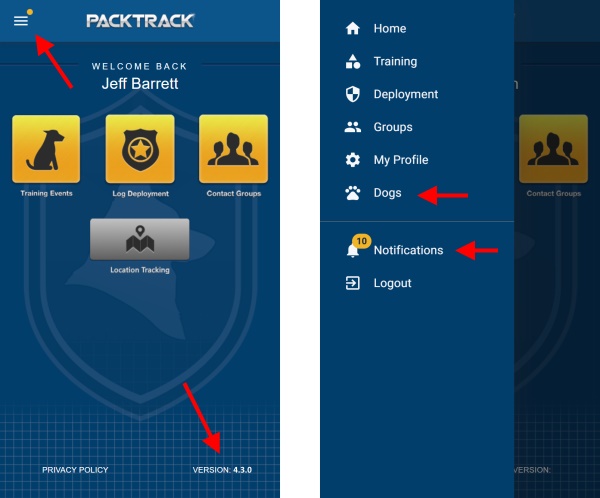
The latest release brings the new PACKTRACK interface to our iPhone and Android apps. All of the previous K9 record keeping features in the mobile app are still available, including K9 tracking, training and deployment records. But we've also made a few additions. The first thing you'll notice is that the navigation tabs have been moved from the bottom of the screen into a new side menu which is accessed by tapping the button in the upper left. This frees up vertical space and gives us room to add more options.
The latest release brings the new PACKTRACK interface to our iPhone and Android apps. All of the previous K9 record keeping features in the mobile app are still available, including K9 tracking, training and deployment records. But we've also made a few additions. The first thing you'll notice is that the navigation tabs have been moved from the bottom of the screen into a new side menu which is accessed by tapping the button in the upper left. This frees up vertical space and gives us room to add more options.
If you see any issues, make sure to update your mobile app to the latest version available from
Google Play or the iOS App Store. You can check the version of your installed PACKTRACK app on the bottom right of the home page. You'll need version 4.3.0 or greater. The Dogs page is another addition to the new mobile app. It's based on the same layout as the PACKTRACK desktop site and should look immediately familiar. From here you can access all of the same Dog configuration settings as are available on the main PACKTRACK site. Upload photos and documents directly from your phone, change dog settings or set a new dog profile picture. You can even drag and drop K9 documents between categories using your finger. Try it out!
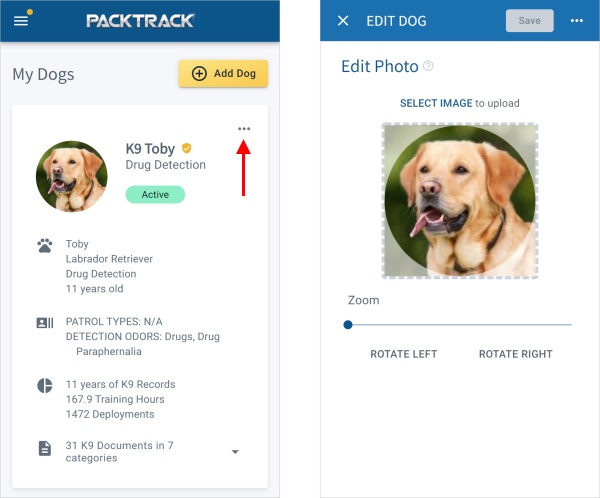
This set of changes is just the first step. Over the coming months we'll be introducing new screens and additional functionality that work the same on the desktop and in our mobile apps. As with the desktop site we've ensured that help information is always available. Tap a question mark in the app to get relevant help whenever you need it.
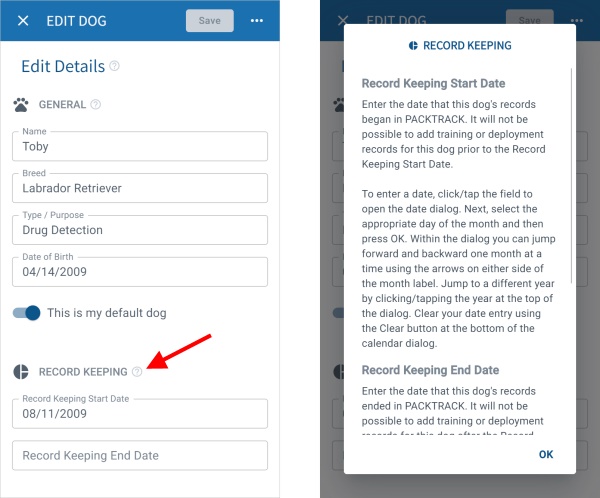
There are lots of other changes here as well. For example, you can (finally) delete a dog if you're just using it for testing. Also, search results on the main site are much improved when a specific dog is selected. Lastly, we've addressed over a dozen bug fixes and refinements to improve how PACKTRACK works. We really appreciate your feedback as we enhance our K9 training and deployment software to be robust and comprehensive yet easy to use. Let us know what is (or isn't) working for you.
System Update
0
min read
Smarter K9 Training Records
Welcome to another PACKTRACK release. It's a big one! This update includes significant refinements to the way PACKTRACK works and new interface changes aimed at making the service easier to use.
Welcome to another PACKTRACK release. It's a big one! This update includes significant refinements to the way PACKTRACK works and new interface changes aimed at making the service easier to use.
New Dog Settings Interface
We're in the process of updating the PACKTRACK interface, step by step, to improve the experience for everyone. In this release we've introduced a modernized Dogs page with more features and a layout that adapts across all devices - from phones to desktop computers. Dogs are now listed on summary "cards" which provide a clear overview of their configuration and a summary of their training and deployment activity. The card view is interactive and has options for changing the dog image, viewing documents or editing dog details. The menu button (3 horizontal dots) in the upper right of each dog card shows a drop-down menu with additional options.
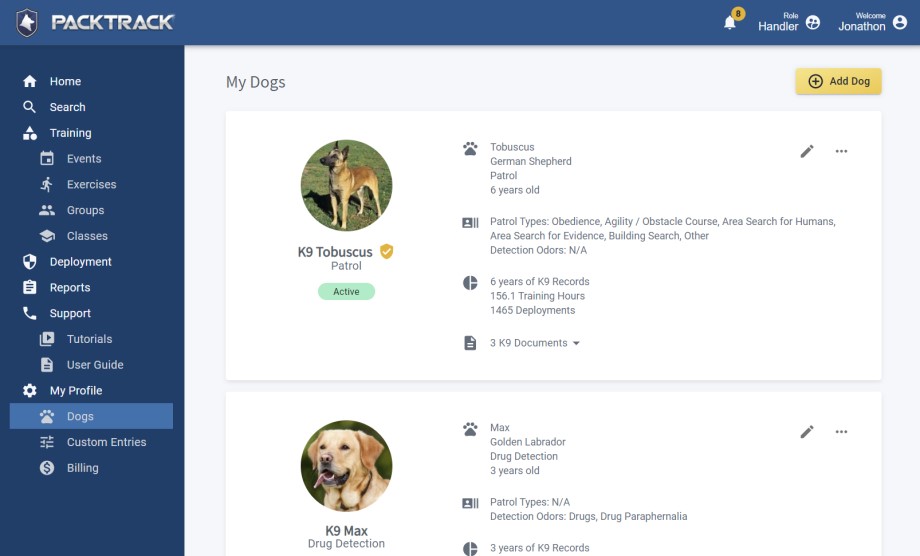
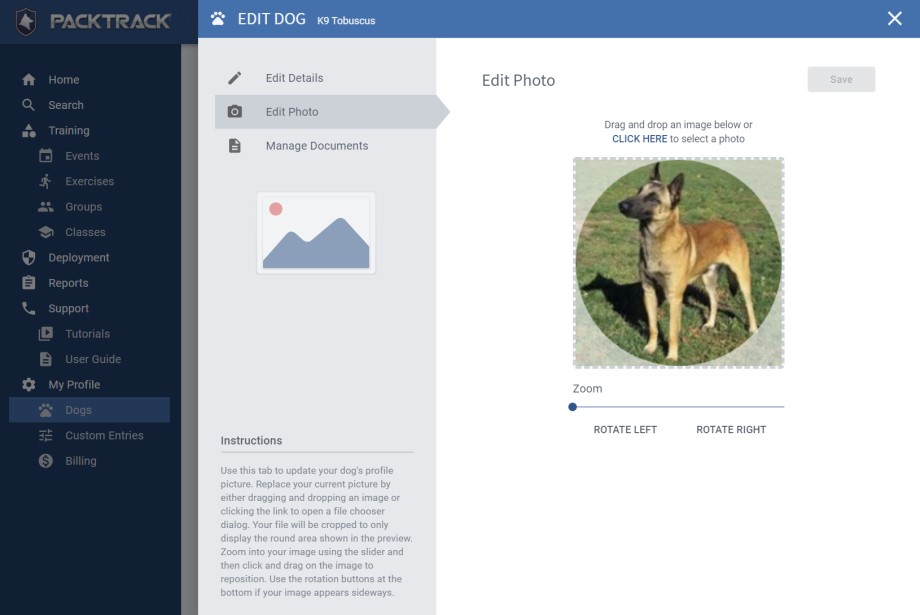
Choosing to Add or Edit a dog shows a panel on the right side of the page. There are 3 options in the upper left of this panel for managing your dog's information: Edit Details, Edit Photo and Manage Documents. Feel free to explore some of the new functionality. For example, the Edit Details option shows new dog configuration fields including settings for your dog's Patrol Types and Detection Odor Types. Information on how these new dog type settings are used is covered in the sections below. The Edit Photo screen now supports drag and drop and provides additional image editing options like zoom and rotation. Managing documents for your dogs is easier than ever. In addition to supporting drag and drop to upload new files, you can now rename your files and organize them into categories. If you have questions about how these new screens work then check out the instructions shown in the bottom left.
Ignore Exercises That Aren't Applicable To Your K9
When training at a group event, there may be exercises that don't apply to your dog. For example, the event might include a detection exercise but you have a patrol dog. Or perhaps there's a patrol tracking exercise but your patrol dog doesn't track. In the past, you would need to complete all exercises at an event for each of your dogs in PACKTRACK. For each exercise that doesn't apply to a specific dog you would select the option "Did Not Perform - Not Applicable to Dog". With this release we're introducing K9 type attributes. These new settings allow you to specify the types of exercises that apply to your dog. All other exercise types will be automatically ignored.
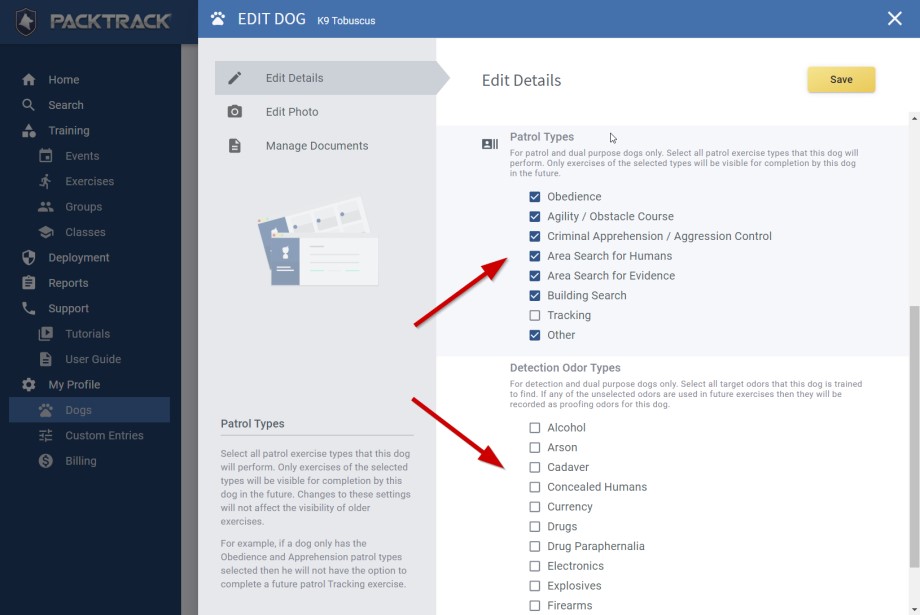
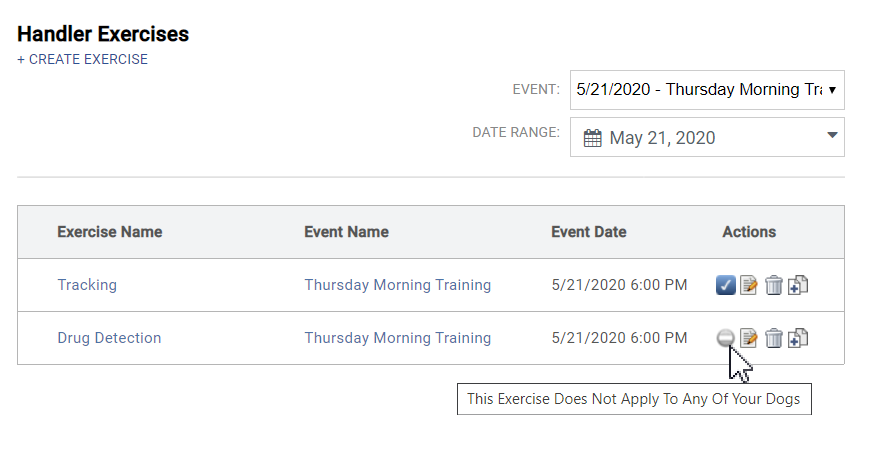
When you first log in after this update you'll be asked to review your dog configuration. From the new Dogs page, click the Edit icon for each of your dogs to open the editor interface. Choose the Edit Details option and scroll down in the right pane to select any Patrol Types and Detection Odor Types that apply. Only exercises of the types that you select will be visible for completion by this dog in the future. However, changes to these settings will not affect the applicability of past exercises. These changes affect patrol and detection dogs. For example, if a patrol dog only has the Obedience and Apprehension patrol types selected then they will not have the option to complete a future patrol Tracking exercise or any detection exercises. This applies to exercise target odors for detection dogs as well. For example, if a detection dog only has the Drugs odor type selected then they will not have to complete exercises at future events which only contain Explosive type target odors. They also won't have to complete any patrol exercises. If you want your dog to complete all exercise types at every event then feel free to select all of the patrol and detection odor types for each of your dogs. Once all of your dog's types are set, PACKTRACK will only require you to complete a training record for the specific dogs that match the exercise type. If you have no dogs that match an exercise type then the exercise will show in the list with a new icon indicating that the exercise doesn't apply. In the example below, a handler with a patrol tracking dog does not have to complete the detection exercise from the same event.
Automatically Categorize Odors As Target Or Proofing
When creating a detection exercise, PACKTRACK enables you to specify target odors (drugs, currency, explosives, etc.) as well as any proofing odors (typically packaging or distractor odors such as cardboard, plastic wrap, paper, etc.) that may be used. Your dog should alert to the target odors and ignore the proofing odors. This works great if all of the dogs at an event are of the same detection odor type. However, if different detection dog types, such as a drug dog and a currency dog, are in an exercise that uses both drug and currency odors then things get more complicated. In this case, we want the drug dog to use drugs as the target odor and currency as the proofing odor. The currency dog would use currency as the target odor and drugs as the proofing odor. In the past, adding this type of training required you to create 2 separate exercise records in PACKTRACK - one for each dog. Each exercise would specify different target and proofing odors. With this release we've made the process much simpler. Now you only have to create one exercise no matter how many different detection dogs may attend the event. PACKTRACK will automatically categorize each odor in the exercise as target or proofing based on your dog's detection odor type configuration. In the screenshots below, two K9s completed the same drug detection exercise. However, the drug odor was categorized as a target odor for drug dog 'Max' (top screenshot) and a proofing odor for currency dog 'Gore' (bottom screenshot).
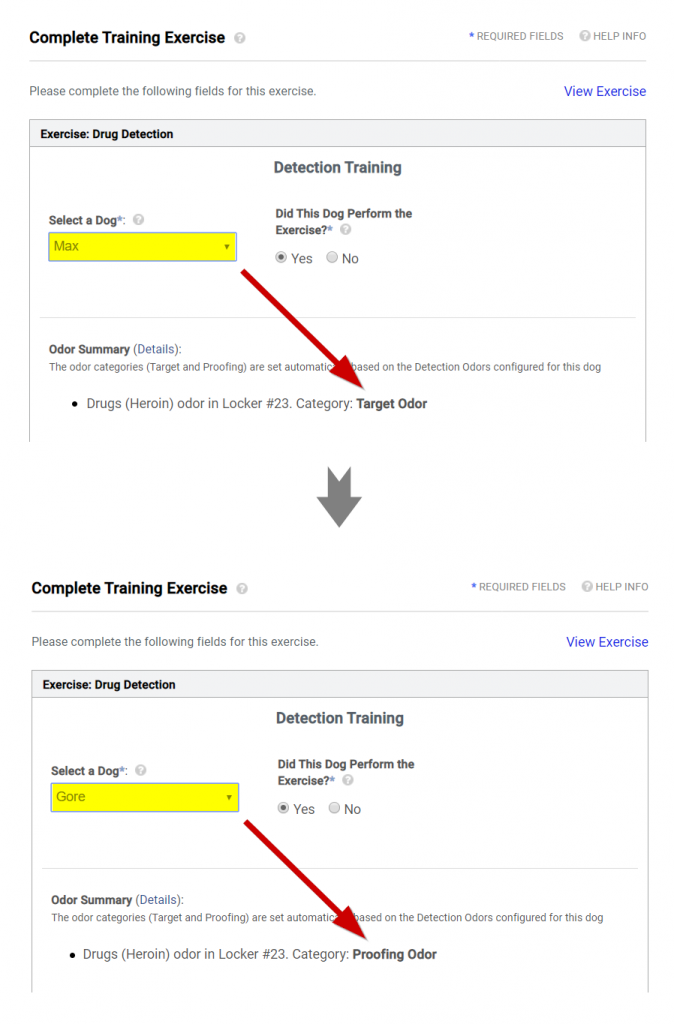
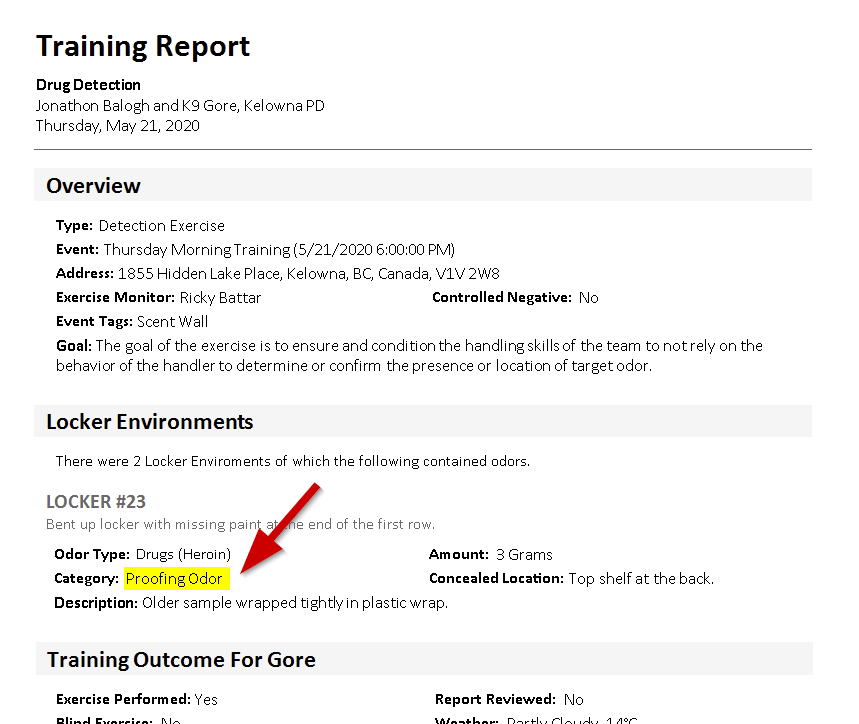
How does this work in practice? For simple exercises nothing should change. Record your target odors in the exercise and you're set. If you're running an exercise that only contains proofing odors then make sure to set the Blank / Controlled Negative checkbox when you create the exercise. This ensures that all detection dogs have to complete it. If the exercise contains both target and proofing odors or there are different types of detection dogs at the event then these changes should make things easier for you. As in the past, when creating the exercise you should explicitly specify the proofing odors which you want all detection dogs to ignore (towels, cardboard, etc.). Next, enter all of the odors that will be target odors for at least some of the dogs. That's it - PACKTRACK should take care of categorizing the odors as target or proofing for each of your dogs based on their attributes. For example, you might add drug and currency odors to an exercise. Now, when a drug dog completes this exercise they will have the drug odor categorized as the target and the currency odor categorized as proofing. A currency dog completing the same exercise will have the currency odor categorized as the target and the drug odor categorized as proofing. Of course, both dogs will continue to see any explicitly added proofing odors (dog toy, cardboard, etc.) categorized as proofing. Information about how the exercise odors are categorized is displayed when you complete your training record to help you write an accurate narrative (see previous screenshots). The odor category is also shown in your exercise report. The report screenshot below shows that drugs were categorized as a proofing odor for currency dog 'Gore'.
Conclusion
We're really excited about this update. The new Dogs interface extends the design which started earlier this year with a modernized site layout and interactive handler home page. We're eager to migrate other areas of PACKTRACK to this new design over the coming months to enable new features and make the system easier to use. The new dog type settings are aimed at making the system smarter and more automated. With this change we expect there will be fewer occasions where you'll need to complete a training record by specifying that the exercise didn't apply to your dog. Meanwhile, automatic odor categorization streamlines how exercises are created for detection dogs. All dogs completing the same exercise will have odors categorized as target or proofing automatically based on their detection odor settings. Let us know what you think of these changes. We'd love to hear from you.
System Update
0
min read
PACKTRACK Has a New Look
We're continually updating PACKTRACK to fix bugs, add new features and refine how things work. Our goal is to make K9 record keeping as easy as possible while providing robust and helpful tools to give you the activity tracking you need. With this update we've begun a new initiative to rework PACKTRACK's online interface to be simpler, more modern and flexible enough to be used on any device. Over the next year we're planning to integrate several new technologies and add exciting new features to the system. We also intend to increase the functionality of our mobile K9 tracking apps so you can do more on the go.
We're continually updating PACKTRACK to fix bugs, add new features and refine how things work. Our goal is to make K9 record keeping as easy as possible while providing robust and helpful tools to give you the activity tracking you need. With this update we've begun a new initiative to rework PACKTRACK's online interface to be simpler, more modern and flexible enough to be used on any device. Over the next year we're planning to integrate several new technologies and add exciting new features to the system. We also intend to increase the functionality of our mobile K9 tracking apps so you can do more on the go.
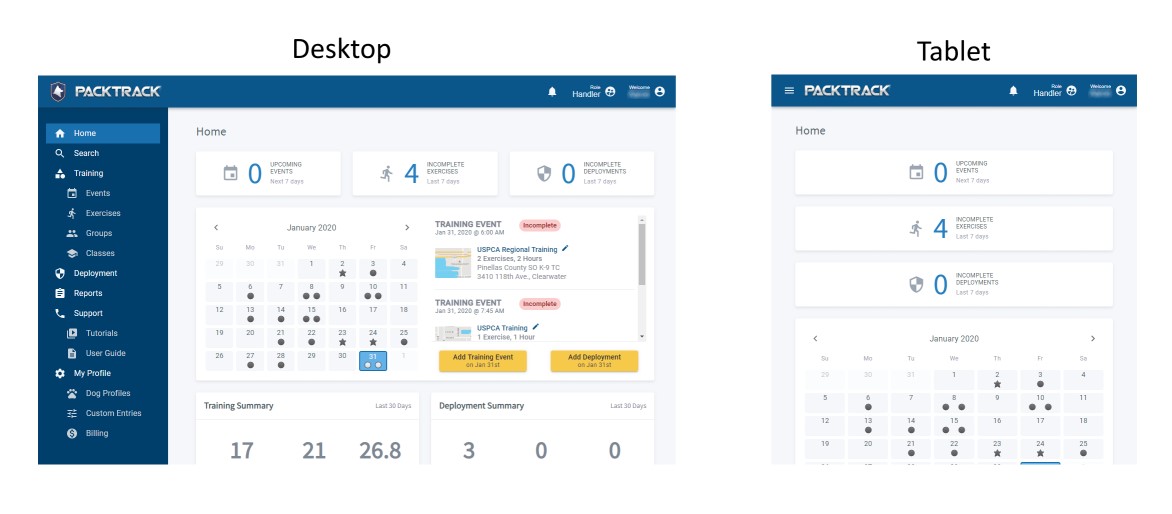
The first change you'll notice is that the menus look different. This updated layout offers a more contemporary design but also provides PACKTRACK with more flexibility to adapt to different device sizes. We expect handlers that login to the PACKTRACK site on their phones and tablets to have a significantly better experience with these changes. It's recommended to download the
iPhone and Android apps if you want to use PACKTRACK on your phone. However, if you need to access the full mypacktrack.com website in the field then it's nice to know that you can login from your phone's web browser.
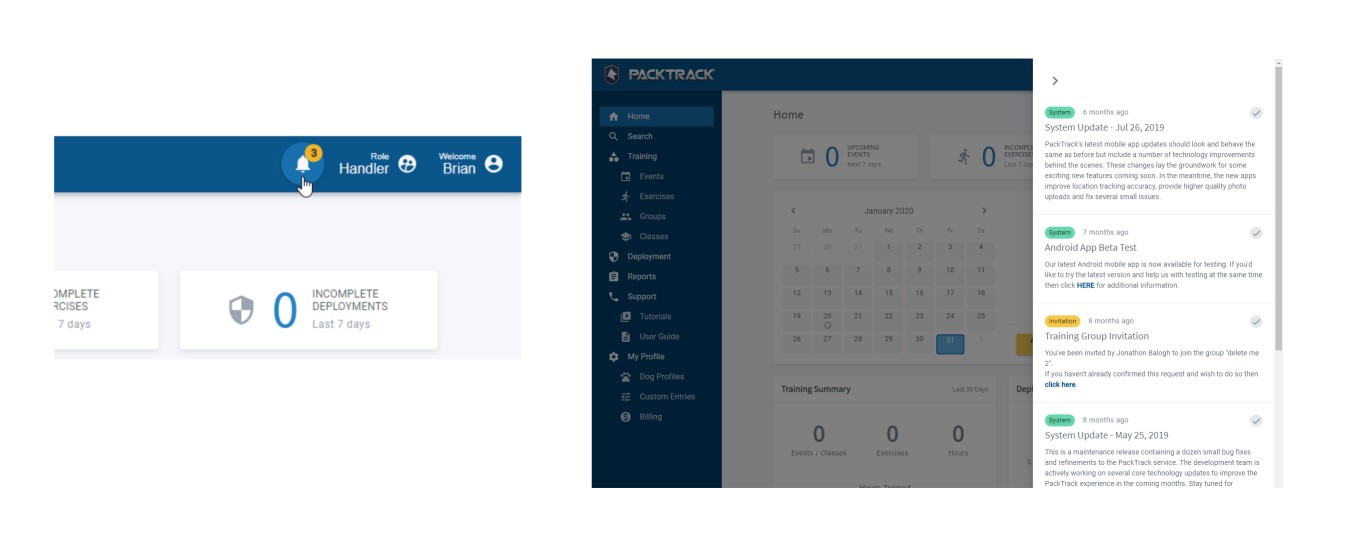
PACKTRACK has always had a notification system to alert you to important events including invites, system updates and billing warnings. We've moved system notifications to a dedicated bell icon in the title bar at the top of the page which tells you when there are unread messages. Click the bell icon to expand your notification list and click outside of the notification list to hide it. Once you've read a message and wish to dismiss it simply click the notification's check mark.
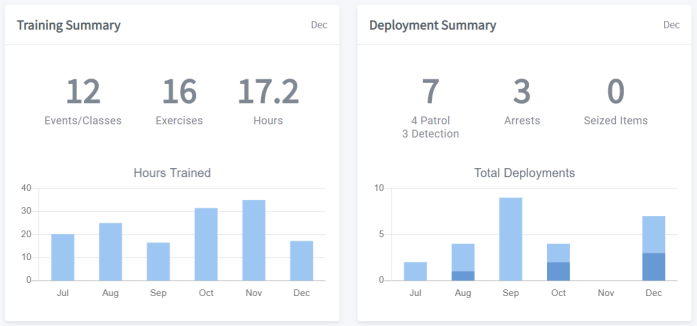
There's now a new home page for K9 handlers. The banner statistics at the top provide a convenient place for K9 officers to track incomplete exercise and deployment records as well as upcoming training events. Click any of these banners to see a list of associated canine records. At the bottom of the page are graphs and metrics which provide a nice overview of your monthly training and deployment activities. The graphs show monthly totals across the last 6 months for your training hours and deployment counts. The large numbers above the graphs summarize your statistics for the Last 30 Days. To view your metrics for any month just click on the bars in the graph. Reset the metrics back to the Last 30 Days by clicking the title bar above the numbers.
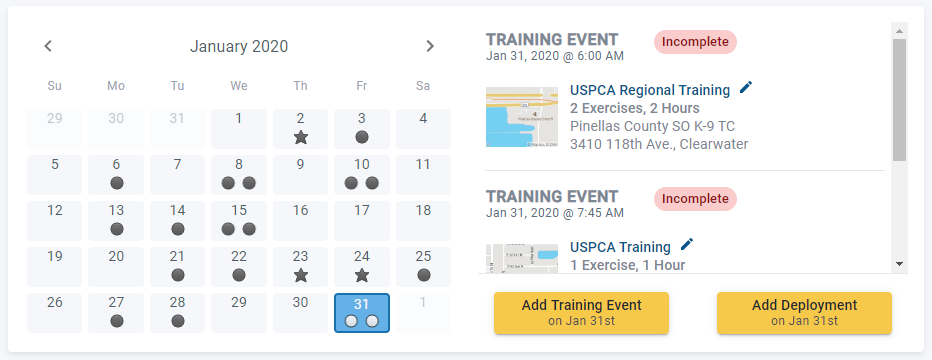
There's also a new calendar view displayed in the middle of the handler home page. This provides a new way to review, edit and add new records to PACKTRACK, but it's completely optional. Each calendar date displays a star for K9 deployments and a circle for your training events. If the star or circle is an outline only (not filled in) then the record is incomplete. This gives you a bird's eye view of your dog's activities each month. Clicking a calendar date will show a list to the right of the calendar with any deployments or training events that occurred on that date. Click the links in the list to view your K9 reports or edit your records. You can also add new records from the home page. Simply click the appropriate date in the calendar and then press the Add Training Event or Add Deployment button. This will take you right to the data entry form where you can add a new record for that date. We've been working on these changes for a while and we're really excited to share them with you. This is only the start. We plan to continue to refine the PACKTRACK interface to make it easier to use and more informative. Let us know what you think!
System Update
0
min read
Improved Exercise Location Tracking
Last month we reworked how K9 location tracking works on the iOS and Android mobile apps. This new update makes it significantly easier to both lay and follow tracks without having to configure everything ahead of time.
Last month we reworked how K9 location tracking works on the
iOS and Android mobile apps. This new update makes it significantly easier to both lay and follow tracks without having to configure everything ahead of time. For the best results, please update to the latest mobile app version (4.2.x or later). Important Note For iPhones: iOS 13 changes how location permissions work. Even if you've said yes to the prompts which ask for location permissions you should still open the Settings app and go to Privacy / Location Services / PACKTRACK and make sure the permission is set to ALWAYS. If this isn't set correctly then PACKTRACK won't be able to track your position in the background.
Lay tracks without a PACKTRACK account
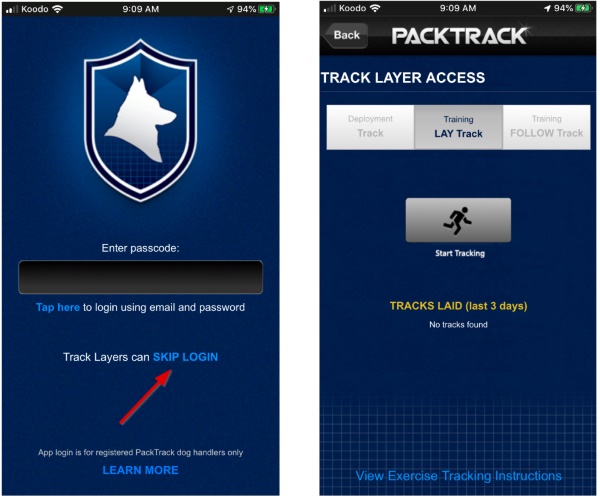
You no longer need to login to the mobile app with a PACKTRACK account in order to lay tracks. Anyone can install the app and, using the SKIP LOGIN option on the login page, jump right into track laying.
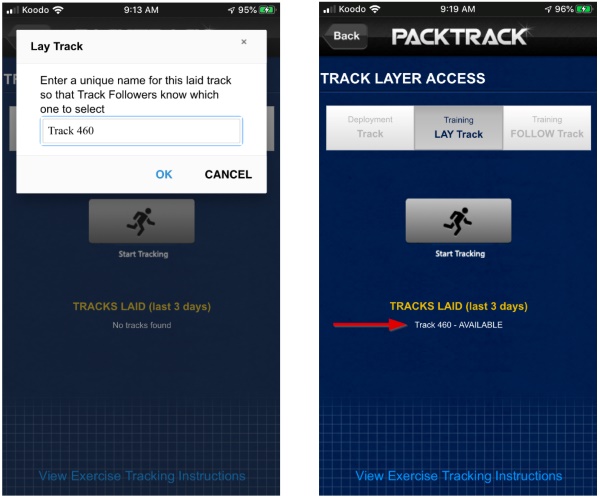
When the Track Layer taps the Start Tracking button they will see a dialog where they can enter a unique track name or accept the default. After tapping OK, the Track Layer should confirm that their location is updating before they begin the track. When the track is complete the app will show that this track is now AVAILABLE to be followed.
Follow tracks by scheduling a tracking exercise
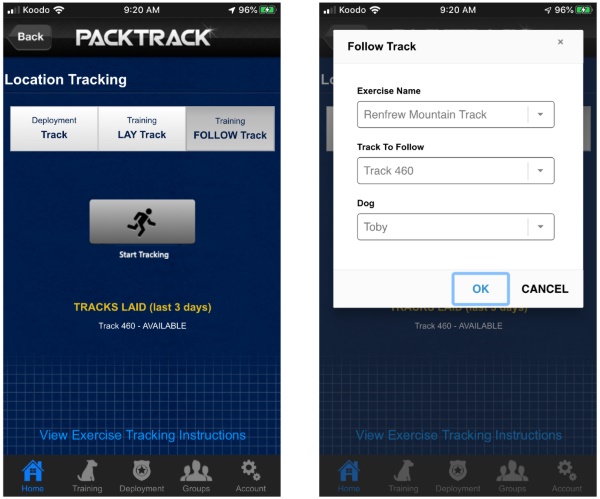
If you're comfortable with how tracking has worked in the past then you can continue to use the system as you always have. First, create an event, which defines the time, place and group members who will be attending. Next, add one or more location tracking exercises to the event. This process should be completed on the web site or mobile app before the event begins. Later, when you're at the event and ready to start following a track, simply select the FOLLOW Track mode at the top and then tap Start Tracking. Verify that the Exercise, Track Name and Dog are correct and then tap OK to start following the track. NOTE: If there's only one exercise or you only have one dog then those dropdown fields won't appear in the dialog.
Follow tracks by creating a tracking exercise automatically
You can now record training tracks "on the fly" without scheduling an event or creating an exercise ahead of time. If there's a laid track available within 500 yards of your current location then you'll see it displayed in the Tracks Laid list. Select the FOLLOW Track mode at the top of the location tracking page and then tap Start Tracking. Confirm that this is the track you want to follow by tapping OK in the dialog. You'll also have the option of choosing your dog if you have more than one.
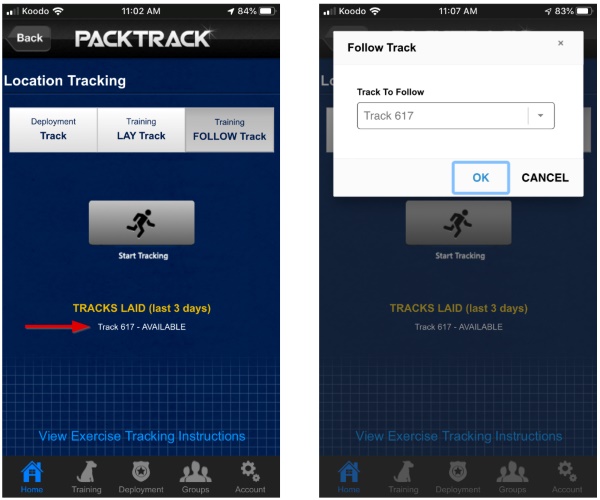
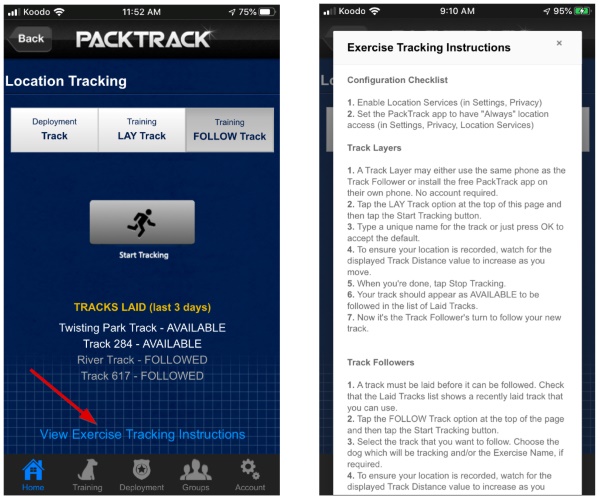
When the track is complete the status of the track in the Tracks Laid list will change from AVAILABLE to FOLLOWED. Tracking exercise records are created automatically and either 1) inserted into the current event (if there's already an event at this time and you're the only event member) or 2) added to a new event that will also be created automatically for you. We make certain assumptions when creating the event and exercise automatically. Always review these training records after completing your exercise to update any additional fields and ensure the information was captured correctly. If you need a reminder about how K9 tracking works there's an instruction link at the bottom of the Location Tracking page.
Explore PACKTRACK
Get a closer look at record keeping, reporting, unit oversight, training groups, and integrated GPS track mapping, and see how it fits into your workflow.