

Supervisor Manage Page
Manage handlers and unit settings from one place


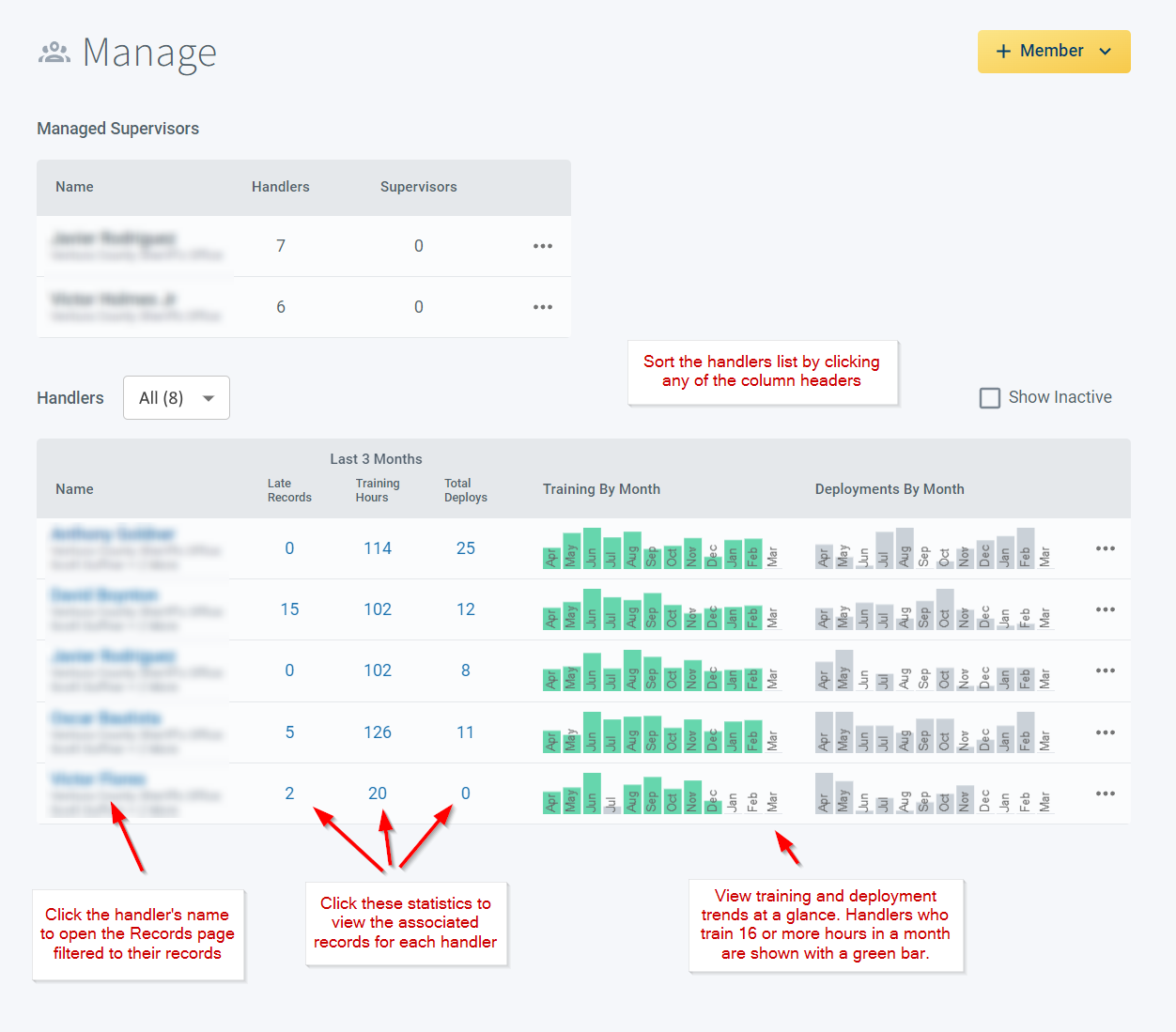
The member management page provides a simple summary of each of your handler’s activities. Invite or sign up new members using the +Member button in the upper right.
Handlers table
Use the Handlers table to review and compare performance. You can click on a column header such as Training Hours or Total Deployments to sort the table the way you want. Clicking on a handler’s name or one of their statistics will open the Records page filtered to show those records.
Handler options menu
Each handler row has a three-dot menu on the far right that opens a list of options:
- Profile — view or update the handler’s profile details
- History — see the handler’s record edit history
- Dogs — view or update the handler’s K9 settings
- Billing — access the handler’s subscription and invoices (this is where you go to pay for a handler or retrieve a receipt on their behalf)
- Remove — remove the handler from your managed list
If you need to pull an invoice for a specific handler, the Billing option in this menu is the quickest way to get there. See the I Need a Receipt for One of My Handlers guide for the full steps.
Monthly activity charts
The bar charts in this table offer a snapshot of training and deployment activity for each handler by month. This makes it easy to spot issues with things like training consistency. Green bars in the Training By Month column show months where the handler has trained for 16 or more hours.
Frequently Asked Questions
Can I sort the Handlers table by different columns?
Yes. Click any column header (Training Hours, Total Deployments, etc.) to sort the table by that metric. Clicking the same header again reverses the sort order.
What does the green bar mean in the Training By Month column?
A green bar means the handler logged 16 or more training hours that month. Bars that aren’t green fall below that threshold, which can help you identify handlers who may need more training time.
Can I click on a handler’s stats to see the underlying records?
Yes. Clicking a handler’s name or any of their statistics opens the Records page filtered to show exactly those records.
How do I add a new handler to my unit?
Click the +Member button in the upper right of the Manage page. You can invite an existing PackTrack user or sign up a new handler from there.
How do I access billing or pull an invoice for one of my handlers?
Click the three-dot menu on the far right of the handler’s row in the Manage page, then select Billing. This opens the handler’s Billing Portal where you can view, download, or print any of their invoices.

Still need help?
Can't find what you're looking for? Message the PackTrack team from the chat inside the app, or reply to any PackTrack email.